

An AI document reader uses AI to help you read a file. Depending on the tool, it can pull out text, sum up a file, answer questions, translate text, or read it aloud.
The best choice depends on the job.
Use Atlas when the answer needs cited proof you can open in the source. Use ChatPDF for fast one-PDF chat. Use NoteGPT or Noteey for light PDF reading and text pickup. Use Adobe Acrobat AI Assistant when your work already lives in Acrobat. Use Paper2Audio or ReadLoudly when listening is the main task.
For important work, treat each answer as a draft until the source backs it up. A clear summary can still miss a warning, misread a scan, or link to text that does not prove the claim. Ask your question, open the source, read the cited text, and then decide whether to use the answer.

Read documents with answers you can verify
Add a document, ask a focused question, and open citations to check the source.
What to look for
AI document readers cover more than PDF chat. Some pull text from scans. Others answer questions, sum up a file, translate it, or read it aloud.
People use these tools for different jobs. A student may need the main points from a paper. A lawyer may need a contract clause. A manager may need to check a policy against a list. A commuter may want to hear a long report.
Before you compare feature lists, decide what the tool must do with your files:
- Links to the source: Can you open the exact text behind a claim?
- Scanned files: Can it read image-only PDFs, poor scans, tables, handwriting, and odd page layouts? Tools often call this OCR.
- Number of files: Does it work with one upload, a set of files, or findings drawn from several sources?
- File types: Does it read only PDFs, or can it also use web pages, notes, papers, ebooks, videos, and other files?
- Private files: Do its current terms, storage rules, and team controls fit the data you plan to upload?
- What happens next: Can you save the answer as a note, table, cited draft, map, or part of the same project?
AI document reader comparison matrix
This table separates the main reader jobs instead of ranking every feature on the same axis.
| Tool | Best fit | Source-check support | Watch for |
|---|---|---|---|
| Atlas | Cited document questions and synthesis across project sources | Citation badges link answers back to source passages for inspection | Not a PDF editor, audio reader, or dedicated OCR product |
| NoteGPT | Browser-based PDF reading and extraction | Good for quick extraction. Verify current citation behavior before relying on it | Test scanned files against your own OCR needs |
| ChatPDF | Fast upload-and-ask workflows for one PDF | Useful for quick questions over one uploaded PDF | Not the best fit for durable multi-source evidence trails |
| docAnalyzer | Larger document libraries and source-grounded workspaces | Positions around clickable citations and document-viewer evidence | Refresh OCR, model, limit, and enterprise claims before publishing exact details |
| Noteey | Lightweight AI PDF reading | Treat it as a fast reader unless current evidence shows deeper citation controls | Do not infer OCR, privacy, or multi-document behavior without checking |
| Adobe Acrobat AI Assistant | Acrobat-centered PDF review | Cited responses can be reviewed against the source document | Test difficult scans, visual layouts, and non-Acrobat workflows |
| Paper2Audio | Listening to papers, ebooks, web articles, and long text | Audio helps orientation but is not source-grounded Q&A | Not a citation-first document analysis tool |
| ReadLoudly | Listen-while-reading and browser-based document audio | Useful for reading support and audio workflows | Check whether answer claims can be traced back to passages |
Table 1: The tradeoff is usually between speed and traceability. A fast reader can help you get oriented, but a cited workspace is better when the answer has to survive review.
If source links are the reason you are comparing AI document readers, use the matrix as a shortlist. Then verify the answer path before accepting a claim.
Verify an AI document answer in Atlas
Atlas fits work where each answer must stay tied to the source. Add files to a project, ask about them, and open each source badge to read the text behind the answer.
Use these steps when an answer will feed a note, report, literature review, or decision:
- Add the PDF or supported source to the right Atlas project.
- Wait for upload and processing to finish before asking questions.
- Open the source and check that the pages load. Search for a phrase from the file to make sure its text can be read.
- Ask a clear question that names the source, claim, method, section, or comparison you want.
- Find the source badges on the claims that matter.
- Open each badge and read the marked text.
- Read the nearby paragraph for warnings, limits, or facts that conflict.
- Ask a narrower follow-up if a source is missing or does not fully back the answer.
- Save only the finding and source text you checked.
Atlas may not be the first tool you need. If a file contains only images, has a password, or is a poor scan, start with a clean text copy or an OCR tool that can read text from images.
Atlas works best once it can read the file's text and use it as a project source.
We checked the product pages for NoteGPT, ChatPDF, docAnalyzer, Noteey, Adobe Acrobat AI Assistant, Paper2Audio, and ReadLoudly. An ElevenReader roundup and Sopact guide helped us compare tools for reading, listening, pulling out text, and checking sources.
Best AI document reader tools
1. Atlas
Atlas is the best fit when you need an answer you can check. Add a PDF or other supported source to a project, ask a clear question, and open the source badges to read the text Atlas used.
Students can use Atlas to compare papers, while analysts can check reports and teams can review policies across several files. You can also ask where sources agree, disagree, or support a claim.
Atlas does not edit PDFs, read files aloud, or pull text from every poor scan. If it cannot read the source well, it cannot give you a sound answer. Use it once the file text is clear and you need to check claims against that text.
2. NoteGPT
NoteGPT is a good option for reading a PDF and pulling out its text in a web browser. Its AI PDF reader page shows users adding a PDF, letting AI read it, and then viewing or saving the text. The page says it can also pull text from standard and scanned PDFs.
Choose NoteGPT when you need to read a PDF or pull out its text in a browser. Before using it for research, test whether its source links, saved files, and project setup support the checks you need.
3. ChatPDF
ChatPDF lets you add one PDF and ask about it right away. The ChatPDF product page focuses on papers and journal articles. It fits a simple need: "Help me understand this PDF."
It is mainly built for one file. Use it to get a quick sense of a PDF, then check important answers in the document before you quote them or act on them. Test another tool if you need a lasting source trail or team review.
4. docAnalyzer
docAnalyzer is built for questions that link back to the source. Its product page shows source links that open a file viewer. It also lists support for larger file sets, model choice, OCR, separate customer data, and work done in batches.
Consider it when you have many files and want answers with source links. Check its current page for plan limits, model choices, OCR language support, and business features because those details can change.
5. Noteey
Noteey is a simple AI PDF reader for quick reading. Consider it when you want to open a PDF and ask basic questions with little setup.
Before using it for research, check whether it shows the source text, lets you save the result, and has the file controls you need.
6. Adobe Acrobat AI Assistant
Adobe Acrobat AI Assistant fits people who already review PDFs in Acrobat. Adobe lists file summaries, questions, outlines, key points, answers with source links, and PDF Spaces. These tools sit inside the Acrobat product family.
Choose Adobe when you want to review, move through, or ask about a PDF in Acrobat. Check each answer against the file, especially when it has a complex layout, scanned pages, tables, or private content.
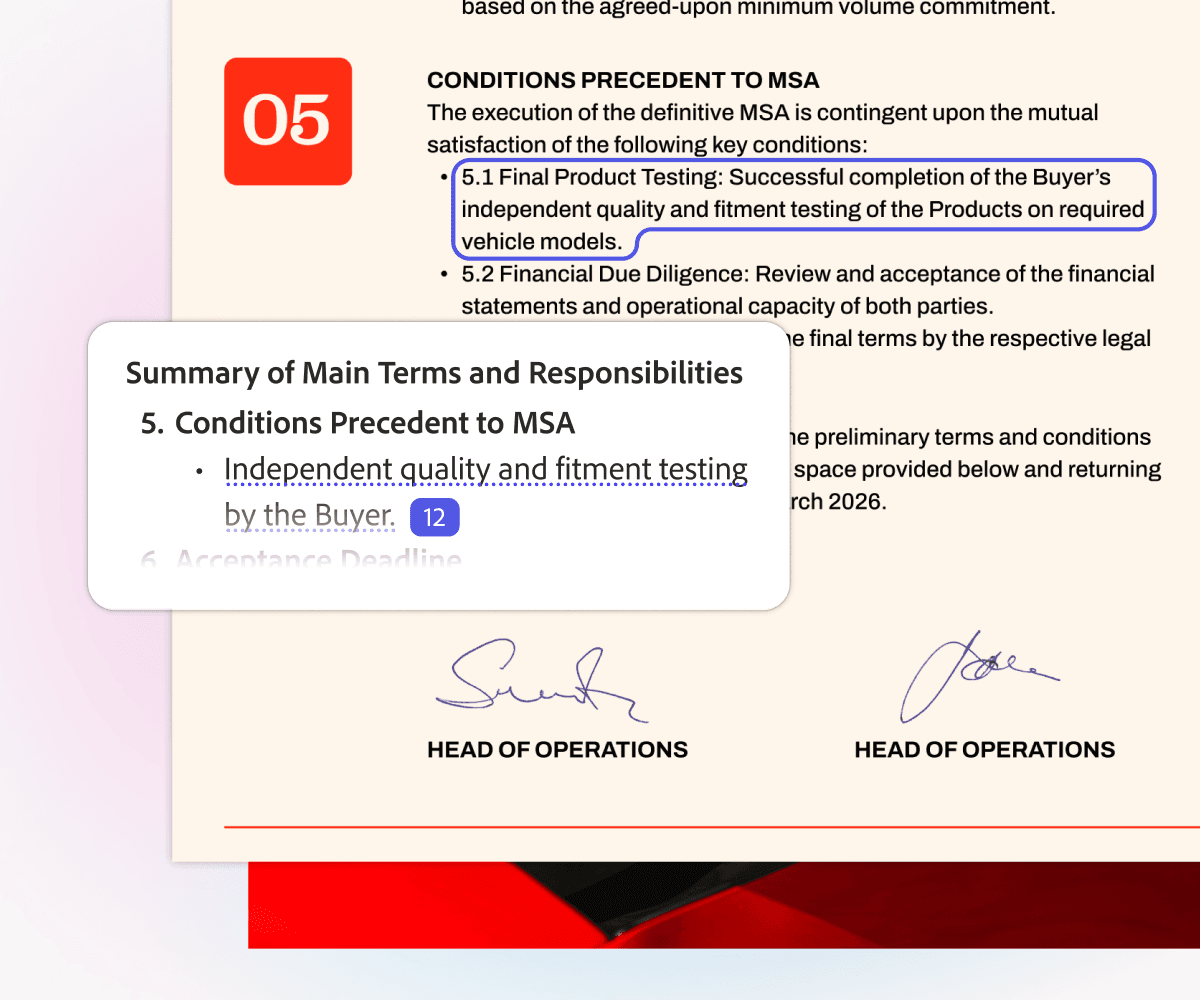
Adobe's screenshot shows marked PDF text beside an AI summary with a numbered source link. Read the marked text before you decide whether the summary is true to the file.
7. Paper2Audio
Paper2Audio turns papers, ebooks, web pages, and other text into speech. Its product page shows a good fit for people who want to listen on a commute or hear a file before they read it closely.
It is not the main tool for questions with source links. Listening can help you learn what a file covers, but you still need to read the text before using its claims.
8. ReadLoudly
ReadLoudly can read files aloud and offers PDF chat, highlights, bookmarks, and a web reader. Its product page fits people who want to listen and move through a file before doing deeper research.
Use it when listening is the main job. For close research, check whether each answer links to the source text and whether you can carry that context into your notes.
Document reader limitations to check
AI document readers often fail in the same places. Check these risks by hand.
Extraction and layout risk
- Scanned files: Image-only PDFs may need OCR before the AI can use the text reliably.
- Visual layouts: Tables, columns, footnotes, figures, and sidebars can be read out of order.
- Page numbers: A PDF's file page and printed page label may differ. Search for nearby text to find the claim again.
Evidence and privacy risk
- Weak source links: A link can point to related text that does not prove the AI's claim.
- Long summaries: A summary may skip warnings, methods, exceptions, or less common findings.
- Private files: Read the vendor's terms before you upload contracts, client records, health files, finance files, or private policies.
- Other file types: A tool that works on clean PDFs may fare worse with web pages, ebooks, scanned reports, or slide decks.
Citation-traceability checklist
Use this short check for important claims:
- Can I open the original document from the answer?
- Does the cited passage directly support the sentence?
- Does nearby context weaken or qualify the claim?
- Can I search for a phrase from the cited passage?
- Are claims with no source kept apart from the claims I checked?
- Can I save the finding with enough source text to check it again?
Which AI document reader should you choose?
Start with what can go wrong if the tool gives you a bad answer.
For a quick skim of one PDF, use a simple reader such as ChatPDF. Start with Adobe Acrobat AI Assistant if your PDF work already happens in Acrobat. Use Paper2Audio or ReadLoudly when you want to listen. For a poor scan, test how well the tool reads its text before you trust the summary.
Choose Atlas when an answer needs a source trail. Add the file, ask a clear question, open the source badge, and read the text. When one file is not enough, ask Atlas to compare the sources in the project.
For related tasks, see chat with PDFs, organize PDFs, and legal document AI. We also cover meeting transcripts, AI summaries of legal files, organizing legal files, and organizing videos.
Read documents with answers you can verify
Add a document, ask a focused question, and open citations to check the source.