
Best Chat PDF Tools for Research Documents and Source Checks
Chat PDF tools compared for cited answers, multi-PDF support, OCR limits, privacy, and research workflows, with Atlas positioned for verifiable PDF Q&A.
- Byline

Summary
As of July 2026, Atlas fits cited multi-PDF research. ChatPDF fits one-file Q&A. Acrobat fits review. SciSpace fits papers.
Choose the tool that opens the source passage. Check nearby context before you reuse the answer.
Compare source links, multi-file support, OCR risk, privacy terms, and PDF inspection.
If you searched for "chat PDF," you probably do not need a generic AI chatbot. You need a way to upload a PDF, ask questions about it, and check whether the document supports the answer. For a source-checking buyer list on the exact AI PDF chat workflow, compare the best AI PDF chat tools.
My filter is CITE: citations, source checks, text risk, and fit. A Chat PDF tool should make the source trail easy to inspect. That matters before you reuse an answer in notes, client work, or research.
That standard is stricter than "the answer has citations." A 2023 source-checking study found that fluent AI answers can still include weak citations. Chat PDF answers deserve the same caution.
The best Chat PDF tool depends on what you need to do with the document:
- Use Atlas when the answer needs citations you can inspect across a source set.
- Use ChatPDF when you want a fast single-purpose PDF Q&A interface.
- Use Adobe Acrobat AI Assistant when the PDF is already part of Acrobat review, commenting, signing, or editing.
- Use SciSpace when the document is an academic paper and you want research-reading help.
- Use AskYourPDF when you want a broad PDF chat tool with plugin-style options.
The important test is not whether the tool produces a confident answer. The important test is whether you can open the source passage, read the neighboring context, and decide whether the answer is safe to use.
Quick verdict
Choose Atlas when the PDF answer has to support research notes, client work, or a source-backed decision across more than one file. Choose ChatPDF for quick one-file Q&A. Choose Acrobat when review and editing are part of the job. Choose SciSpace when the PDF is mainly a research paper.
For source-heavy research, Atlas is the strongest fit. It is built around narrow questions, cited answers, and source checks. A grounded question can return citation badges that open exact passages in your project sources. Inspect the passage before trusting an important claim.
For quick single-PDF questions, ChatPDF and similar upload-and-ask tools are faster to understand. ChatPDF centers its page on chatting with PDFs and other files. It also talks about cited sources and side-by-side checks. If you read one contract, manual, report, or lecture note at a time, that narrower path may be enough.
For PDF editing and review, Adobe Acrobat AI Assistant fits better than a standalone PDF chat app. It sits inside Acrobat. If the PDF needs page order changes, comments, signatures, sharing, or upkeep, Acrobat has the advantage.
For academic papers, SciSpace is worth comparing. Its Chat PDF product is framed around papers, summaries, citations, and reading help. A summary can help you triage a paper. The evidence still lives in the paper.
What to look for
Most Chat PDF pages sell the same upload-and-ask promise. That promise helps, but it hides the checks that matter. Those checks matter when the answer will support research, client work, legal review, policy work, or a final source note.
Use these criteria before trusting a PDF chat tool.
| Criterion | What to check | Why it matters |
|---|---|---|
| Citation inspectability | Can you open the exact page or passage behind an answer? | Page numbers and vague references are not enough when the claim matters. |
| Source scope | Does the answer use one PDF, multiple PDFs, or a full project source set? | A tool can be good at one-document Q&A and weak at cross-document synthesis. |
| PDF extraction quality | Does it handle selectable text, scanned PDFs, tables, figures, and unusual layouts? | Bad extraction leads to weak retrieval and misleading answers. |
| Verification path | Can you read nearby context, search inside the PDF, and revise the answer? | A correct-looking answer can still overstate what the source says. |
| Privacy and retention | What does the vendor say about uploads, training, sharing, deletion, and account controls? | Sensitive PDFs need vendor-policy review before feature comparison. |
| Workflow depth | Can findings become notes, maps, exports, or cited synthesis? | Research work rarely ends with one answer. |
| Current limits and pricing | What are the upload limits, page limits, model limits, and plan restrictions today? | PDF tools change limits often. Refresh exact claims before buying. |
Table 1: For source-heavy PDFs, I would use a second pass before choosing a tool. This is the scorecard I would use when the file contains client data, research evidence, scanned pages, or claims that may end up in a final memo.
| Check | Pass condition | Do not accept |
|---|---|---|
| Sensitive files | The vendor states how uploads, retention, deletion, and training are handled | A vague "secure AI" claim with no policy path |
| File support | The tool names the file types, page limits, and upload limits you need | A demo that works only for small PDFs |
| OCR and scans | The tool explains how it handles scanned or image-based PDFs | Answers from pages the tool could not search well |
| Multi-file work | The tool can answer across the full set you need | A one-file chat when the claim depends on several PDFs |
| Language fit | The tool supports the document languages you will upload | A model answer that ignores source-language limits |
| Source export | The answer, note, or source link can move into your research notes | A chat transcript with no usable source trail |
Table 2: This scorecard adds checks that many PDF chat demos skip. Review privacy terms, file limits, OCR risk, multi-file scope, language support, and reuse of the source trail.
For this article, I treated product pages as claims that need checking. The current official pages fall into a few access patterns. Some tools lead with a web upload. Some add browser or mobile access. Adobe keeps AI close to the Acrobat document workspace. If the document is private, policy review comes before access convenience.
Limits, OCR, apps, and languages
This is the live-check list. It covers file types, languages, OCR, devices, browser extensions, mobile apps, and export paths.
Before buying, check the live limits.
- For privacy and security, check how files are stored, deleted, shared, and used for training.
- For file support, check the formats and languages you need.
- For plan limits, check file size, page count, upload, model, and plan caps.
- For OCR, test a scanned PDF before trusting summaries or source links.
- For device fit, check web, desktop, mobile app, browser extension, and export support.
The SciSpace page advertises broad language support. AskYourPDF publishes extension and app access. Adobe describes mobile AI Assistant and PDF Spaces. Treat those pages as starting points. Then check the current plan page and terms before uploading real work files.
For Adobe, check whether you need AI Assistant by itself. You may need the broader Acrobat set of online tools for editing, comments, signing, and sharing.
For scanned PDFs, make OCR the first test. Uploading a clean text PDF and uploading a scan are different tasks. If the tool cannot find text reliably, citations and summaries will be weak no matter how polished the answer sounds.
Manual source audit
I checked current product pages and documentation on July 5, 2026. Then I scored each tool with a CITE rubric: Citations, source checks, text risk, and fit. I used official pages for product claims and Atlas documentation for Atlas capability boundaries.
Sources checked:
| Source | Why it matters |
|---|---|
| Atlas grounded questions docs | Narrow questions can return citation badges that open source passages |
| Atlas citation system docs | Citations are evidence links that need reader review |
| Atlas PDF viewer docs | The viewer supports page jumps, search, citation jumps, zoom, and split-view reading |
| ChatPDF | The page shows the fast upload-and-chat product framing |
| Adobe Acrobat AI Assistant | Adobe describes document Q&A, summaries, citations, Acrobat tools, and infrastructure handling |
| SciSpace Chat PDF | SciSpace describes citation-linked PDF answers, paper reading, language support, and no-data-training messaging |
| AskYourPDF | AskYourPDF lists PDF chat, browser access, app downloads, and integrations |
| Nelson F. Liu, Tianyi Zhang, and Percy Liang | Their 2023 source-checking study supports the caution that fluent AI answers and citation-looking links still need source checks |
Table 3: This source-audit table is a claim-control layer. I did not assign accuracy scores because I did not run the same test PDF through every tool under controlled conditions.
I did score the tools on observable product-claim fit. Each CITE dimension gets 0, 1, or 2 points from the public evidence above. A tool gets 2 when the source gives a clear path instead of a vague AI claim.
| Tool | Citations | Inspection path | Text extraction risk disclosure | Ecosystem fit | CITE read |
|---|---|---|---|---|---|
| Atlas | 2 | 2 | 1 | 2 | Strongest for source-backed research once PDFs are inside a project |
| ChatPDF | 1 | 1 | 0 | 1 | Strong fast-start choice, but refresh limits and policy details before sensitive use |
| Adobe Acrobat AI Assistant | 2 | 2 | 1 | 2 | Strongest when AI belongs inside Acrobat review, mobile reading, or PDF editing |
| SciSpace Chat PDF | 2 | 1 | 1 | 2 | Strong for academic paper reading and language-heavy research triage |
| AskYourPDF | 1 | 1 | 0 | 2 | Strong access surface, especially when extension, app, or integration fit matters |
Table 4: This CITE matrix is the article's original analysis layer. It rewards tools that make verification visible. It does not claim that one model is more accurate than another on unseen PDFs.
Before uploading private or paid-work PDFs, ask five policy and limit questions.
- Does the vendor say whether uploaded files are used for model training?
- Can you delete files, chats, and account data?
- What file size, page count, and upload limits apply to your plan today?
- Does the tool support the file type, language, scan quality, and number of documents you need?
- Can you export or preserve the answer with enough source context to audit it later?
These questions matter more than testimonials. A tool can be popular and still be wrong for confidential files, large scans, multilingual evidence, or paid work that needs an audit trail.
Chat PDF tools compared
This table is about fit. Match the tool to the PDF task. Refresh pricing, limits, and vendor terms before you buy.
| Tool | Best fit | Source verification | Main caveat |
|---|---|---|---|
| Atlas | Cited questions across PDFs and other project sources | Citation badges link back to source passages. The PDF viewer supports citation jumps, page navigation, search, zoom, and split-view reading | Strongest after sources are in a project. It is built for research verification rather than bulk PDF editing or OCR repair |
| ChatPDF | Fast PDF chat for individual files and lightweight document Q&A | Official positioning includes cited sources and side-by-side verification | Exact limits and plan details need current refresh |
| Adobe Acrobat AI Assistant | PDF Q&A inside Acrobat reading, reviewing, or editing | Acrobat is the natural place to inspect and continue working with the PDF | Best for Acrobat users who already review and edit PDFs there |
| SciSpace Chat PDF | Academic paper reading and paper summaries | Positioned around citation-backed answers and research-paper chat | Summaries still need method, result, and limitation checks |
| Smallpdf Chat with PDF | Quick online PDF chat in a familiar PDF utility suite | Useful for lightweight document questions | Treat it as a convenience tool unless source inspection is strong enough for the document |
| AskYourPDF | Broad PDF chat and integration-oriented options | Useful when the user wants a general PDF AI app | Refresh integrations, privacy, and limits before comparison claims |
Table 5: This table separates one-file chat, Acrobat review, paper reading, and Atlas source-backed research. If you need to pick a document AI system, use the document AI tools comparison next.
The table shows the main tradeoff. A narrow PDF chat tool can be faster for "What does page 12 say?" A source-grounded workspace is better for "Which of these five PDFs supports this claim, and what caveat does the source include?"
Best Chat PDF tools
Atlas
Atlas is the best fit when PDF chat is part of source-heavy research. Start with a narrow question. Get cited support. Open the source. Read the passage. Then use the finding in a note, a synthesis, or a follow-up comparison.
Atlas supports three specific behaviors that matter here:
- The grounded-question guide asks users to ask narrow questions and inspect citation badges that open the source passage.
- The citation system treats source links as evidence to inspect.
- The PDF viewer supports page jumps, search when text is available, citation jumps, zoom, and split-view reading.
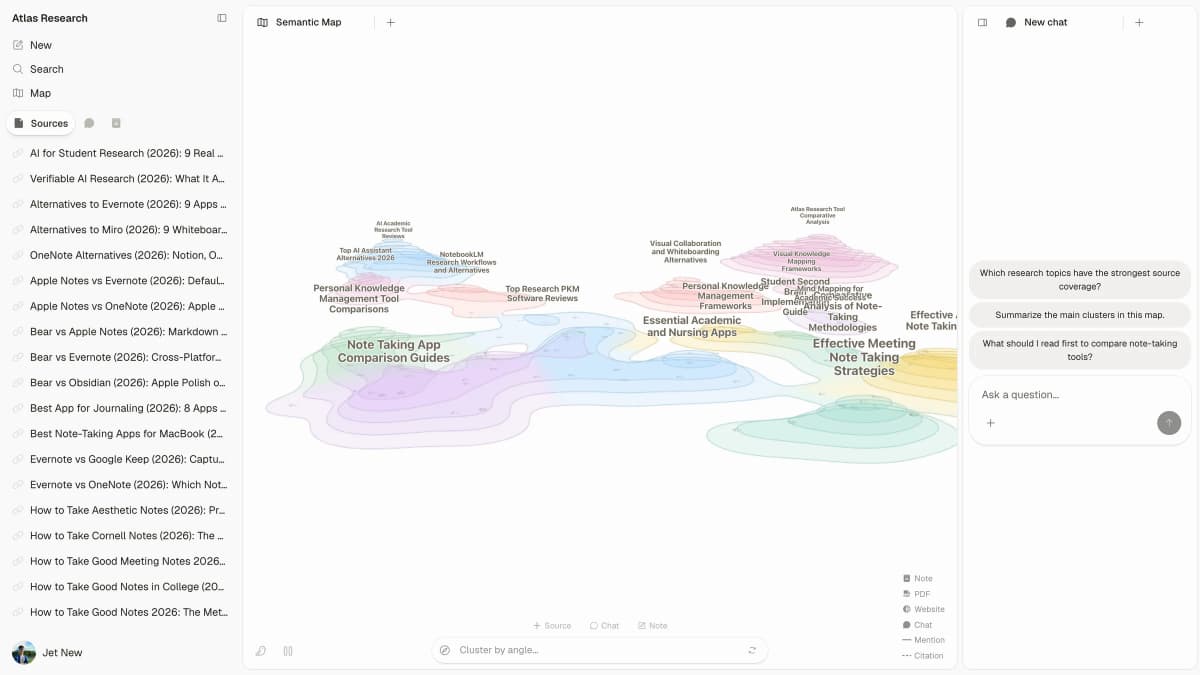
In a Chat PDF workflow, placement is what matters: the answer sits right beside the source set, so the path back to the evidence is always a click away.
That makes Atlas a strong choice for researchers, students, analysts, policy teams, and operators who reuse PDF evidence. It is less useful for page order changes, file compression, signatures, or a quick single-PDF summary.
Use Atlas when you need to ask questions such as:
- "Which paper supports this claim, and what limitation does the author mention?"
- "Compare the methods used in these two reports."
- "Which PDF disagrees with the conclusion in this source?"
- "Show the passage that supports this answer."

 Atlas
AtlasAsk across your PDFs in Atlas
Upload PDFs, compare cited answers, and inspect each supporting passage.
ChatPDF
ChatPDF is the baseline for this keyword because it gives readers the direct upload-and-ask path they expect.
The advantage is speed. A reader can drop in one PDF and ask a few questions. That matters for students, operators, or casual readers who do not want to set up a larger research space.
The caveat shows up when PDF Q&A turns into research. You may need to compare PDFs, keep notes, map ideas, or turn answers into a draft. Check whether the tool supports those next steps before you commit.
If ChatPDF is the product you already know, compare it against other ChatPDF alternatives before assuming one upload-and-ask workflow covers every PDF job.
Adobe Acrobat AI Assistant
Adobe Acrobat AI Assistant is strongest when the PDF is already in Acrobat. You may be reviewing a contract. You may be editing a PDF, collecting comments, or changing page order. If your team already uses Acrobat, it makes sense to keep AI help near the PDF editor.
The buying question is not "Is Acrobat better at chat than every other tool?" The question is whether the chat feature belongs inside a larger Acrobat review, editing, and sharing process. For many business documents, the answer may be yes.
For research-heavy work, check the source path first. Does Acrobat give you enough source checks, cross-PDF work, and export options? If the answer will support a review, client memo, or policy claim, do not let convenience outrank the source.
If Acrobat is attractive because it keeps AI near the PDF editor, compare that job against broader document AI tools. Do that before buying another seat.
SciSpace Chat PDF
SciSpace Chat PDF is a stronger pick when the PDFs are academic papers. Its product page is built around papers, citations, summaries, and scholarly reading. Use it when you need help with abstracts, methods, findings, and limits.
The risk is over-trusting paper summaries. A summary can help with triage. It cannot replace reading the method, result, limits, and source context. For school or research use, check the cited passage. Make sure it supports the exact claim you plan to use.
For literature-review work, pair paper chat with source synthesis. The AI for literature review guide shows the next step so summaries do not become unsupported notes.
Smallpdf Chat with PDF
Smallpdf is best understood as a PDF utility suite with chat added to its file tools. That can help when the reader starts with a light PDF task and wants quick Q&A.
Use it for convenience. Be careful when the PDF answer depends on deep source checks, many PDFs, saved notes, or sensitive files. In those cases, vendor policy, source links, and viewer depth matter more than upload speed.
If the task is mostly organizing, renaming, OCR, or file cleanup, use a PDF organization guide instead of a chat-first tool.
AskYourPDF
AskYourPDF fits the broad PDF AI app category. It is worth checking when you want general PDF chat or integration-style options. Refresh pricing, upload limits, app links, and privacy terms before making exact claims.
The product can be useful for everyday document Q&A. For source-dependent work, use the same standard. The answer is only useful if you can inspect the source passage that supports it.
For source-dependent comparisons, keep PDF chat AI tools and AI tools that cite sources in the same review set.
Buying questions
Use these questions before you upload real files.
- What file limits apply on the plan you will use?
- Does the tool support your file type, page count, and document language?
- Does it support scanned PDFs, or only clean text PDFs?
- Can you use it on the device where you read PDFs most often?
- Does it offer a web extension, mobile app, desktop app, or export path?
- What does the vendor say about data privacy, document retention, deletion, and training use?
- Does the subscription model match how often you need PDF chat?
These buying questions decide whether the tool fits school work, client files, legal review, business reports, or research notes.
Verify PDF answers
Use this source-check sequence.
- Ask a narrow question.
- Require citations or page-level support.
- Open the cited passage.
- Read the neighboring context before using the claim.
Here is what that looks like in practice.
- Instead of asking "Summarize this PDF," ask "What limitation does the paper mention for its main finding?"
- Instead of accepting a paragraph with no source, ask the tool to cite the evidence for each claim.
- Instead of trusting a page number, open the citation and read the source passage.
- Instead of copying the answer into notes right away, read the paragraph before and after the cited text for qualifiers.
This sequence shows how to turn a broad PDF summary into a source check you can trust.
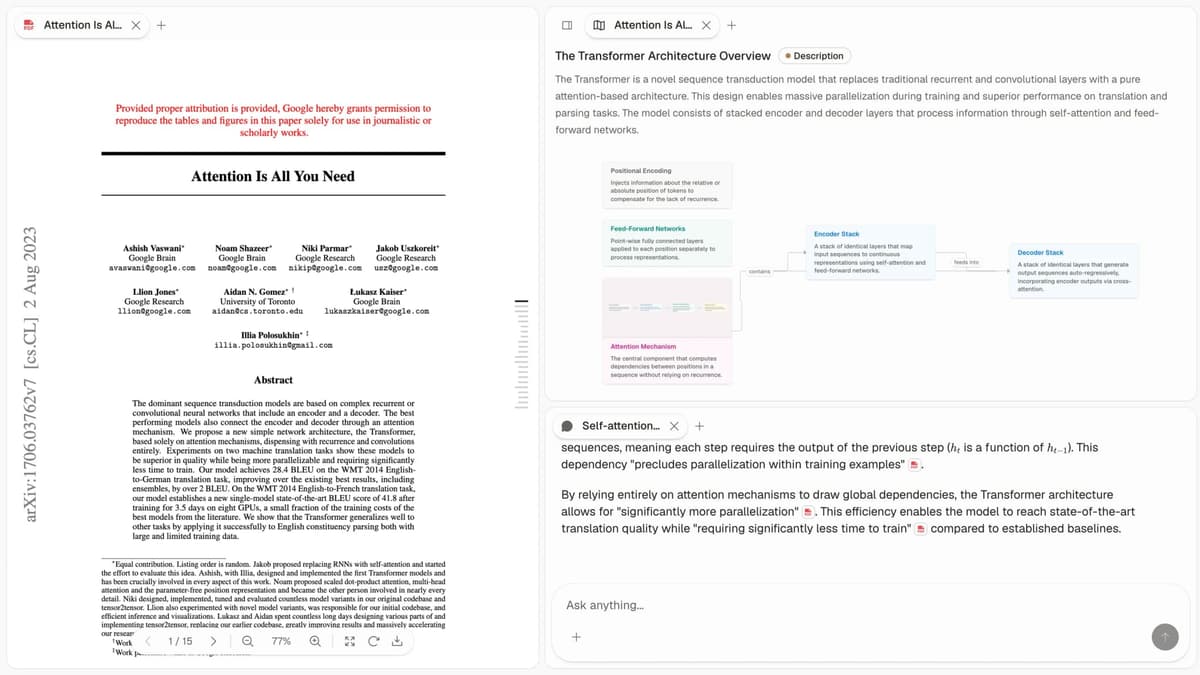
The cited answer sits beside the uploaded files, so you can jump from a claim straight to the passage it came from before you reuse it.
Atlas's PDF viewer docs add an important detail about page references. PDFs can have several page markers. They may show screen page numbers, printed page labels, article page numbers, source anchors, and text locations. Those can differ. When checking a citation, read the opened page and nearby context instead of trusting a page number by itself.
This is also why OCR and text extraction matter. If a PDF is scanned, image-based, oddly formatted, or poorly extracted, search and source links may degrade. A Chat PDF tool can only retrieve from text it can process well. Document-heavy teams may also need intelligent document processing. That category covers extraction, validation, and source-review workflows.
Use prompts that force the tool to expose the evidence path behind the answer.
| Reader | Better Chat PDF prompt | What to verify |
|---|---|---|
| Student | "Which three claims from this chapter are most likely to appear on an exam? Cite the page or passage for each." | The cited passage states the claim directly. |
| Researcher | "What limitation does the paper give for its main result, and where is it stated?" | The limitation appears in the paper's own method, result, or discussion section. |
| Analyst | "Extract the table values that support the trend claim and list the source location for each value." | Table headers, units, and footnotes match the answer. |
| Legal or policy reviewer | "List the obligations in this clause and cite the exact language for each one." | The answer does not merge separate clauses or skip exceptions. |
| Operator | "Turn the procedure into a checklist, but cite the source step for each item." | The checklist keeps warnings, prerequisites, and order constraints. |
Table 6: This prompt table is deliberately narrow. Broad prompts such as "summarize this PDF" are fine for triage. They do not give you enough source trail for research notes, client work, or a final decision. For more on source-backed AI answers, read AI tools that cite sources.
If your task is document Q&A across a source set, compare this page with chat with documents. If your main job is paper summaries, the adjacent guide is AI tools to summarize research papers.
Which Chat PDF tool should you choose?
Choose by the document activity the tool has to support. A demo matters less than the source-checking path you will use after the answer appears.
| If you need to... | Start with... | Why |
|---|---|---|
| Ask cited questions across research PDFs | Atlas | The product path centers on grounded questions, citation inspection, and source-backed synthesis. |
| Run quick Q&A over one uploaded PDF | ChatPDF | It is built for upload-and-chat reading. |
| Review or edit PDFs inside Acrobat | Adobe Acrobat AI Assistant | The AI feature sits near Acrobat's broader PDF tools. |
| Reading academic papers | SciSpace | Its product framing is closer to scholarly paper reading and paper summaries. |
| Lightweight online PDF utility plus Q&A | Smallpdf | It fits users who already want an online PDF tool. |
| Use a broad PDF chat app | AskYourPDF | It is worth checking for general PDF chat and integration needs. |
Table 7: Use this choice table when the same uploaded PDF could lead to quick Q&A, Acrobat review, paper reading, or cited research.
If the answer will support a final claim, choose the tool that makes verification least painful. A confident answer without a usable source path creates source-checking cleanup later. A cited answer that opens the exact passage gives you something you can inspect, challenge, revise, and reuse.
Final recommendation
For most single-PDF questions, start with the tool closest to the PDF activity in front of you. ChatPDF is easy to understand. Acrobat is natural for Acrobat users. SciSpace is strong for academic paper reading.
For research or professional work, use a stricter standard. The best Chat PDF tool is the one that lets you inspect the evidence behind the answer. Atlas is the better fit when you need cited answers across PDFs and other project sources. It is strongest when the next step is synthesis, comparison, or source-backed writing.
AtlasAsk across your PDFs in Atlas
Upload PDFs, compare cited answers, and inspect each supporting passage.
Frequently Asked Questions
A Chat PDF tool lets you upload or open a PDF and ask questions about its contents. Strong tools also show citations or page references so you can verify the answer against the original document.