

To chat with a PDF, upload the file to a tool that can answer document questions and show where each important answer came from. ChatPDF fits quick PDF questions, Acrobat fits review inside a PDF workflow, SciSpace fits academic papers, and Atlas fits cited comparison across uploaded sources.
For quick reading, that trail can be light. Research, policy review, contracts, and class notes need a source trail that is easy to check. Choose the tool by the next step after the answer appears.
The tool notes below use official product pages and Atlas public docs. Check current plan limits and policies before uploading sensitive files.

Chat with PDFs and check citations
Add your PDFs, ask a grounded question, and inspect each cited source passage.
Quick verdict
Choose ChatPDF when you want a fast upload-and-ask tool for one file or a small folder. Its current page describes PDF chat, built-in cites, multi-file chats, and a side-by-side view for checks.
Choose Adobe Acrobat AI Assistant when PDF chat belongs inside Acrobat review. Adobe frames it around questions, file comparison, insight extraction, review, and PDF, DOCX, PPTX, TXT, and RTF files.
Choose SciSpace Chat PDF when the file is an academic paper. It fits cited answers, section recaps, explanations, language support, and related papers.
Choose Smallpdf Chat with PDF when you need a browser PDF utility. It fits light Q&A, recaps, and AI search across common file types.
Choose AskYourPDF or PDF.ai when you need more than a reader UI. AskYourPDF has libraries, multi-file chat, extensions, apps, and integrations. PDF.ai is worth checking when PDF chat sits next to parse, extract, split, or API tasks.
Choose Atlas when the PDF answer has to become a checked note, synthesis, map, or decision across uploaded sources. Add clean text-based PDFs to a project. Ask a focused grounded question. Open the cite badges and inspect the PDF passage before you reuse the answer.
How to choose AI PDF chat
The phrase "AI PDF chat" hides several different products. Some are quick single-file chatbots. Some are PDF editors with AI added. Some are academic paper readers. Some are developer or automation tools. Some are research workspaces for source-grounded synthesis.
Use this rubric before comparing feature lists:
Source traceability
- Can you inspect the source passage? A page number or cite badge helps. The tool should also let you open the passage and read nearby context.
- Does it handle one PDF or a source set? Single-PDF chat is enough for a manual or invoice. Multi-PDF chat matters when the question compares reports, papers, contracts, or policies.
- What happens with scanned or messy PDFs? PDF chat depends on text extraction. Scans, image-only files, protected files, or odd layouts can weaken search, cites, and answers.
Workflow fit
- Can you keep the source set? A one-off chat is fine for triage. Research notes, reports, and reviews need saved sources, cites, and findings you can reuse.
- Can you review privacy and retention before upload? Sensitive documents need a current policy review before upload.
- What is the tool built for? Some tools lead with chat. Others lead with editing, papers, APIs, or research. Pick the one closest to your next step.
AI PDF chat comparison matrix
This table is a decision filter. It does not report benchmark tests. Tool limits, free tiers, file limits, privacy claims, and OCR behavior change often. Check the current product and policy pages before uploading sensitive files.
| Tool | Best fit | Source and citation inspection | Multi-PDF fit | PDF caveat to check |
|---|---|---|---|---|
| Atlas | Source-grounded research over uploaded PDFs and other project sources | Cite badges can open source passages. PDF viewer supports cite jumps, search, zoom, and nearby-context checks | Strong fit when the ask compares multiple uploaded sources | Works best when PDFs have text the app can extract. Scans or odd files can reduce search and cite quality |
| ChatPDF | Fast PDF Q&A for students, researchers, and professionals | Product page describes built-in cites, clickable source links, and side-by-side PDF review | Current page describes folders and multi-file chats | Refresh current limits, plan details, security language, and file handling before sensitive use |
| Adobe Acrobat AI Assistant | Acrobat-centered document review, comparison, and PDF work | Adobe describes document Q&A, summaries, file comparison, and review inside an Acrobat workflow | Supports one or more uploaded documents on the current page | Best when review, editing, commenting, or sharing remains in Acrobat |
| SciSpace Chat PDF | Academic paper reading and research-paper explanations | Current page describes cited answers from specific PDF sections | Current comparison copy claims multiple-PDF chat. Verify against your account and plan | Good for paper reading, but recaps still need methods, table, and limitation checks |
| Smallpdf Chat with PDF | Browser PDF utility work plus occasional chat | Current page describes questions, AI search, summaries, and answer extraction | Check current support if you need cross-file synthesis | Treat scanned-PDF and security claims as current-service details to verify before upload |
| AskYourPDF | General PDF chat with file libraries, apps, extensions, and integrations | Product page lists chats with many files, recaps, libraries, widgets, and assistant-style flows | Strong candidate when file organization and integrations matter | Refresh upload limits, cite behavior, privacy terms, and retention before choosing |
| PDF.ai | PDF chat plus parsing, extraction, splitting, and API-oriented flows | Search snippet and official page title position it around PDF chat, recaps, answers, and API flows | Check current app and API docs for the exact flow | Do not choose it for API claims until you verify current endpoint, pricing, and security details |
Table 1: Quick tools help with one file. Atlas fits cases where the answer must stay tied to source checks across uploaded PDFs.
Best AI PDF chat tools
Atlas supports a cited, multi-source research workflow. The other tools remain better fits for several single-file, Acrobat, academic-reading, and PDF-utility jobs.
Atlas
Atlas is the best fit in this list when the PDF chat answer has to survive source review. The product is built around imported project sources, grounded questions, cite badges, and a PDF viewer that lets you inspect the passage behind an answer.
The practical difference is the follow-through. In Atlas, a clean text-based PDF can become project evidence for search, maps, recaps, and grounded chat after processing. A focused question can return an answer with numbered cite badges. Select a cite to open the source passage. Then check whether the sentence, paragraph, table, or limit supports the answer.
That makes Atlas a better fit for literature reviews, policy reviews, analyst notes, and research synthesis than for quick "what does this one file say?" tasks. It is not the fastest free single-PDF chatbot. It is not a replacement for a PDF editor. It also does not make hard PDFs reliable. If a file is scanned, locked, malformed, image-only, or missing selectable text, extraction and cite quality can suffer.
Choose Atlas when you care about the evidence trail after the chat answer:
- You need to compare two or more PDFs.
- You want the answer to cite the source passage.
- You need to save verified findings into notes or a synthesis.
- You want PDFs to remain available beside other project sources after the first chat answer.
The Atlas proof surface is a source-check loop. Add PDFs. Ask a focused grounded question. Open the cite badge. Inspect the PDF passage. Read nearby context. Save only the finding that the source supports.
ChatPDF
ChatPDF is the baseline AI PDF chat product for many searchers. Its current page is built around uploading files, asking questions, summarizing, translating, and reviewing answers beside the PDF.
It is a strong first choice when speed matters more than a durable research workspace. A student can ask starter questions about a paper. A professional can pull a first pass from a report or manual. A researcher can triage whether a file deserves closer reading.
The current product page also describes built-in cites, multi-file chats, folders, and a side-by-side view. Those features help only when they work on your actual PDF. Ask a factual question. Open the cited source. Check whether the passage supports the answer.
Choose ChatPDF when you need quick reading more than a source library. Compare it with a research workspace when the answer has to feed a sourced note, report, or cross-file synthesis. For a deeper ChatPDF comparison, use the ChatPDF alternatives guide.
Adobe Acrobat AI Assistant
Adobe Acrobat AI Assistant is the best fit when PDF chat belongs inside Acrobat review. Adobe's current page describes questions, file comparison, insight extraction, review, and PDF, DOCX, PPTX, TXT, or RTF uploads.
That matters when the next step is not only "understand this file." You may need to comment on a contract, compare two versions, or prepare a summary. You may also need to edit, share, or keep the file in Acrobat. In that case, the surrounding PDF tools are part of the choice.
Choose Adobe when Acrobat is already where the file work happens. If the main task is research across a source library, compare its answer trace and project memory against tools built around multi-source synthesis.
SciSpace Chat PDF
SciSpace Chat PDF is aimed at students and researchers reading academic papers. Its current page describes PDF upload, cited answers, paper recaps, follow-up questions, related papers, notes, and language support.
That makes SciSpace a good fit when the PDF is a paper. Use it for help with sections, terms, equations, methods, or a first-pass recap. It is closer to a scholarly reading aid than a generic PDF utility.
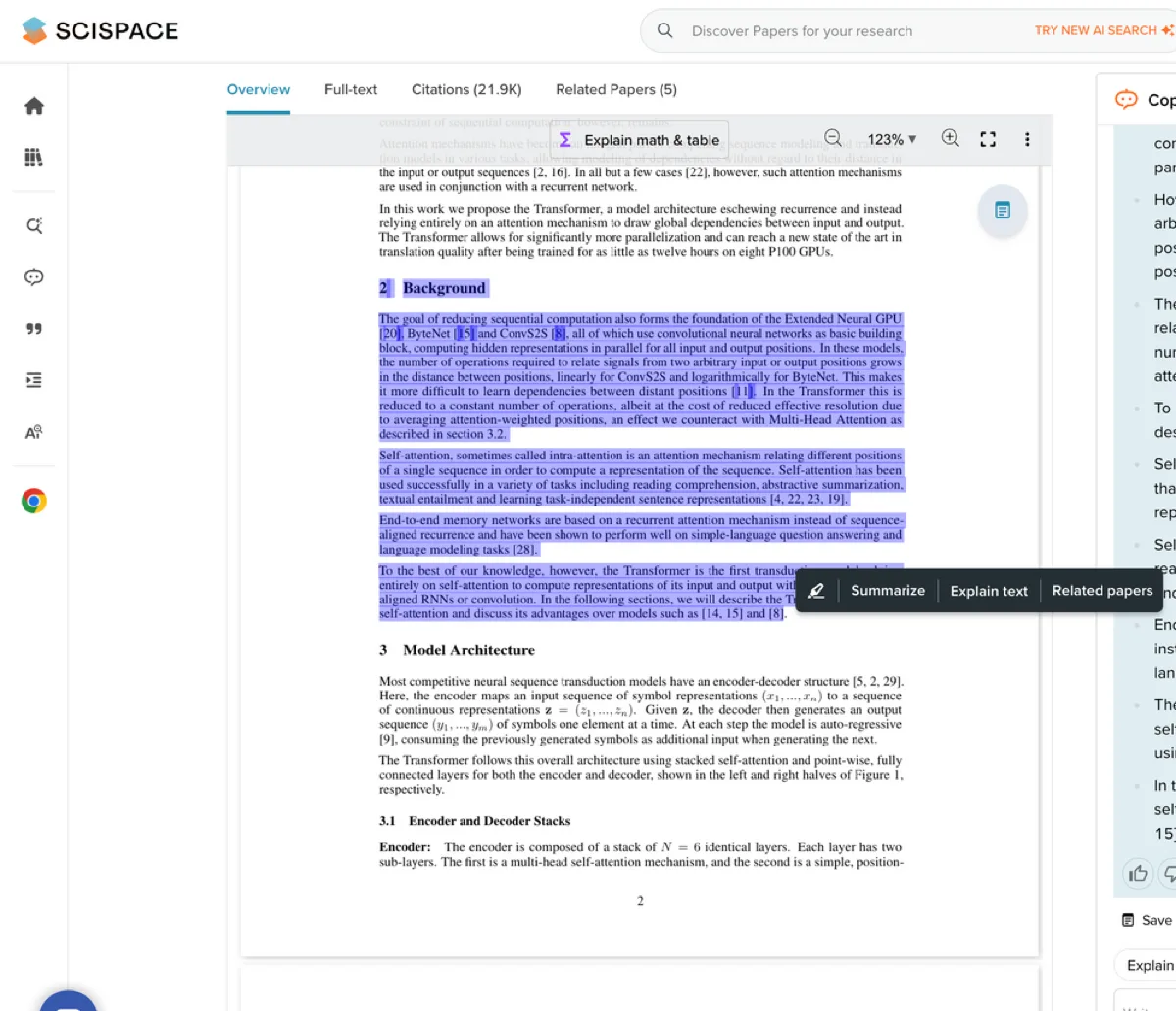
The official SciSpace interface keeps the selected passage visible beside the Copilot panel. That makes it possible to compare an explanation with the exact PDF text rather than treating the answer as standalone proof.
The caution is familiar: a paper recap is not the paper. For academic work, inspect methods, tables, limits, and cited passages before using a chat answer in a review.
Smallpdf Chat with PDF
Smallpdf Chat with PDF fits people who want PDF utility work and light AI chat in the same browser session. Its current page lists PDF, DOC, XLS, PPT, PNG, and JPG support. It also covers questions, insights, recaps, search, scanned PDFs, and no-install use.
That helps when the task starts with file work: compress, convert, organize, edit, sign, or search a PDF. The AI layer can help you scan or summarize the file without moving to a separate research tool.
Choose Smallpdf when convenience and PDF tools matter. For research claims, still check whether the answer opens the right passage. Also check whether its privacy, deletion, encryption, and scanned-PDF claims match your file risk.
AskYourPDF
AskYourPDF is a broad PDF chat product for people who want more than one upload box. Its current page describes chats with many files, file libraries, recaps, form filling, website agents, widgets, assistants, and shared chats.
That makes AskYourPDF worth checking when access matters. Review the browser extension, mobile app, file library, website widget, GPT-style use, Zotero-style flow, and team sharing. Those paths can matter more than a small difference in the chat UI.
Before using it for sensitive or high-volume work, refresh the current upload limits, plan rules, cite behavior, privacy terms, retention policy, and integration details. Broad access helps only if the evidence path and data rules fit the file risk.
PDF.ai
PDF.ai belongs in this shortlist because the product is tied to the exact PDF AI and AI PDF chat category. Its official page title and search result place it around PDF chat, recaps, answers, and an API for parse, extract, and split tasks.
That makes PDF.ai worth checking when the task moves from reading into document automation. A reader may only need chat. An operator may care about parse, extract, split, or API steps after the PDF is processed.
Treat detailed PDF.ai claims as refresh-required. Check the current product, API, pricing, data rules, and security pages before choosing it for production file flows.
Verify PDF chat answers in Atlas
The source-check flow is the reason Atlas belongs in an AI PDF chat comparison. It shows the difference between getting an answer and trusting it enough to reuse.
Worked Atlas flow
Use this as the proof pattern for a real source check:
- Upload two clean text-based PDFs into the same Atlas project.
- Ask:
Compare the limitations reported in these two papers, and cite each limitation. - Read the answer only far enough to find the claims you might reuse.
- Open the citation badge beside the first limitation.
- Confirm that the PDF viewer opens the expected paper.
- Read the cited sentence and the nearby paragraph.
- Save the finding only if the passage supports the claim. If the passage is weak, ask Atlas to revise the answer against that PDF.
That is the product proof: the answer, citation badge, PDF viewer, and source passage all stay in the same review loop.
Verification checklist
- Add the PDFs to the right project. Use clean, text-based PDFs when possible. Atlas can use processed PDFs for search, recaps, maps, cites, and grounded chat. Locked, scanned, malformed, large, or non-selectable files can weaken cite checks.
- Ask a narrow grounded question. Instead of "What do these PDFs say?", ask a question that names the claim, method, source, or comparison. For example:
Compare the limitations reported in these two papers, and cite each limitation. - Look for cite badges on important claims. A strong grounded answer should connect key claims back to project sources. If a claim matters and no cite appears, ask for cited support or narrow the question.
- Open the cited PDF passage. Select the cite badge, confirm the file is the one you expected, then read the highlighted sentence and nearby paragraph.
- Check claim strength. Decide whether the passage directly supports the answer, only partially supports it, or adds a caveat the answer missed.
- Save only verified findings. If the cite holds, save the finding with a source mention. If the cite is weak or wrong, ask Atlas to revise against the passage.
This source check is slower than accepting the first answer. It prevents a fluent PDF chat response from becoming an unsupported note, memo, or draft paragraph.
For the same workflow across file types, compare chat with docs tools.
Which AI PDF tool fits?
Choose the tool that matches the PDF task in front of you. A long feature list matters only when the features support the next step after the answer.
| Job | Start with | Why |
|---|---|---|
| Compare several PDFs for research or analysis | Atlas | The answer can stay connected to uploaded sources, cites, and PDF passage checks |
| Ask quick questions about one PDF | ChatPDF or Smallpdf | Both fit fast upload-and-chat reading without a heavy research setup |
| Review, compare, or continue editing PDFs | Adobe Acrobat AI Assistant | The AI feature sits near Acrobat's broader PDF workflow |
| Read academic papers | SciSpace Chat PDF | Its product language and features are built around scholarly reading |
| Manage a file library with app or integration access | AskYourPDF | It describes file organization, multi-file chats, and access paths |
| Build PDF chat into extraction or automation flows | PDF.ai | Its positioning includes PDF chat plus API-oriented parse, extract, and split tasks |
Table 2: For low-risk reading, prioritize speed and ease. For research, client analysis, sensitive files, or a report, prioritize source checks, privacy review, and saved findings.
For broader PDF AI options, see the PDF AI tools guide. For a step-by-step tutorial, read how to chat with a PDF. For the broader best/free-tools comparison, use PDF chat AI tools. For adjacent jobs, compare AI PDF summarizers, document AI tools, AI document readers, research paper analyzers, and AI citation checkers.
Final recommendation
Most AI PDF chat tools can help you get oriented in a document. The difference shows up after the answer appears.
Use a quick PDF chatbot when the answer is disposable. Use Acrobat when the document work stays in Acrobat. Use SciSpace when the PDF is a paper. Use Smallpdf when AI chat is part of file utility work. Check AskYourPDF or PDF.ai when apps, integrations, or API steps matter.
Use Atlas when the answer has to remain tied to source evidence. Add the PDFs, ask a focused question, open the citations, read the surrounding passage, and save only the findings that survive source inspection.
Chat with PDFs and check citations
Add your PDFs, ask a grounded question, and inspect each cited source passage.