


ChatGPT vs NotebookLM depends on the source context and output you need. Keep ChatGPT when its file, research, data, or drafting tools fit your task. Try NotebookLM, now Gemini Notebook, when selected sources, inline citations, and Studio study outputs help you work. Both support broader tasks, and both need source checks before you reuse an important claim.
Google renamed NotebookLM to Gemini Notebook. Start with the work you do in ChatGPT and decide whether a notebook improves it. The NotebookLM vs ChatGPT guide approaches the same choice from an existing notebook workflow.
Quick verdict
Use ChatGPT for the tasks its current tools already handle well for you. Add Gemini Notebook when you want a selected reading collection and source-based study outputs. Use Atlas as an optional place to keep source comparisons and inspect citations. You can also check evidence in the tool where you created the answer.
The older claim that NotebookLM cannot do broader chat, code, or data work no longer fits Google's current chat guide. It documents experimental web research, code execution, and downloadable files. Check what is available in your account before deciding that a task must move.
Criteria for ChatGPT-first work
If you use ChatGPT to explain hard material, turn notes into prose, or review a spreadsheet, begin with the task that caused friction.
Perhaps you need to find the same source again, keep readings together, or make a study output. Name that problem before moving the files.
Use this rubric before moving work out of ChatGPT:
- Task fit: Keep the work in ChatGPT if its available tools meet the need and you can check the result.
- Source collection: Try Gemini Notebook when a selected set of readings and Studio outputs would save repeated setup.
- Source inspection: Check whether you can open the relevant passage in the workflow you choose. A citation alone does not prove the claim.
- Saved evidence: Keep the question, source version, passage, and checked conclusion together for later writing.
That rubric also keeps this comparison separate from ChatGPT Projects vs NotebookLM. Projects are one useful ChatGPT workflow, especially when you want files, instructions, and context in one place. They are not the whole ChatGPT side of the comparison.
Source grounding, citations, and trust
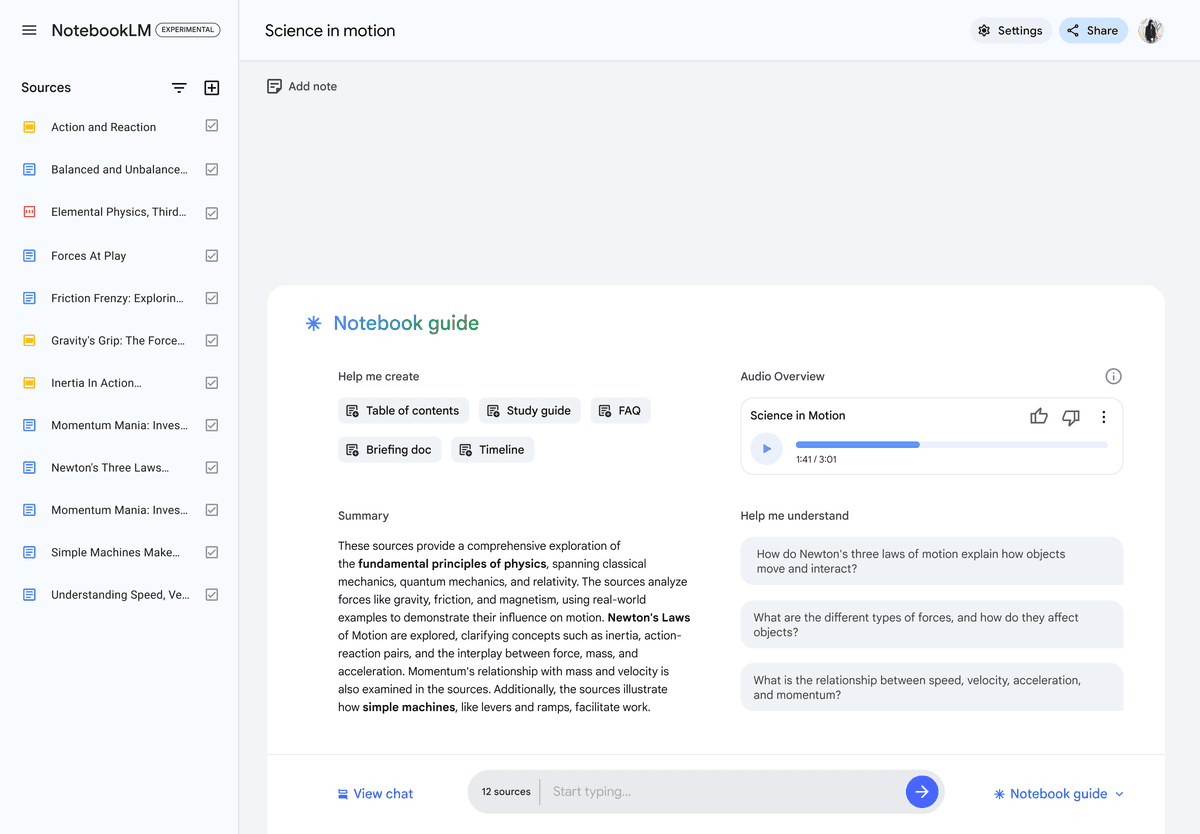
Gemini Notebook Offers Source Citations
In Gemini Notebook's source chat, citations point to quotes, text, or images from the selected material. You can hover over a citation or select it to open the quoted context, as described in Google's chat help.
Keep source selection visible when you compare papers. Broader chat actions may involve web research or other new material, so check which evidence an answer used. A notebook name does not by itself establish that every statement came from your files.
ChatGPT Research Can Use Several Source Types
OpenAI's ChatGPT feature guide covers files, data, images, voice, and other tools. Access depends on your plan and settings. Use those tools when they help your task, then check the source behind the answer.
OpenAI's Deep Research documentation describes a report workflow that can use web sources, uploaded files, and connected apps. Breadth still does not prove source faithfulness. A broad assistant can make an answer sound more settled than the source evidence supports.
Citations still need inspection
Citations reduce that risk only when the reader uses them. Treat a citation as a path back to the source. For a study note, class discussion, literature review, memo, or product decision, open the source passage and check 3 things:
- Does the cited passage make the same claim as the answer?
- Does nearby context add a caveat, limit, or disagreement?
- Is the answer stronger than the source language?
For a file question, check the file passage. For a research report, check the linked source. Keep them separate if the answer blends both. Atlas offers another workflow for source comparisons, but it needs the same claim-by-claim review.
Files, study outputs, and broader work
ChatGPT File and Data Tools
ChatGPT's file upload guide covers synthesis, extraction, and transforming documents. Its data analysis help describes tables, charts, and code-backed calculations. Review the code, method, and inputs before relying on the result.
If exact values matter, use a spreadsheet or text-based table rather than an image of one. A successful upload does not prove the full file was read. Check a row, section, or quote you know before asking for a larger analysis.
Gemini Notebook Imports and Outputs
Google's current source guide lists supported files and imports. Drive sources auto-update. Web sources import page text, and YouTube sources use transcripts. Google-file comments and footnotes are omitted. Check whether the imported material includes the evidence your question needs.
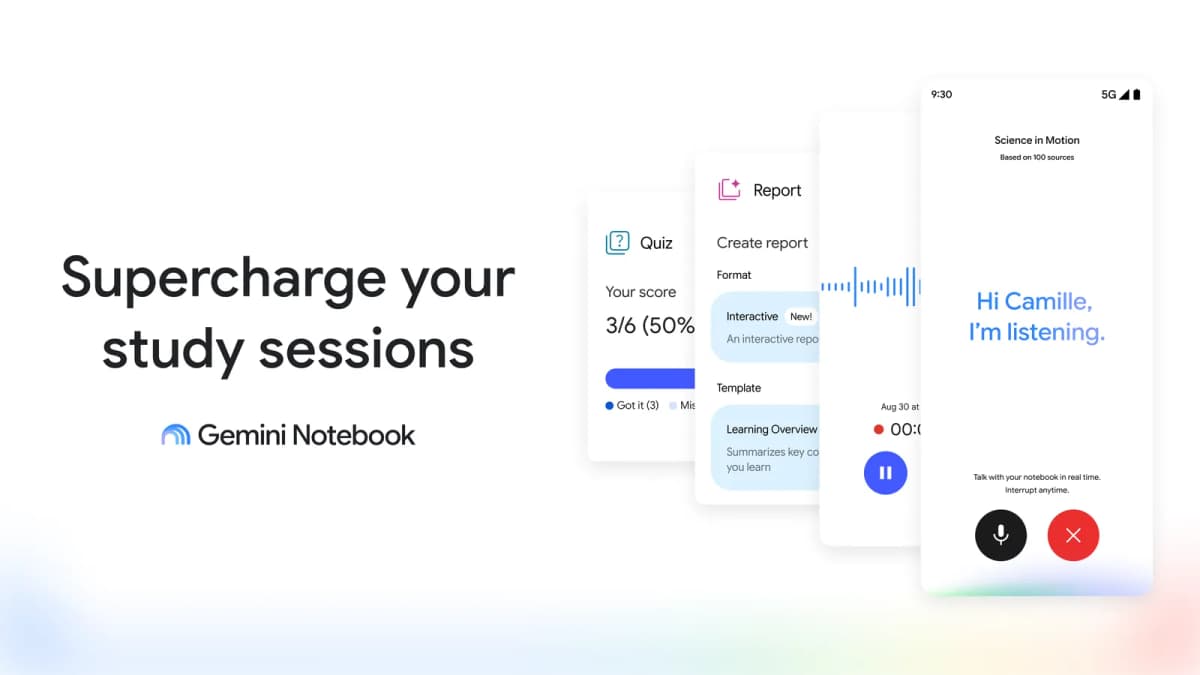
Studio includes Audio Overviews, Mind Maps, reports, and other study outputs. Google's notebook guide also describes exports to Docs and Sheets. Export edits do not sync back, and notebook permissions do not carry over.
Most source-heavy work becomes a handoff
Keep the original sources available through each step. You might use one tool for all the work or give each tool a clear task:
- Use ChatGPT to explore the question, draft prompts, clean rough notes, or frame the problem.
- Use Gemini Notebook when the selected collection and Studio output fit the study task.
- Inspect each important claim in the original source before using it in final work.
Review access and allowance before scaling up. Gemini Notebook's usage help documents compute-based limits and Settings → Usage. ChatGPT's limits vary by the file or research feature. Check the usage shown for the account and tool you intend to use.
ChatGPT vs NotebookLM compared
Use this table to decide what to try next from your current ChatGPT task. It compares documented workflows and review needs. It does not report a measured accuracy ranking.
| Job | ChatGPT | Gemini Notebook | Verification step |
|---|---|---|---|
| Exploration | Chat, search, research tools | Source discovery and broader chat | Record which new sources were used |
| File questions | Uploaded-file analysis | Selected source chat | Check import and supporting passage |
| Study | Explanations and practice drafts | Studio guides and overviews | Verify findings before reuse |
| Data work | Code-backed analysis | Experimental code and file actions | Inspect inputs and calculation |
| Citations | Research source links | Source citations with quoted context | Read surrounding material |
| Source comparison | Compare uploaded files | Compare notebook sources | Keep each source's contribution clear |
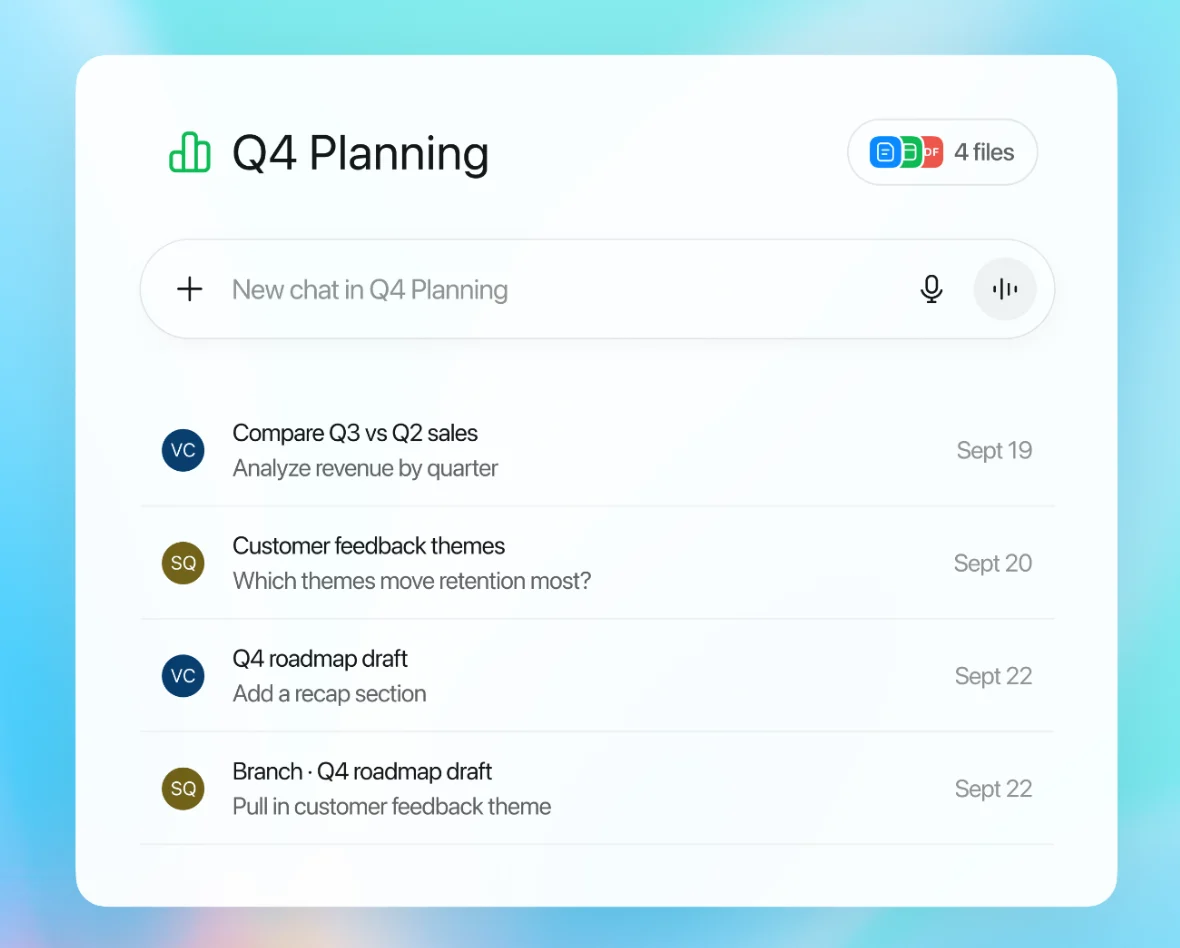
| Ongoing work | Projects with chats and files | Sources, notes, chat, outputs | Keep file versions and access clear |
| Final writing | Draft and revise | Reports and exports | Preserve checked evidence and permissions |
Table 1: ChatGPT and Gemini Notebook by source context, output, and the check needed before reuse.
Where Atlas fits after the choice
Check evidence where you work, or continue in Atlas when you want chosen sources and comparison notes in one project. Moving an answer to another app does not make it verified. Move the source material too and inspect the result.
Compare Selected Sources in Atlas
Add the selected papers or files to an Atlas project and confirm that they finished processing. In Ask a question, type @ to select the sources. Ask: Compare the claims and limits in these sources. Give a supporting citation for each source and state where they disagree.
Open the numbered citation for a claim you intend to reuse. Check the source and surrounding text. If the answer blends sources, ask it to separate the contributions.
A citation can open a related item even when an exact page or passage is unavailable, so find the evidence yourself when needed.
Save the checked finding in a note with the question and source version. Judge the workflow by the passages you can check. This article does not establish better accuracy for Atlas than either competitor.

Verify source claims in Atlas
Compare selected sources and inspect citations behind reusable claims.
Check Sources Before Moving a Collection
Use a small file set you know well. Ask the same question, record the settings, and inspect the passages behind the answer. These are steps for your own trial. No benchmark result is reported here.
Suppose a source says that a result held for one group under a specific condition. If a draft drops the condition, correct the sentence and keep the source passage with it. Then check whether a follow-up answer preserves that limit. This made-up example illustrates the review task.
Choose a workflow based on what made that check easier: source access, visible context, a useful output, or less repeated setup. Keep a record of the task rather than assigning a broad score for intelligence.
Which should you choose?
Keep ChatGPT when its current tools meet your file, research, or drafting need. Try Gemini Notebook when the source collection, inline citations, or Studio output would improve the task. Check its broader chat actions before assuming you need a different tool for code or file work.
Use both if each has a clear job. Keep original sources and checked findings with the handoff, so a draft does not lose its evidence. Before a claim becomes a note, paper, or recommendation, read the supporting passage and preserve its limits.
For the NotebookLM-first version of this decision, use NotebookLM vs ChatGPT. For the narrower workspace comparison, use ChatGPT Projects vs NotebookLM. For source-heavy document chat, the broader workflow is covered in chat with documents.
Verify source claims in Atlas
Compare selected sources and inspect citations behind reusable claims.