

Start with one question. Do you need to see each edit, or understand what an edit means? A redline tool shows added, deleted, moved, and styled text. If a change affects a choice, you may also need to explain it and link that answer to the source.
Use Microsoft Word to compare two Word files. Use Adobe Acrobat Pro or another PDF tool when page layout matters. Draftable, Diffchecker, and iLovePDF offer quick online checks. Litera Compare is built for legal review. Atlas can then explain key changes in a table with links to the source text.

Compare documents with citations in Atlas
Ask what changed across documents, then inspect each cited passage.
Quick verdict
Choose the workflow by file type, privacy needs, and the answer you need. A redline tool shows exact edits. A PDF tool checks page and layout changes. Atlas can explain what a change means and link the answer to a passage in the file.
Keep private legal, finance, HR, school, and client files in an approved system. Your rules may require a desktop app or a tool run by your company. Do not upload those files to a public site without approval.
5 ways to compare a document
Most document comparison jobs fall into five lanes.
- Quick text diff: use it when the content is plain text or a low-risk draft.
- Word redline: use it when both files are Word documents and reviewers need tracked changes.
- PDF check: use it when page layout, notes, or other PDF changes matter.
- Legal or company review: use it when the files or your work rules call for a secure system.
- Cited follow-up: use it after the file check to explain changed words from the source text.
These workflows answer different questions. A redline shows that a clause changed. It may not tell you whether the new clause creates a duty. A cited answer can explain the effect, while the redline remains the record of the exact edit.
Compare document tools and workflows
Start with the change you need to find. Then check how the tool handles your files and how you can review its result. The last column shows what you must still check.
| Workflow | Best fit | Output | Privacy route | Verification limit |
|---|---|---|---|---|
| Atlas | Cited follow-up after files become sources | Comparison matrix with citations | Project workspace for imported sources | Citations need passage inspection |
| Draftable | Broad document comparison across file types | Redline and side-by-side changes | Online, desktop, enterprise, and API routes | Exact diff first, meaning review later |
| Diffchecker | Fast text, PDF, Word, and image checks | Side-by-side differences | Online and desktop options | Match sensitivity to upload route |
| Microsoft Word | Word-native compare and merge | Tracked changes between Word versions | Local Word or approved Microsoft 365 environment | Best when both files are Word-native |
| Adobe Acrobat Pro | PDF version comparison | Summarized PDF changes | Acrobat desktop or managed account | PDF comparison is not legal meaning review |
| Litera Compare | Legal and enterprise document review | Legal redlines and comparison workflows | Legal/enterprise deployment | Specialist tool for legal comparison workflows |
| iLovePDF | Lightweight PDF comparison | Visual PDF difference output | Online PDF workflow | Use only when upload risk is acceptable |
Table 1: Choose the tool by the result you need: an exact change list, a view of PDF pages, a legal redline, or an explanation with source links.
What each option is best for
Atlas
Add both files to Atlas after you find the exact edits. Ask for a table that compares the key changes. Open the citation in each row before you save it. This helps when you need to know what a change means or whether it affects a duty, rule, or research claim.
Atlas does not find every changed comma, moved clause, or style edit. Run the exact file check first. Use Atlas when you need an explanation tied to the source text.
Draftable
Draftable compares common office files. It shows the two files side by side and marks each edit in a redline.
Choose Draftable to find edits across file types. For private files, check whether its desktop, company, or API plan meets your rules.
Diffchecker
Diffchecker offers quick online and desktop checks for text and common file types. Use it when you need a fast view of edits and do not need a full legal review. It fits low-risk comparisons or work that can stay in its desktop app. For private files, confirm where the files go before you upload them.
Microsoft Word
Microsoft Word is the simplest choice when both files are Word documents. Its Compare tool keeps the work in Word and shows edits as tracked changes. Choose it when comments, tracked edits, and merging matter. Use another tool for PDFs, scans, or mixed file types.
Adobe Acrobat Pro
Adobe Acrobat Pro compares two PDF files and lists their changes. Use it when page layout matters. Test the result on a scan or image because the tool may fail to read its text or spot a visual change.
Litera Compare
Litera Compare is built for law firms and legal teams. It supports secure review work that should not go through a public upload tool.
Choose Litera when the review is high stakes, governed by firm rules, or tied to a legal file system. A lawyer must still judge what each change means.
iLovePDF
iLovePDF Compare PDF handles simple PDF checks. Use it only when the file is safe to upload. Keep files covered by work rules in an approved system.
Use it for simple PDF checks. Use Acrobat, Draftable, or an approved internal workflow when privacy, file control, or detailed review matters more.
The screenshot shows why an exact file tool still matters. It places both files side by side, marks the changed text, and lists each edit.
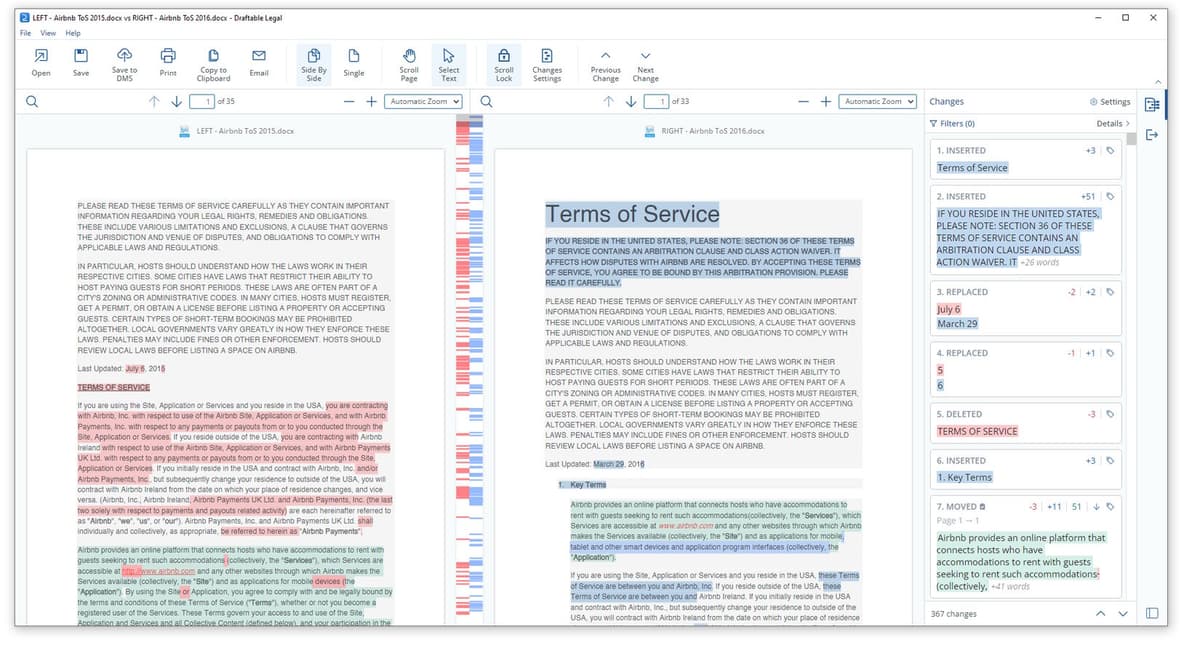
The marks and change list show what changed. After that, a cited review can explain what a key change means and link the answer to the text.
Compare documents with citations in Atlas
Add the files to Atlas when you need an answer that links back to them. Use a redline tool first if you also need every edit marked.
- Add the PDFs, Word files, or notes to one Atlas project.
- Check that each file has the right title, pages, and text.
- Ask for a table with one row for each key change.
- Ask Atlas to cite the source used in each row.
- Open each citation and read the linked passage.
- Save only the findings that the passages support.
Ask Atlas to compare both files in a table. For each key change, request the source, the changed words, why they matter, and a citation you can open.
Privacy, accuracy, and file-format risks
Watch for three risks: unsafe file uploads, missed text, and wrong conclusions.
First, check where the tool sends and stores each file. Private legal, client, HR, finance, or research files may be barred from public sites.
Next, check scans, images, tables, comments, headers, footers, and moved text. A tool may miss edits in an image or in the way a page is styled.
Last, treat a marked edit as the start of review. A redline proves that the text changed. Read the source to decide whether that change affects a claim, duty, rule, or result.
When to choose each workflow
Choose the tool by the result you need.
-
Use Microsoft Word to compare and merge Word files.
-
Use Acrobat Pro or iLovePDF to compare PDF files.
-
Use Atlas to explain key changes and link the answer to the source.
-
Use Draftable or Diffchecker for a fast check across file types.
-
Use Litera Compare for legal review. For two Word files, see how to compare Word documents. See document comparison tools for more file types and contract comparison tools for contracts. The AI document comparison guide focuses on what the documents mean.
The durable pattern is simple. First find the change. Then decide whether the file handling was safe. Then verify the evidence behind any conclusion you plan to use.
Compare documents with citations in Atlas
Ask what changed across documents, then inspect each cited passage.