

The best way to compare two Word documents depends on the files and who will review the result. Use Word's built-in Compare tool when both files are .docx files and a standard redline is enough.
Use Draftable or Diffchecker for a quick online check of Word and PDF files. Use Litera Compare for legal work that needs a clear review trail. After the redline, use Atlas to explain changed words and link the answer to the source.
A file tool shows what text changed. It cannot tell you if a new clause creates a duty, if a number conflicts with another file, or if the edit agrees with your other sources.
Treat finding and judging an edit as two steps. For PDFs, see PDF AI assistant and chat with PDF. For general file reading, see AI document reader.

Compare Word documents with citations in Atlas
Compare two Word documents in a cited matrix, then inspect key differences.
Quick verdict
Use this table to pick a starting tool. See document comparison tools for more file types.
| Job | Best starting point | Why |
|---|---|---|
| Compare two Word-native files with a standard legal blackline | Microsoft Word Compare | It is built into Word, needs no upload, and outputs a familiar redlined document. |
| Get a fast online diff across Word or PDF files | Draftable or Diffchecker | Both accept Word and PDF uploads and return a readable, exportable diff without opening Word. |
| Run a high-stakes legal redline across Word, email, or document-management systems | Litera Compare | It is built for legal teams that need specialist comparison across more than one file type and system. |
| Check confidential drafts without uploading to a browser tool | Word Compare or a desktop/offline route | Keeps the file on the machine instead of a hosted comparison service. |
| Understand what the changed language means, or check it against other sources | Atlas, after the redline | Atlas is not a redline tool. It is where you ask cited questions about the differences once the files are usable as sources. |
Table 1: Use Word Compare for a routine check of two Word files. Choose Draftable or Diffchecker when speed matters or one file is a PDF.
Choose Litera when the result will enter a legal file or the work spans email and a firm's file system. Add Atlas after the redline to explain key changes. See document comparison tools and AI document comparison for more options.
Four Word document comparison jobs
Word comparison falls into four jobs:
- Tracked Changes records edits as someone works in one file.
- Word Compare checks two finished Word files and creates a third file with added, deleted, moved, and styled text marked.
- Word and PDF tools such as Draftable and Diffchecker check files without opening them in Word.
- Legal tools such as Litera Compare work across Word files, email, and a law firm's file system.
Ask whether both files are .docx files and whether you need every changed letter or only changed words. Decide if comments, tables, and styles matter. Also check if the files must stay on your computer and whether you need to explain an edit after you find it.
A comparison tool finds the edit. Atlas can then help you ask whether the changed clause creates a risk, conflicts with another draft, or lacks support.
Word document comparison options
The table uses each vendor's own site. Check the current price, limits, and file rules before you choose a paid plan.
| Tool | Best fit | Input / output | Privacy route | Redline strength | Verification limit |
|---|---|---|---|---|---|
| Atlas | Cited follow-up after the redline, when the differences need interpretation | Imported Word-converted PDFs, text, or notes as input, and a cited comparison matrix as output | Web workspace for imported project sources | Not a redline tool. Atlas does not detect exact inserted, deleted, or formatted text. | A citation shows related source evidence. Open it and read the passage before trusting the claim. |
| Microsoft Word Compare | Word-native legal blackline between an original and a revised document | Two Word files in, one new comparison document out | Runs inside Word on the desktop | Character- or word-level legal blackline, with comments and formatting options | Shows what changed. Acceptability is still a human judgment call. |
| Draftable | Broad Word, PDF, spreadsheet, presentation, and text comparison | Two files in, side-by-side or redline view out | Online tool with desktop, legal, and enterprise routes described on its product pages | Insertion/deletion redline with exportable results | Confirm current file-size, format, and security details before sensitive use |
| Diffchecker | Quick Word or PDF diff | Upload two files, review differences online | Online tool, with a desktop app positioned for files that should not leave the computer | Readable text diff for common formats | Fast checks without a legal-grade audit trail |
| Litera Compare | Legal-grade comparison across Word, Outlook, web, and document-management systems | Two documents or emails in, redline or comparison report out | Built for legal and enterprise environments across desktop, web, and DMS integrations | Specialist legal redline across more file types and systems than a general diff tool | Confirm current plan, integration, and security scope before recommending a tier |
Table 2: Use the table to pick the redline tool. Use Atlas after the redline, when the changed text raises a question the redline alone cannot answer.
When to use Microsoft Word Compare
Microsoft puts Compare under Word's Review tab. Choose the first file and the changed file. Word then creates a third file that marks changed letters or words.
You can also check styles, comments, tables, headers, and footers. Choose those options before you run the check.
Track Changes records edits while someone works. Compare checks two finished files after the work is done. Use it when a file comes back with no clear record of what changed.
Use Word Compare when:
- both files are genuine Word documents rather than PDFs or scans.
- you want the comparison to stay inside Word, with no upload.
- the review is routine enough that Word's own blackline output is sufficient.
- you need to compare formatting and structural changes in addition to plain text.
Word Compare can mark a font, space, or list change as loudly as a changed clause. Review the settings first. Start with text changes, then turn on style changes only if you need them.
Online or legal comparison tools
Choose another tool if one file is not a Word file, you need a quick web check, or the review must cover legal files and email.
Draftable
Draftable checks Word files, PDFs, sheets, slides, and plain text. It offers web, desktop, legal, and company plans. Choose it for mixed file types or when someone needs to read the redline without Word.
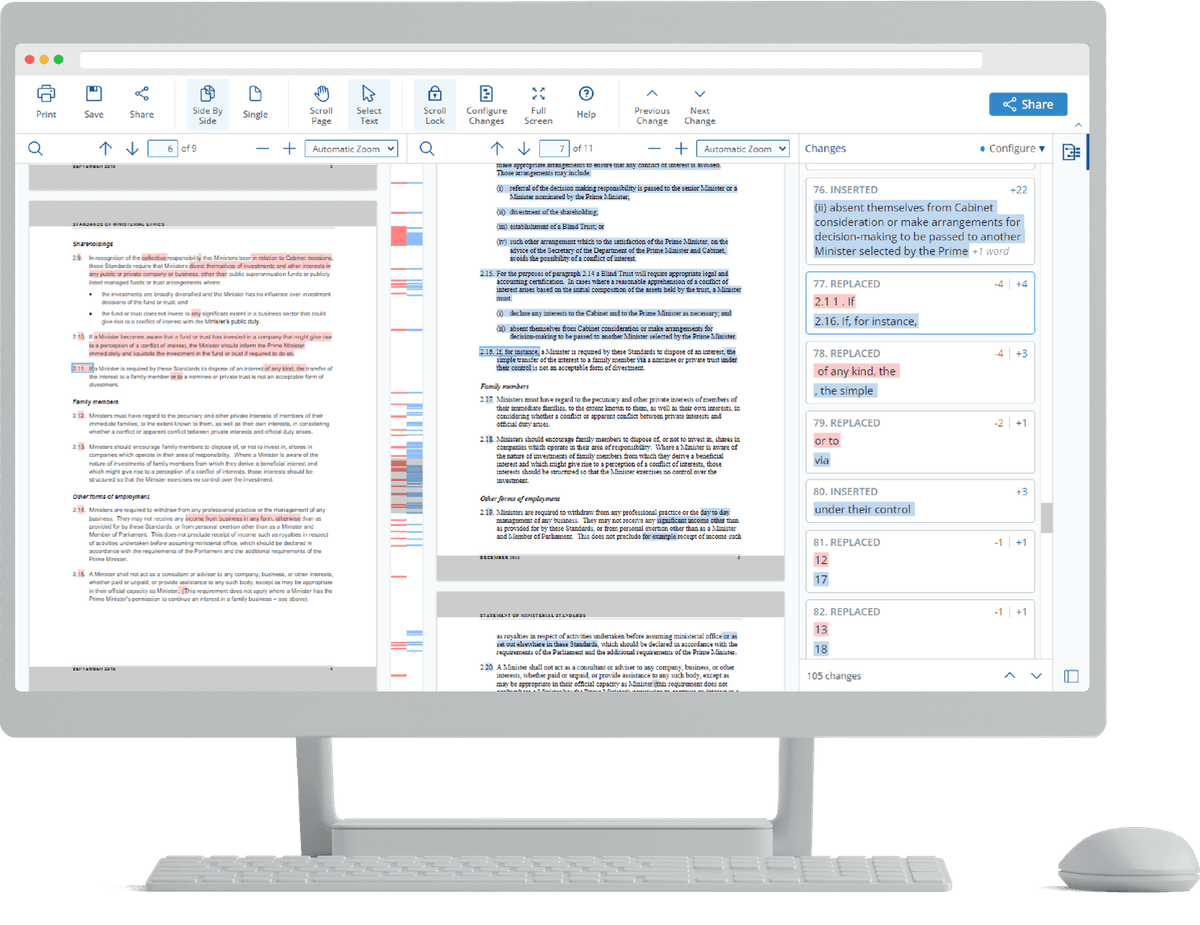
Draftable puts two files side by side. It marks added text in green, deleted text in red, and lists each change on the right. This makes it easy to find clauses that need a closer look.
Diffchecker
Diffchecker accepts Word and PDF files and returns a clear list of edits. Use its web tool for low-risk files. Its desktop app keeps the check off the hosted service.
Litera Compare
Litera Compare checks legal files and email across Word, Outlook, web, mobile, desktop, and servers. Choose it for contracts, court filings, or letters that must stay in a firm's file and email systems.
These tools show what changed. They do not explain what a changed clause, number, or claim means. For that step, read the source and ask a focused question. See legal document AI and legal document analysis AI for legal workflows.
Continue the Word document comparison in Atlas
Atlas does not create a Word redline. Use it after you have a list of edits. It can turn those edits into a cited table and link each finding to the source text.
After Word Compare, Draftable, Diffchecker, or Litera shows the edits:
- Add both Word files as sources. Convert them to PDFs first if needed.
- Wait until Atlas has finished reading both files.
- Ask a focused comparison question, such as
What changed between these two drafts, and which changes affect payment or termination terms? - Ask for a table with columns for the claim, source text, and citation.
- Open the citation in each key row and read the full passage.
- Save only the findings you checked, along with the source and passage.
Privacy, accuracy, and file-format risks
Before you use a web tool, check whether the files are safe to upload. Legal, HR, finance, client, school, and company plans may need to stay in an approved desktop app or work system.
For private files, read the vendor's current rules on security and storage. Follow your company's upload policy.
File type also affects the result. Word Compare works best when both files are true Word documents.
Converting a Word file to PDF can shift the text or layout. A scan may contain no readable text at all. Check that you can select the text before you trust the result.
A redline also cannot judge the new text. It can show that a clause, date, or number changed. It cannot tell you if the new version agrees with other files, is correct, or meets your rules.
A citation in Atlas links a claim to related source text. Open that text and judge the claim yourself.
Read the cited passage before you act on an answer, especially in legal, money, or research work. See AI that cites sources and PDF summarizer for more detail.
How to choose a Word comparison workflow
Answer these questions in order.
Are both files genuine Word documents?
For a routine check of two Word files, start with Word Compare. It needs no upload and creates a familiar redline.
Need speed or PDF support?
If one file is a PDF or you want a quick web check, use Draftable or Diffchecker. Both accept Word and PDF files.
High-stakes legal review or multi-system?
Use Litera Compare when the redline will enter a legal file or must work across Outlook and a firm's file system.
Is the document confidential?
Keep legal, finance, HR, client, school, and company files in an approved system. Check the rules before you use a web tool.
Need to interpret what changed?
Use Atlas after the redline when a change may affect risk, a duty, or another source. Add both files, ask one clear question, and request citations. Read the linked passages before you act. For other file types, see compare document. See AI document reader and AI document summarizer for reading help.
Compare Word documents with citations in Atlas
Compare two Word documents in a cited matrix, then inspect key differences.