

Document comparison tools serve different review jobs. A quick online diff can show changed wording. Microsoft Word can create a legal blackline for 2 Word files. Acrobat can compare PDF versions. Legal redline tools can fit document-management workflows. Atlas belongs later in the review. After you know what changed, use it to ask cited questions and inspect source text behind important findings.
The right choice depends on the file, the risk, and the next step. If the files are private, use your team's approved desktop, enterprise, or offline path before uploading them to a browser tool.

Compare source evidence in Atlas
Compare changed documents, inspect cited passages, and save verified findings.
Quick verdict
The best document comparison tool depends on the file and review risk. Use Draftable for broad file support. Use Acrobat Pro for PDF-native review. Use Microsoft Word for Word legal blackline. Use Litera Compare for legal redlines. Use Diffchecker or iLovePDF for quick checks. Use Atlas after the diff when changed files need cited source review.
Match the tool to the job and file risk:
-
Use Atlas after the diff when changed files need cited follow-up. Ask what changed, which source supports the change, what caveat matters, and what can be reused.
-
Use Draftable for Word, PDF, spreadsheets, slides, and text files when you need redline or side-by-side output.
-
Use Diffchecker for quick PDF or Word checks. It fits when you want an online option and a desktop route for local diffs.
-
Use Adobe Acrobat Pro for PDF-native review. It fits page ranges, text-only checks, and scanned-file settings.
-
Use Microsoft Word when both files belong in a Word legal blackline workflow.
-
Use Litera Compare when a legal or enterprise team needs file and email review inside established legal workflows.
-
Use iLovePDF for a quick browser-based PDF check when semantic text or content-layer review is enough.
For chat or Q&A over a PDF, start with the PDF chatbot workflow.
The 6 document comparison criteria
A document comparison tool usually solves 1 of 6 jobs.
-
Quick online diff. You paste text or upload a file to find wording changes. This fits low-risk drafts, public files, and fast checks where a browser upload is acceptable.
-
Word-native legal blackline. You compare 2 Word files and produce a marked-up third file. This fits contract drafts, policy edits, and review cycles already happening in Word.
-
PDF comparison. You compare PDF versions by text, pages, layout, graphics, or scanned-file settings. This fits published reports, PDFs from another party, and files that no longer live cleanly in Word.
-
Legal-grade redline and email comparison. You compare legal files, emails, attachments, and office files in a review process built for matter teams and higher stakes.
-
Team approval flow. You need comments, signoff, version history, and stakeholder review more than a raw diff. A comparison view is 1 part of the approval path.
-
Source-grounded follow-up. The diff has already found the change. The reviewer still needs to know what the change means. This is where Atlas fits. Add the relevant files, ask a grounded question, request a cited matrix, and inspect source passages before saving the finding.
The distinction matters because a redline can tell you that a warranty clause changed from "shall" to "may." It cannot judge the wider source trail. Check whether the new wording conflicts with another exhibit. Check whether a cited report still supports a policy claim. Read the nearby source passage before you decide what the change means.
Document comparison tools compared
This table routes the main file-review jobs to the tools most often suited to them. Each row shows file fit, handling risk, output, and caveat. Before buying or uploading private files, check current file support, privacy terms, app links, limits, and pricing.
| Tool | Best fit | File types to verify | Privacy posture to check | Output type | Caveat before choosing |
|---|---|---|---|---|---|
| Atlas | Cited follow-up after changed files need source questions, synthesis, and passage checks | PDFs, websites, papers, notes, and other processed project sources | Confirm the files can be imported and processed in the project. Sensitive material still needs approved handling. | Cited answers, matrices, notes, and source links | Use a dedicated redline, visual diff, OCR, legal-review, or document-management tool for change detection |
| Draftable | Broad file review when you need redline or side-by-side views across common business files | PDF, Word, Excel, PowerPoint, and text files according to Draftable's page | Compare online, desktop, enterprise, and API routes against your file-risk policy | Redline and side-by-side views | Refresh current security and deployment details before using it for private files |
| Diffchecker | Fast Word and PDF comparison, with a desktop option when files should stay local | PDF and Word files for this workflow. Other Diffchecker tools may cover more formats. | Use the desktop/local-processing route when browser upload is not appropriate | Difference highlighting for uploaded or locally compared files | Best for quick diffs rather than legal review or enterprise approval workflow |
| Adobe Acrobat Pro | PDF-native review, text-only checks, page ranges, and scanned-file settings | PDFs | Check plan, desktop, cloud, and account policies before using it for sensitive PDFs | PDF results file with navigable changes | Acrobat is strongest for PDF versions. Use Word when the review needs a Word legal blackline. |
| Litera Compare | Legal and enterprise review across files, emails, and office workflows | Word, Excel, PDF, PowerPoint, email, and supported workspaces according to Litera | Validate current enterprise deployment, integrations, and matter-workflow needs | Legal redline output inside existing workflows | Pricing, package boundaries, and integrations need current vendor confirmation |
| Microsoft Word | Word-native legal blackline for 2 Word versions in an existing Word review process | Word files | Use the Microsoft 365 or desktop environment your team already controls | A third legal-blackline file with comments, formatting, and text changes shown by the review settings | Use a specialist tool for PDF comparison or legal workflows that need more than Word review |
| Google Docs | Collaborative review when both versions live in the same shared document | Google Docs | Use the Workspace account and sharing policy your team already controls | Version history with edits grouped by time and editor | It shows revision history rather than a legal blackline or visual PDF diff |
| iLovePDF | Quick browser-based PDF comparison | PDFs | Review current upload, retention, plan, and security terms before using sensitive files | Semantic text comparison and content-layer modes | Useful for quick PDF checks. Inspect important changes manually before relying on them. |
Table 1: The matrix separates diff tools from Atlas follow-up. Pick the change-detection tool first. Then decide whether the changed files need cited source review.
Best for each comparison option
Atlas
Atlas is best after the diff, when the reviewer needs evidence. Add the changed files as sources. Ask a focused comparison question. Request cited output. Atlas can compare sources after processing. Its citations point you back to source passages. Important claims still need passage checks before reuse. Open the citation badge and read nearby text before saving a finding.
If the comparison row you care about is Atlas, the job has moved beyond redline output. Add the changed files as sources, ask a cited question, and inspect the passages behind the claims before saving the result.
Use this kind of prompt after a redline flags a meaningful change:
Compare @Original Policy and @Revised Policy.
List each changed claim, the source passage that supports it, the caveat, and the next check.
A useful Atlas answer should give you a short list of changed claims with citation badges. Open each badge, read the cited passage and nearby text, and save only the findings that still hold up.
Draftable
Draftable is best for broad business-file review. Its compare page covers text, Word, PDF, spreadsheet, and presentation files. That makes it a practical first stop when a team receives mixed file types.
The main decision is deployment. An online check can be convenient. Desktop, enterprise, or API routes may matter when files are private or the review needs tighter control.
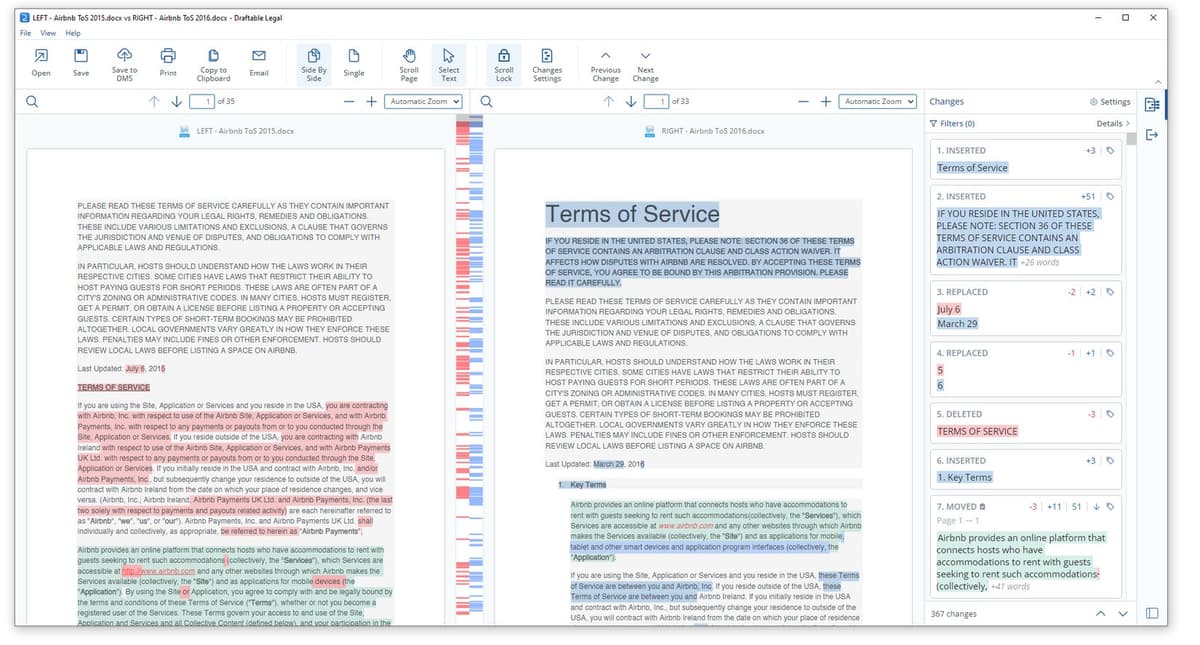
Draftable's help center shows a side-by-side review view. The viewer keeps the older file, newer file, highlights, and change list in one place. Treat that as the first review surface. If those changes raise a source question, continue in Atlas with a cited prompt.
Diffchecker
Diffchecker is best for fast file comparison with an offline path. Its Word and PDF page is built for quick online checks. It also points privacy-sensitive users toward a desktop app where diffs stay on the computer.
That split is useful when a low-risk draft can go through a browser but a client file needs local handling.
Adobe Acrobat Pro
Adobe Acrobat Pro is best when the file is already a PDF. Acrobat is built for PDF versions, result reports, page ranges, text-only checks, and scanned-file settings. Use it when the changed file is a PDF report, exhibit, policy, or designed file.
Litera Compare
Litera Compare is best for legal and enterprise review. Litera positions Compare around legal files, email, Word, Excel, PDF, slides, cloud, desktop, and Google Workspace. That breadth matters when the review is part of a matter workflow rather than a one-off upload.
Microsoft Word
Microsoft Word is best for Word legal blackline. Word can compare 2 files and show the differences in a third file without changing the originals. It is often enough when the review starts and ends in Word. Use it when the team needs comments, formatting changes, text changes, or character-level and word-level views.
iLovePDF
iLovePDF is best for quick PDF comparison in the browser. Its compare tool offers semantic text and content-layer modes. That can be enough for low-risk PDF checks. For legal, HR, finance, or client files, review privacy terms before upload. Then inspect meaningful changes by hand.
Continue the source review in Atlas
A diff shows the visible change. Atlas helps with the next source question. What does that change mean across the underlying documents?
Use these Atlas steps after the redline, PDF check, or quick diff has found the parts worth checking:
-
Add the changed files to the same Atlas project. Import them as sources when they should stay in the project evidence base. Confirm processing has finished before asking questions.
-
If the project has many sources, use @mentions to name the exact documents or notes you want Atlas to compare.
-
Ask a focused question, such as:
Compare @Original Policy and @Revised Policy in a table with columns for changed claim, source passage, practical effect, caveat, and citation. -
Ask Atlas to separate sources in the answer if the first response blends them together.
-
Open the citation badges for key claims. Read the highlighted passage and nearby text for context, caveats, and conflicts.
-
Save only the findings whose citations support the claim, and note which passages you verified.
This Atlas source review is useful when a changed file depends on other material. It can fit a research report with revised evidence. It can fit a policy update based on rules. It can fit an analyst memo with changed assumptions. It can fit a contract exhibit that must be checked against another attachment.
Atlas should not replace the redline step. Keep the dedicated comparison tool for finding differences, then use Atlas when the review turns into a source question.
How to choose a document comparison tool
Start with the file and the risk:
First choose by file type
-
If both files are Word files and the team works in Word, use Word legal blackline first.
-
If the files are PDFs, choose by the PDF job. Use Acrobat, Draftable, iLovePDF, Diffchecker, or a PDF-focused path. Match that path to text checks, visual checks, scanned pages, or desktop review.
-
If the review is legal, enterprise, or matter-based, compare Litera Compare against your DMS, email, and redline needs. Check similar specialist tools too.
Then check risk and handoff
-
If the job is a low-risk quick check, an online diff tool may be enough.
-
If the files contain sensitive client, HR, legal, finance, or regulated data, choose the approved route first. Pick the interface after that.
-
If the diff raises source questions, continue in Atlas. Ask grounded questions. Inspect citations. Save a checked matrix.
Also check the handoff. A tool that finds changes but cannot export a useful redline, report, table, or review file may create cleanup work later. A tool that hides the source passage can slow down the final check.
For adjacent review jobs, use the narrower workflow.
Use AI document comparison when the comparison is semantic rather than exact. Use AI document summarizers when the first job is reading. Use PDF chatbots when the file needs follow-up questions, and use PDF summarizers when the output is a shorter read.
Use AI citation checkers when source proof matters. Use research paper AI when the files are scholarly. Use legal document AI, legal document analysis AI, or contract AI when the review sits in a legal workflow.
Use qualitative data analysis AI when the files are interview-like. Use UX research AI when the evidence is user research, and use AI document readers when the diff becomes a broader source check.
The most durable review separates three acts. First, find the change. Next, decide whether the changed file was handled safely. Then verify the evidence behind the claims that matter. A document comparison tool owns the first act. Atlas helps when the third act requires cited source review across the documents you have added to the project.
Compare source evidence in Atlas
Compare changed documents, inspect cited passages, and save verified findings.