


If you want to summarize PDFs, choose the tool by the next step. A quick summary can help you skim a manual. It can also help you decide whether to read a report. Claims headed into a memo, study guide, client answer, or decision need a source check.
The best PDF summarizer for most people is the one that matches the source-checking job:
- use a fast one-click summarizer when you only need orientation.
- use Acrobat or a PDF utility suite when PDF handling, OCR, editing, or document flow matters.
- use a study tool when the summary needs to become flashcards, quizzes, or notes.
- use Atlas when the PDF summary should continue into cited questions, source checks, and project synthesis.

Ask a cited question about a PDF
Ask a focused PDF question, then inspect the cited passage before saving it.
Quick verdict
Here is the short version by job.
| Job | Best fit | Why |
|---|---|---|
| Cited research follow-up | Atlas | Atlas is the better fit when the summary is only a first pass and you need to ask grounded questions, open citations, and inspect the PDF passage. |
| Fastest casual PDF summary | ChatPDF | It is built around quick PDF summaries with no-signup positioning, page references, and scanned-PDF claims. |
| Acrobat-native PDF workflow | Adobe Acrobat AI Assistant | Adobe combines summaries, prompt-based Q&A, adjustable summary length, and numbered attributions inside the Acrobat ecosystem. |
| Browser PDF utility workflow | Smallpdf | Smallpdf pairs summaries with AI chat, clickable PDF page references, and a broader document-tool suite. |
| Study outputs | NoteGPT or Studley | These tools focus on study continuation such as notes, chat, mind maps, flashcards, quizzes, or tutor-style review. |
| Editable PDF-editor workflow | Lumin | Lumin places summarization inside a PDF workflow where the result can be regenerated, edited, shared, or downloaded. |
| Long-document summary page | PDF-Summarizer.com | It is a dedicated long-PDF summarizer page, but verify current limits and privacy needs before uploading sensitive files. |
Table 1: For important work, the deciding factor is not whether the tool can produce a paragraph quickly. It is whether you can trace the paragraph back to the page, passage, table, figure, method, or limitation that supports it.
How to choose a PDF summarizer
Use this source-check rubric before you compare logos or free-tier limits.
- Speed: Does the tool give you a useful first pass without a long setup?
- Claim source: Can you see where an important claim came from, or does the tool only return unsupported prose?
- PDF check: Can you open the original PDF near the supporting passage?
- Scanned-PDF handling: Does the tool explicitly support OCR, and can you spot-check whether extracted text is accurate?
- Next questions: Can you ask a narrower question after the summary without losing the file context?
- Study or work output: Do you need outlines, flashcards, quizzes, mind maps, exports, or shared notes?
- Privacy: Does the vendor explain upload handling, deletion, security controls, and model use?
- Next step: Can the summary become a checked note, cited answer, or cross-file synthesis?
That rubric matters because PDF summaries often fail at the edges. Scanned pages can produce bad OCR. Tables and figures can be reduced to vague prose. A long report can lose caveats from the methods or appendix. Even when a summary is helpful, the claims you reuse should survive a check against the original PDF.
For narrower workflows, use a dedicated scientific paper summarizer guide when the PDF is an academic paper, or an AI PDF analyzer guide when the job is deeper extraction rather than a short summary.
PDF summarizer decision table
This table uses official product pages. Treat it as a practical source check rather than a lab test. Limits, pricing, model access, upload rules, and OCR behavior change often. Recheck the tool page before you upload sensitive or high-stakes material.
The tool claims below were refreshed against official product pages in July 2026.
| Tool | Best fit | Source-check behavior | OCR or scanned-PDF caveat | Follow-up or output | When not to use it |
|---|---|---|---|---|---|
| Atlas | Source-grounded PDF follow-up after a summary | Citation badges can open source passages, and the PDF viewer supports citation jumps, search, page navigation, and nearby-context checks | Works best when the PDF has selectable text and processes cleanly | Grounded chat, summaries, notes, maps, and synthesis across project material | Not the fastest one-click free summarizer, OCR utility, or PDF editor |
| Adobe Acrobat AI Assistant | Acrobat users who want summaries inside a mature PDF workflow | Adobe says AI Assistant answers can include numbered attributions that highlight source content | Adobe supports several document formats, but scanned-PDF quality still depends on extraction | Suggested questions, adjustable summary length, chat history copy, Acrobat workflow | Avoid assuming current free request limits, add-on access, or plan terms without checking Adobe |
| ChatPDF | Fast, casual PDF summaries | The page advertises page references and one-click jumps to referenced spots | ChatPDF says it can summarize scanned PDFs. Spot-check OCR before relying on details | Summary, chat, flashcards, slides, research tools | Strong for quick reading. For research-grade citation control, verify important page references yourself |
| Smallpdf | Browser utility users who also need AI chat | Smallpdf says summaries can be refined with AI chat and clickable PDF page references | It supports more than PDFs, including image files, but OCR quality should be checked on scans | Copy or download summaries, ask the built-in chat for custom details | Do not treat security badges as enough for regulated data without reviewing policy and plan details |
| NoteGPT | Students who want notes and structured study output | Its page focuses more on extracted notes and study outputs than formal citation verification | It accepts PDFs, images, and documents. Check extraction on scans before studying from the result | Key points, outlines, prompts, AI chat, translation, and mind maps | Choose a citation-forward tool when the main requirement is auditable citations back to exact PDF passages |
| iLovePDF | Lightweight PDF utility users | The summarizer page shows upload, length settings, and standard or advanced AI modes | iLovePDF has OCR elsewhere in its PDF tool suite, but the summarizer page should not be read as a citation guarantee | Short, medium, or long summary generation inside a PDF utility interface | Use it for utility-style summaries, then run a separate source check for important claims |
| Lumin | Editable PDF workflow with summarized output | Lumin describes generated summaries that can be regenerated, edited, shared, or downloaded | Lumin says its OCR converts scanned or image-based PDFs before summarizing | Browser workflow, editing, sharing, downloading, regeneration | Watch page and size limits if the document is long |
| Studley | Student review after a PDF summary | The public search result and product positioning focus on study continuation rather than citation inspection | Verify scanned-PDF and upload limits directly before relying on it | Flashcards, quizzes, tutor lessons, audio, and study review | Better for study review than professional source verification unless you confirm traceability features |
| Manus | Prompt-style summary playbooks and custom output | Manus recommends reviewing critical summaries against the original document | Manus says it can process scanned PDFs with OCR when scan quality is reasonable | Follow-up questions, customized summary format, slides, document-specific prompts | Do not use it as a dedicated PDF editor or assume exact credit cost without checking current pricing |
| PDF-Summarizer.com | Dedicated long-PDF summary page | The page focuses on summary size and long-document processing more than inspectable citations | It claims scanned-PDF OCR support and long PDF limits. Verify before uploading large or sensitive files | Little, medium, or full summaries in multiple languages | Use a separate passage-checking process for source-critical work |
Table 2: This comparison separates fast PDF summaries, PDF utility workflows, study outputs, and source-checked follow-up so you can choose by the claim risk.
Verify a PDF summary in Atlas
Atlas is useful when the first pass raises a question you need to trust. In Atlas, you check the answer against the PDF before you save it.
Import the PDF and ask questions
- Import a text-based PDF into an Atlas project.
- Wait for processing to finish, then confirm the PDF opens and search can find a phrase from the document.
- Read the summary for the main claim, method, findings, limits, and next questions.
- Ask one grounded question. For example: "What limitation does this report give for the main result?" or "Which passage supports the claim about sample size?"
Open the citation before saving the finding
- Open the citation badge attached to the answer.
- Inspect the cited PDF passage and the nearby paragraph.
- Save only the finding that the source supports.
That sequence turns a PDF summary into something more useful: a cited answer you can inspect. Atlas citations are not a correctness stamp. They are a path back to the evidence. If the cited passage is weak, missing context, or attached to the wrong claim, narrow the question and ask again.
Compare the summarized claim with the cited passage before you save it.
Best tools to summarize PDFs
1. Atlas
Atlas is the best choice when you need to continue from a PDF summary into source-grounded questions. That is common for researchers, students, analysts, and operators who need to reuse findings later.
The fit is strongest when the PDF is part of a project rather than a one-off upload. After importing a PDF, Atlas can use the processed source for summaries, search, maps, grounded chat, and citations. In the PDF viewer, you can open a citation, read the passage, check nearby context, and decide whether the answer is faithful. If you are comparing PDF workflows first, start with the broader AI PDF summarizer tools guide or the PDF chat tools guide.
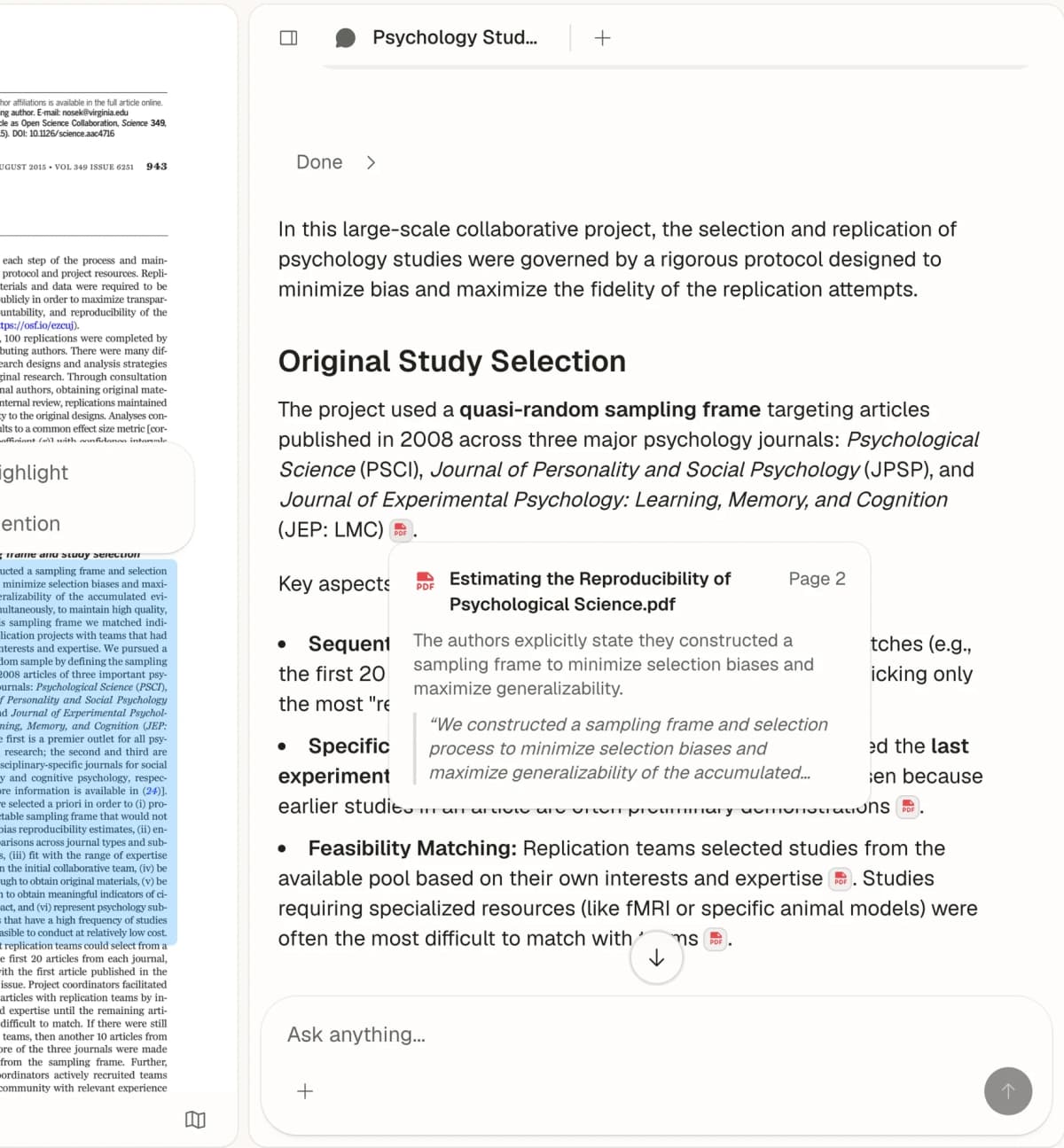
Use Atlas when the next step is "show me the evidence for this claim." Use a faster utility when you only need a rough overview.
2. Adobe Acrobat AI Assistant
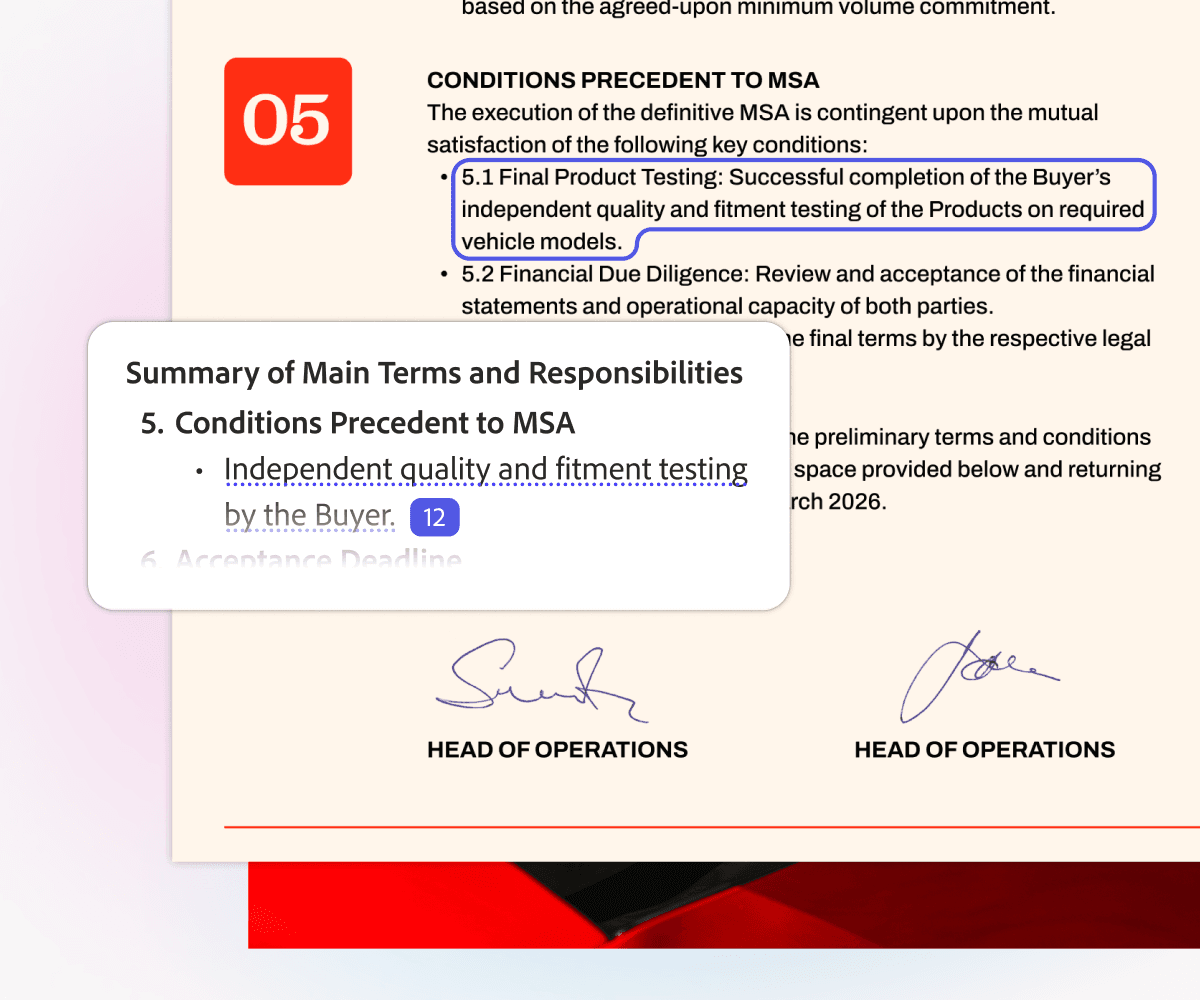
Adobe Acrobat AI Assistant fits people who already work in Acrobat. It also fits teams that need strong PDF handling. Adobe lists document summaries, prompt-based Q&A, length controls, suggested questions, and numbered attributions. Those attributions can highlight source text.
Use it for business reports, contracts, papers, and teams that already view or share PDFs in Acrobat. Before choosing it for a team, confirm current free limits, add-on needs, language support, and account terms.
3. ChatPDF
ChatPDF is the fast-summary pick. Its page is built around no-signup PDF summaries, scanned-PDF claims, page references, and a one-click jump to cited spots. If you are already comparing similar products, see the ChatPDF alternatives guide.
Use it for a quick skim or class reading. It also helps when you want to understand a file before reading closely. If the answer will be cited or used in a decision, check the page reference against the original PDF.
![ChatPDF's demo answer includes a [P1] source marker and a visible Scroll to Page 1 tooltip.](/_next/image?url=%2Fblog%2Fsummarize-pdfs%2Fchatpdf-page-reference-jump.avif&w=640&q=75)
4. Smallpdf
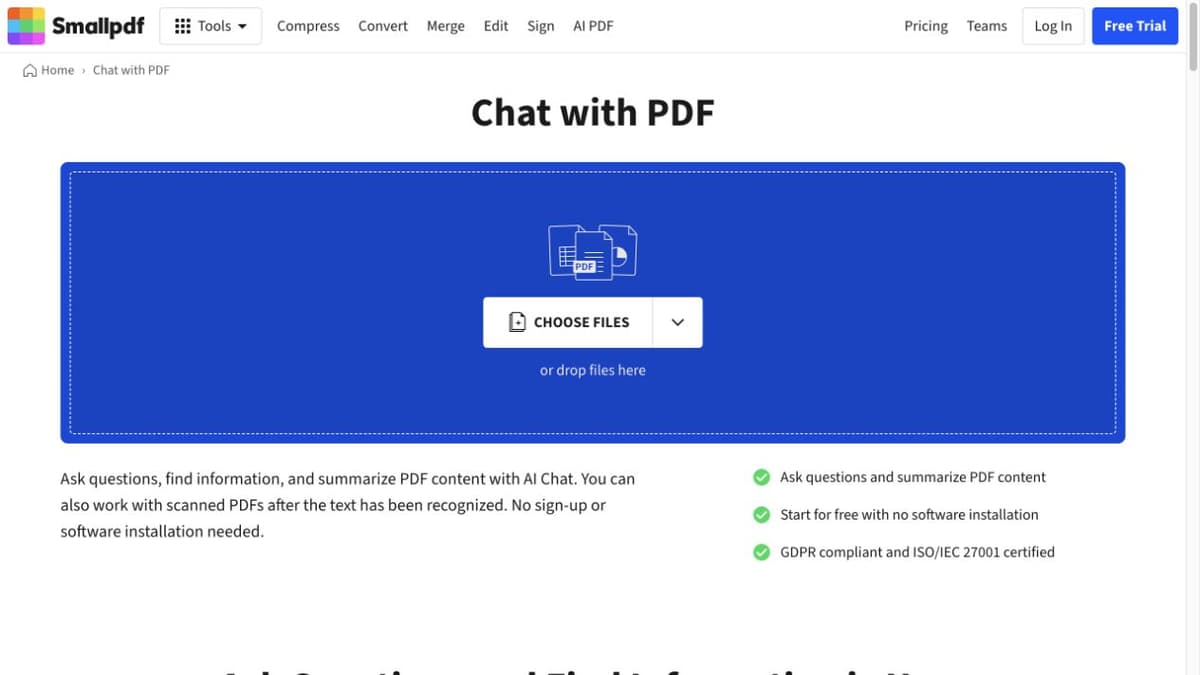
Smallpdf works well when summary is one step in a broader browser PDF flow. Its page mentions AI chat, clickable PDF page references, and support beyond PDFs. It also describes GDPR, ISO/IEC certification, TLS encryption, and deletion after processing.
Use it when you want a PDF tool suite rather than a research workspace. For sensitive files, read the current policy and plan terms. Do not rely only on security badges.
5. NoteGPT
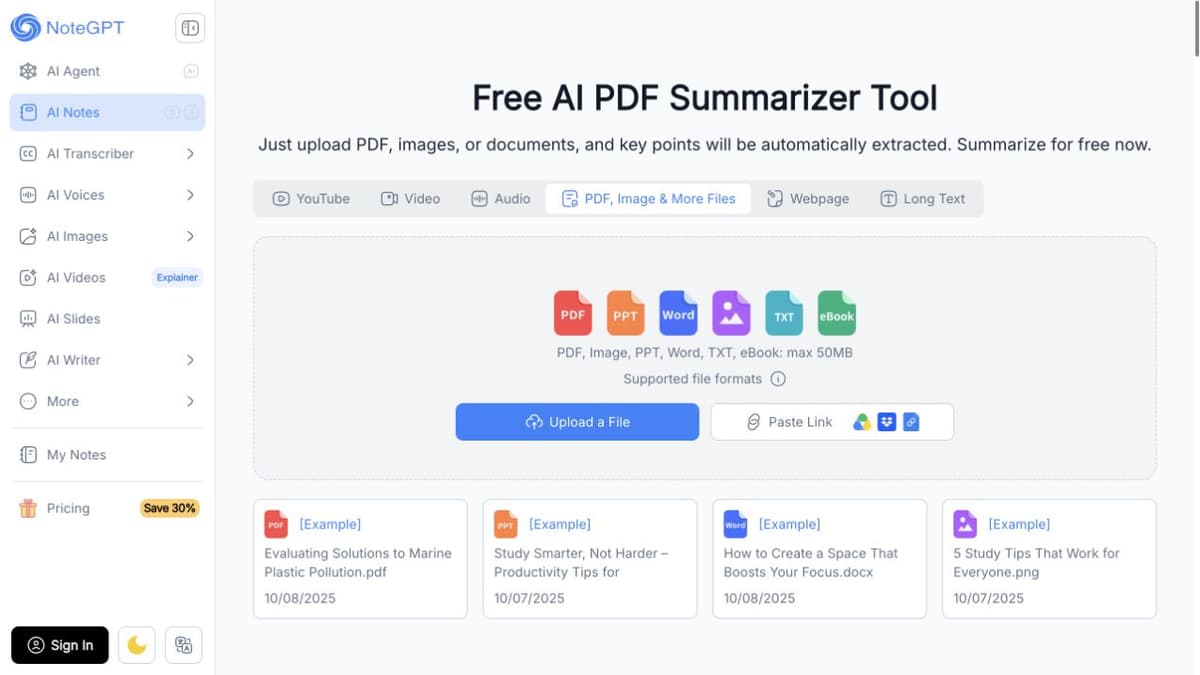
NoteGPT is built for study output. The page says users can upload PDFs, images, or files, then extract key points for free. It also points users toward PDF-to-text, ChatPDF, translation, mind maps, and study tools.
Choose NoteGPT when the summary needs to become notes, prompts, translation, or a mind map. Choose a citation-forward tool when the note must trace back to the PDF.
6. iLovePDF
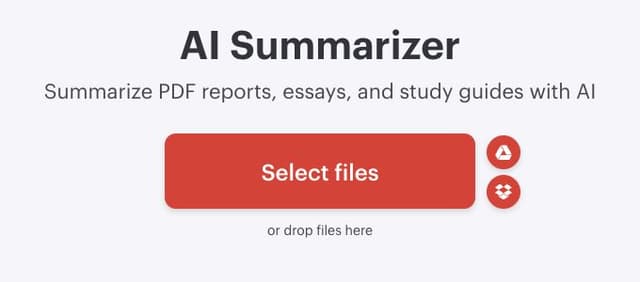
iLovePDF is the PDF-tool-suite option. The AI Summarizer page targets reports, essays, and study guides, with Short, Medium, or Long summaries and Standard AI or Advanced AI processing. Its start screen puts file selection first, with Google Drive and Dropbox as alternate import routes.
That helps if you already use iLovePDF for convert, compress, OCR, or other PDF jobs. For important claims, keep a separate source-check step. The page focuses on utility output rather than citation checks.
7. Lumin
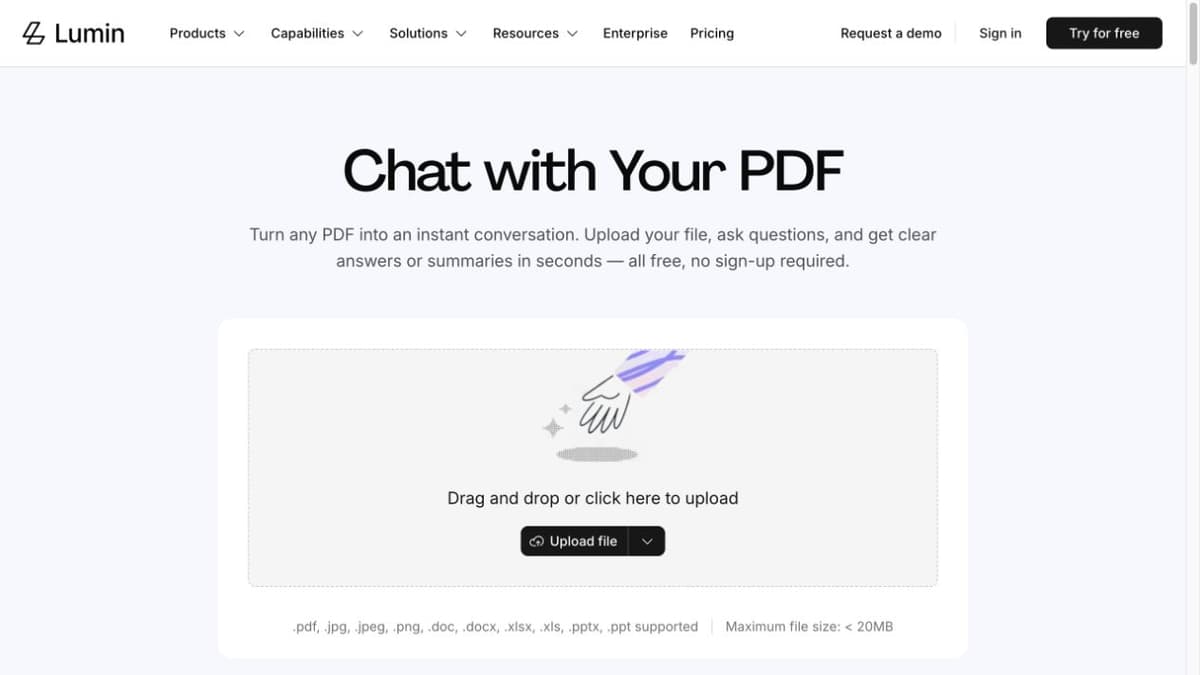
Lumin is best when you want the summary inside an editable PDF flow. Its page describes upload, summary creation, retries, editing, sharing, and download.
Lumin also claims OCR for scanned or image-based PDFs. Its page lists upload limits. That makes it a fit for shorter files where editing and sharing matter. For long PDFs, check the current limits first.
8. Studley
Studley is a study tool. Its public product pitch moves from a PDF summary into flashcards, quizzes, tutor lessons, audio, and review.
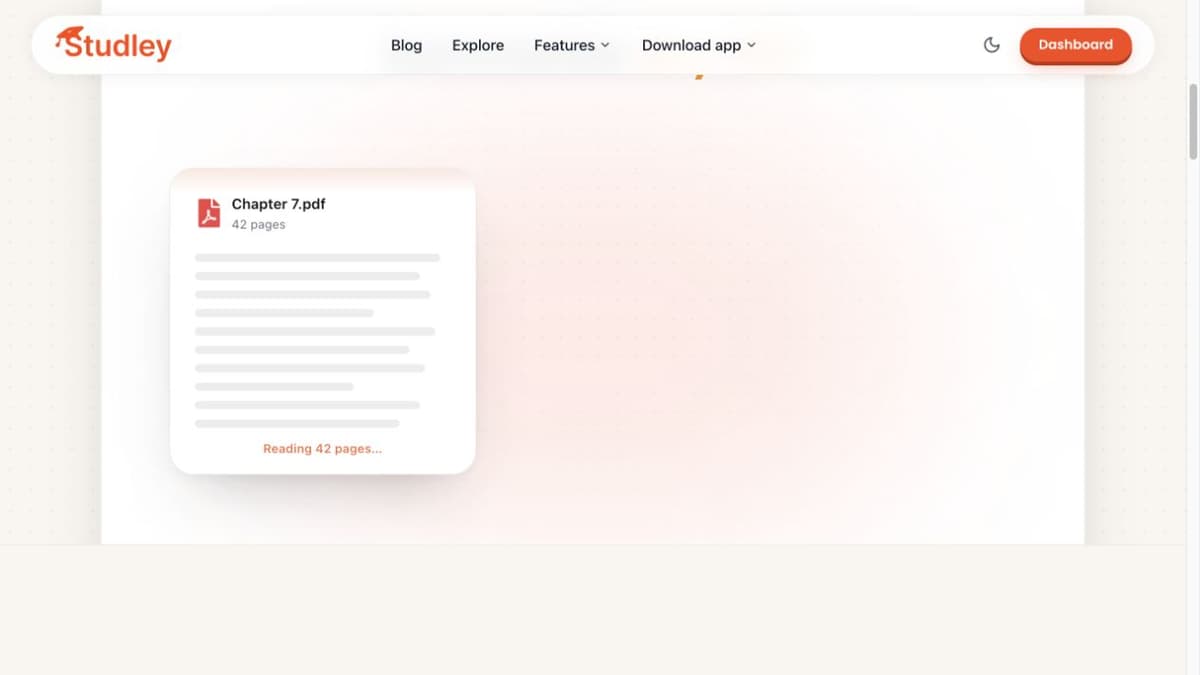
That is a different job from source verification. If you are studying for a class, those outputs may matter more than citation controls. If the PDF summary will support a paper or report, check whether Studley can show the source passage. That check matters for each important claim.
9. Manus
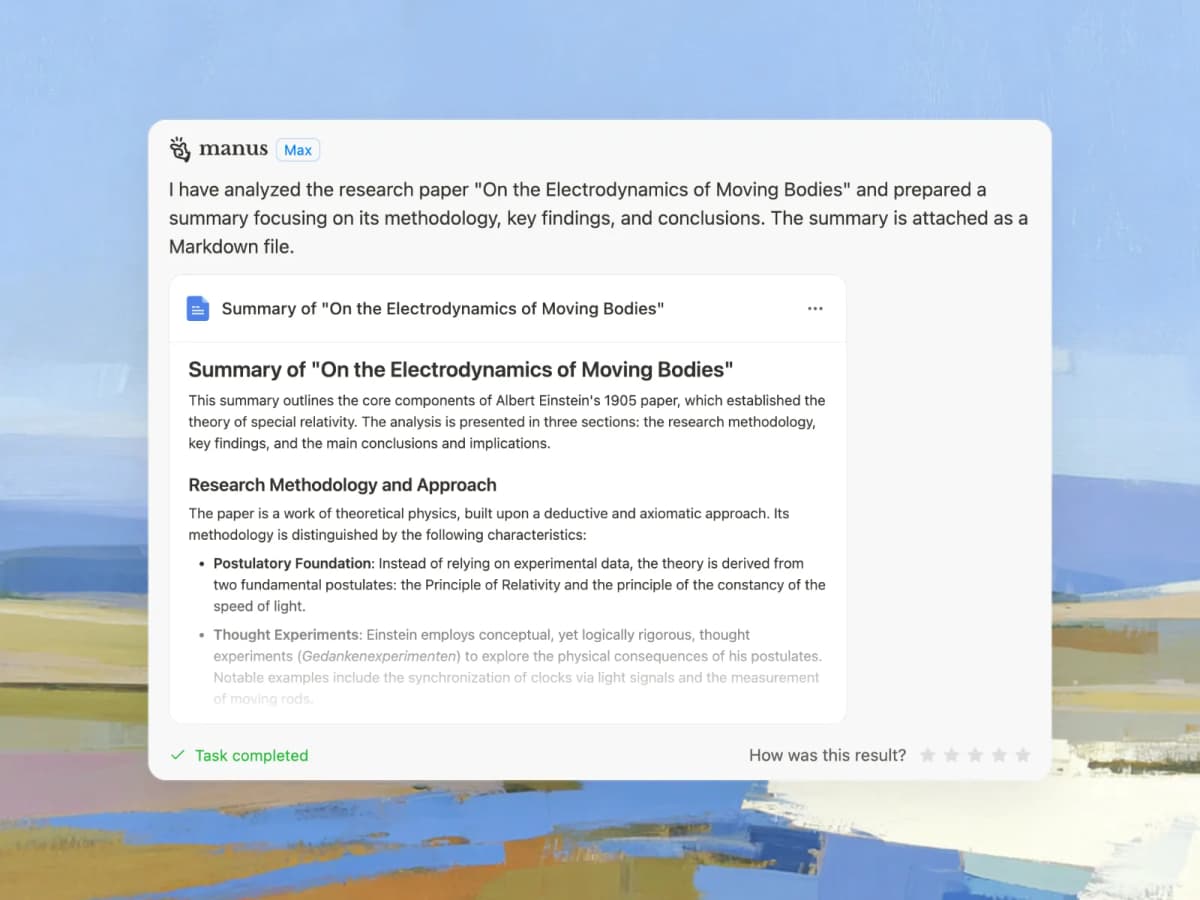
Manus presents PDF summarization as a playbook. You upload a file, choose the kind of summary you want, and ask follow-up questions. Its page describes paper summaries, contract summaries, custom output, OCR for scans, and follow-up questions.
Use Manus when you want a prompt-like flow for a file rather than a classic PDF tool. Its own page recommends quick review against the original for critical files. That is the right habit for any AI summary.
10. PDF-Summarizer.com
PDF-Summarizer.com is the dedicated long-PDF option in this SERP. Its page claims support for PDFs up to 1500 pages or 300,000 words, multiple languages, summary-size choices, and scanned-PDF OCR.
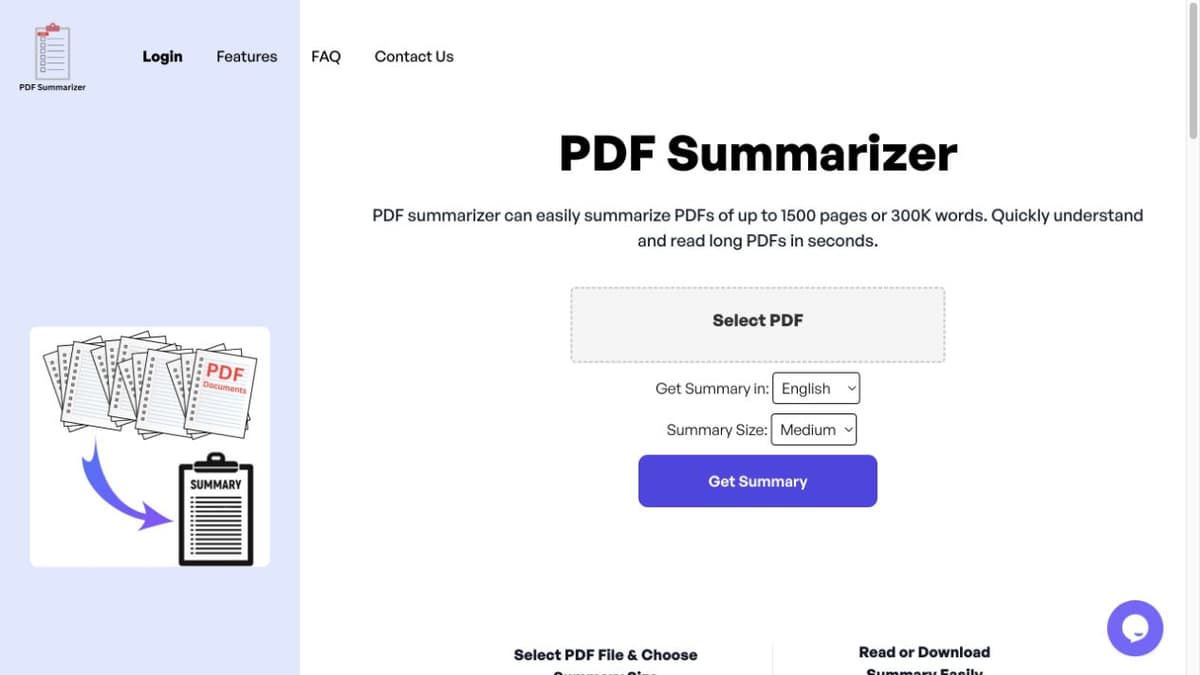
That makes it worth checking when your main problem is document length. Verify its page-limit, security, model, and OCR claims at upload time because those details can change. For source-critical work, pair it with a separate passage check. For a criteria-heavy second opinion, compare its claims with a source such as the SciSpace AI PDF summarizer guide or a practitioner roundup like Mapify's PDF summarizer comparison.
Which should you choose?
Use the lightest tool that still lets you check the claims you will reuse.
If you only need to decide whether a PDF is worth reading, ChatPDF, iLovePDF, Smallpdf, Lumin, or PDF-Summarizer.com can be enough. If the PDF is part of an Acrobat workflow, Acrobat AI Assistant is the more natural fit. If the output should become study material, NoteGPT or Studley may save time. If you are comparing adjacent research workflows, the guides to summarizing research papers, AI PDF readers, comparing PDFs, and organizing PDFs cover the neighboring jobs.
If the summary creates questions you need to trust, use Atlas for the next step. Import the PDF, ask a focused grounded question, open the citation, inspect the passage, and save the verified finding. That is slower than accepting a one-click summary, but it reduces the risk that a fluent paragraph becomes an unsupported claim.
For broader AI PDF tool comparisons, see AI PDF summarizer tools, PDF chat tools, and how to chat with a PDF.
Ask a cited question about a PDF
Ask a focused PDF question, then inspect the cited passage before saving it.