

"Videos AI" covers two different jobs, and most of the SERP only answers one of them. If you want to create a video from a prompt, script, image, or avatar, you need a generator or editor. Gemini, Higgsfield, Invideo, Canva, Adobe Firefly, Google Vids, HeyGen, and Leonardo all compete for that job.
If you already have a video, the job changes. You need to summarize it, ask questions about it, or check a claim it makes. That calls for a different kind of tool, one built around transcript text rather than prompt-to-footage generation.
Atlas belongs to the second group only. It is not a video generator, editor, avatar tool, or transcription recorder. Atlas imports YouTube videos as transcript-backed sources. From there, you can skim a summary and ask a specific question, then follow a citation back to the exact passage that supports the answer.
If the video has no usable transcript, or the point you need only appears on screen, Atlas has less to work with. Check the source directly in that case. If your job is producing new footage, go to the generator comparison below. If your job is turning a video you already have into something you can cite and check, go to the Atlas workflow.

Ask cited questions about videos in Atlas
Add a transcript-backed video, then ask questions and check cited passages.
What people mean by videos AI
"Videos AI" hides at least five separate jobs behind a single query, and each job points to a different kind of tool:
- Create a video from a prompt, script, or images. The right workflow is a generator such as Gemini, Higgsfield, Invideo, Canva, Adobe Firefly, or Leonardo. Check input type, model access, and output length before you commit to one.
- Edit or repurpose an existing clip. Some generators, including Invideo, support prompt-based edits on top of generated or uploaded material. Check whether the tool can start from a clip you already have instead of only from a prompt.
- Make presenter-led or social content. Avatar- and template-driven tools like HeyGen or Google Vids fit this job. Check avatar likeness rights and voice-cloning terms before you publish anything with a synthetic presenter.
- Summarize a video you already have. This is a transcript-summary job rather than a generation job. Atlas can produce a summary as a first pass. A dedicated YouTube summarizer may fit a narrow summarize-and-move-on job better. See the tools covered in YouTube summary AI tools, the broader AI video summary guide, or the ai transcript summarizer guide.
- Ask cited questions about a video you already have. This is the job Atlas is built for. Import the video as a source, ask a specific question, then get an answer with a citation you can open and check.
The first three jobs are creation jobs, and the SERP for "videos AI" is dominated by pages built for exactly that. The last two are evidence jobs. You already have the video, and the task is reading and verifying it instead of producing new footage.
Confusing the two costs real time on the wrong tool. A generator will not summarize a lecture you already recorded, and a transcript tool will not create a new video for you.
Choosing an AI video generator or editor
Searching "videos AI" mostly shows pages for making and editing video. Common types include text-to-video, image-to-video, avatar-led presenters, and workplace tools. The table below shows how each product describes itself, based on its own page.
Treat pricing, plan limits, watermark rules, and model access as things to verify on the current page. These terms change often.
| Tool | Typical workflow | What it's built for | Check before you commit |
|---|---|---|---|
| Gemini | Multimodal video creation in one place | Creating and editing video from text, photos, video, templates, and avatars | Google says Gemini Omni is replacing Veo inside the Gemini app, so confirm which model, tier, and region apply to your account |
| Higgsfield | Comparing multiple generation models side by side | Side-by-side access to models such as Kling, Seedance, Wan, Sora, and Veo, with camera, motion, and style controls | Model access, generation limits, and pricing change by plan and by model chosen |
| Invideo | Prompt-to-video for social and marketing content | Turning a written prompt into a script, AI visuals, voiceover, subtitles, and music | Whether text-prompt editing and output length fit a workflow that has a script |
| Canva | Design-led teams who need video without editing skills | Turning a text description into video without equipment, actors, or traditional editing skills | How a generated clip fits into an existing Canva brand kit and design workflow |
| Adobe Firefly | Creative Cloud workflows needing text-to-video or image-to-video | Firefly Boards and Creative Cloud app integrations for text-to-video and image-to-video | Adobe ties commercial-use eligibility to the specific model used, so check that per output rather than per plan |
| Google Vids | Workplace video creation inside Google Workspace | Workplace storytelling, recording, generation, and collaboration built around Gemini | Whether your Workspace plan and tier include the generation features you want |
| HeyGen | Avatar-led, presenter, and social video | Avatars, voice, captions, templates, and social or explainer videos from text, images, and audio | Avatar likeness rights and voice-cloning terms if you plan to publish the result commercially |
| Leonardo | Creative control over motion, style, and visual consistency | Text-to-video, image-to-video, start frames, motion, and visual consistency across a sequence | Export formats and how much manual motion or style tuning the workflow expects from you |
Table 1: Eight video tools compared by creation method, source material, and adoption checks.
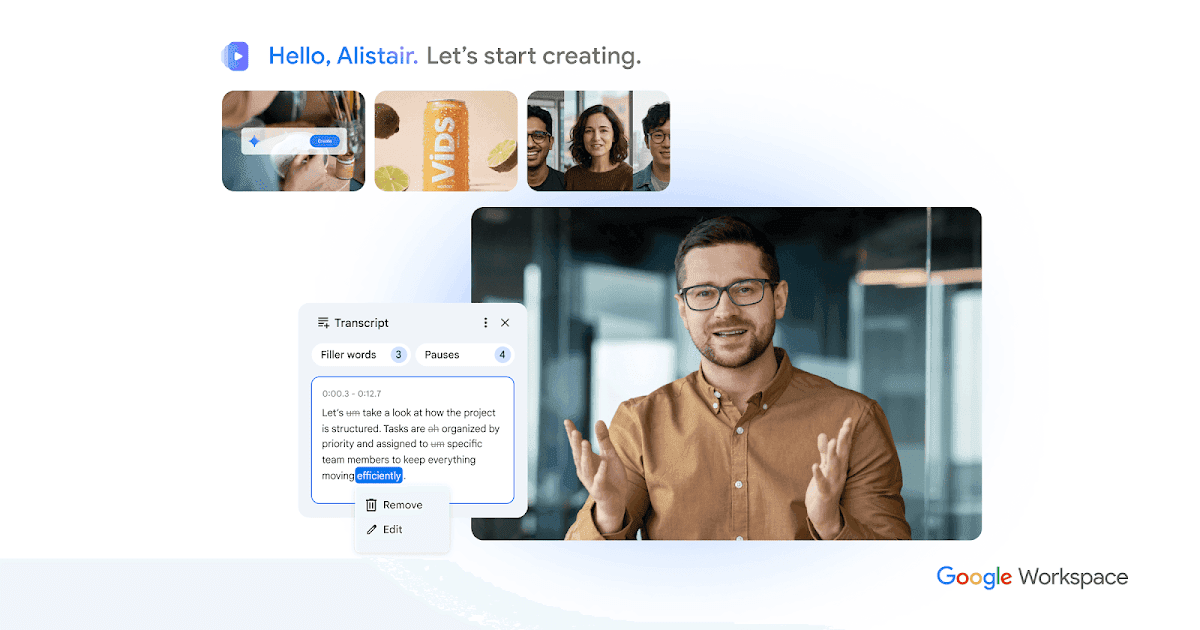
Google's official image shows the workplace-video branch of this category: a video canvas, transcript controls, and project media share one editor. Check current Workspace access before assuming every account includes the same AI features.
None of these tools read a video you already have and answer questions about it with citations. That is a different job, and it is where Atlas fits. For a wider list of generators, see Zapier's roundup of AI video generators.
How to ask cited video questions
Atlas is not on the list above because it solves a different problem. A video might be a lecture, an interview, or a talk you need to reference later. Once it exists and matters to your work, the job shifts from creating footage to reading it accurately. Atlas is built for that second job:
- Copy the YouTube URL and add it as a source in the relevant Atlas project.
- Wait for transcript processing to finish. Atlas works from the video's transcript text rather than the video itself, so a missing or auto-generated transcript limits what it can do.
- Open the source and skim the transcript to confirm the main content is present and readable, rather than only an intro or outro.
- Ask a specific question, such as "What evidence does the speaker give for the claim about retrieval quality?" Vague questions like "what is this video about" tend to return a summary rather than a checkable answer.
- Read the answer and check whether the claims you care about carry citation badges.
- Open a citation badge to jump to the exact transcript passage, and confirm it supports what the answer says.
That workflow is slower than pressing a one-click summarize button, and it produces a different kind of output. A quick summary tells you roughly what a video covers.
A cited answer gives you something more durable. It points to a specific passage you can check later, then reuse in a note, a memo, or a decision. For a closer look at why that distinction matters across source types, see AI that cites sources.
The same citation-check habit carries over to other source types in Atlas. It applies to a website you need summarized and questioned. The same goes for a research paper you need to cite accurately or a PDF you need to check line by line.
Choosing the right video AI workflow
The right criteria depend on which of the two jobs you have.
If you are creating a video
Compare generators and editors on:
- Input type: prompt, image, script, or existing clip.
- Model access: a single house model versus a multi-model workspace like Higgsfield.
- Creative control: camera, motion, style, and start-frame options.
- Avatars and voice: whether the tool supports presenter-led video, and what the likeness and voice-cloning terms require.
- Commercial terms: Adobe ties commercial-use rights to the specific model used for a given output, rather than to the plan as a whole.
- Output length and export: whether the format and length match where the video will be published.
- Watermarking: whether free or lower-tier output carries a watermark. See HeyGen's comparison of free AI video generators for how this varies by tool.
- Editing handoff: whether the result can be refined with a prompt, or needs a separate editor.
If you already have a video
Compare source-grounded workflows on:
- Transcript availability: whether the source has a usable transcript or captions at all.
- Citation support: whether an answer about the video points back to a specific passage, or just restates a summary.
- Summary limits: whether the tool treats its summary as a final answer or as a starting point for verification.
- Follow-up questions: whether a vague first answer can be narrowed into something specific and checkable.
- Source verification: whether you still need to open the transcript or the video yourself before relying on an important claim.
Limits on trusting video AI output
Most failures in this category trace back to the source material rather than the tool.
Transcript and caption problems
- Transcripts can be missing. Not every YouTube video has a public transcript, and without one, a transcript-based tool like Atlas has little text to work with.
- Auto-generated captions can be noisy. Misheard names, technical terms, and negations ("not," "isn't") are common failure points, and they change the meaning of a claim.
Visual content problems
- Visual-only content will not appear in transcript text. A slide, a chart, a demo, or a gesture that carries the point will not show up if the speaker does not describe it out loud.
Verification problems
- A citation is a pointer rather than proof. When Atlas returns a citation badge, it means the passage is related to the answer. It does not mean the claim is automatically correct or complete. Open the passage and check that it supports what the answer says. Also check that nearby context does not qualify or reverse it.
- A summary is a starting point rather than evidence. Treat any AI summary of a video, including Atlas's, as a way to decide what to read or watch closely next. Do not cite it directly.
For casual viewing, these limits rarely matter. Research, coursework, and work that other people will rely on need that check every time.
Which video AI should you choose?
Match the tool to the job you have.
If you're creating something new
- Making a new video from a prompt, script, or images: use a generator such as Invideo, Canva, Leonardo, or Adobe Firefly.
- Building presenter-led or workplace video: use an avatar or collaboration tool such as HeyGen or Google Vids.
- Wanting fast access to multiple generation models in one place: use a multi-model workspace such as Higgsfield or Gemini.
If you already have one
- Summarizing a YouTube video you already have, with no further research need: use a dedicated summarizer. See the tools compared in YouTube summary AI tools or chat with a YouTube video.
- Summarizing video, audio, meeting, or lecture transcripts more broadly: use the ai transcript summarizer guide, which covers formats beyond YouTube.
- Turning a video into source material you can question, cite, and verify: use Atlas. None of the generators above are built for this job. The narrower summarizer pages only partly cover it too.
If you are not sure which job you have, ask what happens after you get an answer. If the next step is publishing new footage, you need a generator. If the next step is writing a note, a memo, or a decision that cites the video, you need a source-grounded workflow. Choose one with citations you can check.
Conclusion
"Videos AI" is not one product category. Most of the search results answer the creation question. Gemini, Higgsfield, Invideo, Canva, Adobe Firefly, Google Vids, HeyGen, and Leonardo all compete to turn a prompt, script, or image into new footage.
A smaller set of searchers already have a video and need something different. They want a way to summarize it, ask about it, or check a claim it makes before reusing that claim elsewhere.
Atlas is built for that second job, and only that job. It does not generate, edit, animate, or watch video. What it does is take a transcript-backed YouTube source. It lets you ask a specific question, then hands back an answer with a citation. Open that citation to verify it against the transcript passage behind it.
If a lecture, interview, or talk needs to become a checkable note or report, add the video as a source and read what the transcript says.
Ask cited questions about videos in Atlas
Add a transcript-backed video, then ask questions and check cited passages.