

The best AI transcript summarizer depends on the source. Use QuillBot or Summarizer.org when you already have text and need a fast first pass. Use Evernote or Transcribe for audio or video files. Use Summary AI for meetings. Use NoteGPT when lectures, podcasts, or study videos need timestamps and key points. Use Atlas when the transcript should become source material you can question and check.
A transcript summary is useful for triage, but it is not proof by itself. Before you reuse a choice, quote, number, or task, check the source passage, speaker turn, time mark, or source link.

Verify transcript takeaways in Atlas
Add a transcript, ask a focused question, and inspect the cited passage.
How to choose an AI transcript summarizer
A paste-in tool is enough when the transcript is short, clean, and already in text form. It is the wrong fit when you need file upload, speaker labels, timestamps, or meeting capture.
Then check the output you need. Some tools return a paragraph. Others give bullets, key points, meeting notes, action items, timestamps, or chat. The format matters because a podcast recap, interview note, lecture note, and board-meeting note can fail in different ways.
Use these criteria before choosing a tool. The same split appears in transcript-tool guides from AssemblyAI, Notta, and Otter AI. Text skims, media files, meetings, long recordings, and source checks need different products.
Generic text tools such as Scribbr reinforce the point. A pasted-text recap is a different job from transcript capture or cited review.
- Transcript source: pasted text, TXT/DOCX, media file, URL, meeting recording, or imported source.
- Length and file limits: text caps, file size, time limits, upload count, and plan rules change often.
- Speaker context: whether the recap keeps who said what in interviews and meetings.
- Timestamps: whether you can jump from a takeaway back to the source moment.
- Note controls: paragraph, bullets, meeting notes, key points, email format, custom prompts, or set sections.
- Follow-up questions: whether you can ask the transcript about a choice, caveat, quote, or point of contrast.
- Exports: copy, DOCX, PDF, TXT, SRT, notes, or workspace handoff.
- Private data: whether the transcript contains private meetings, customer calls, health details, legal notes, or draft research.
- Source check: whether important claims can be checked against the transcript, source link, time mark, or original file.
Let the tool shorten the transcript. Then use a source check for claims that will affect writing, research, legal review, customer follow-up, finance, or team work.
AI transcript summarizers compared
This table uses product pages reviewed in July 2026. I skipped claims that need private tests, such as exact accuracy, security badges, or no-limit files.
| Tool | Best fit | Input lane | Output style | Verification caveat |
|---|---|---|---|---|
| Atlas | Source-checked transcript follow-up | Transcript-bearing sources such as text notes, documents, websites, YouTube transcript text, or attachments after processing | Source summaries, grounded answers, citations, and saved verified takeaways | Atlas is not a live recorder or diarization tool. Use it after the transcript-bearing material is in the project |
| Evernote | Uploaded transcript, audio, or video summaries | TXT plus audio/video formats listed on the page, with 100 MB and 60-minute audio/video limits | Paragraph, bullets, meeting style, and email style | Good for file-based summaries, but important results still need transcript review outside the generated summary |
| QuillBot | Fast summaries from pasted text | Long-form text, docs, articles, and transcript text you already have | Bullet or paragraph output with length control | It is text-first. Do not assume media transcription, speaker labels, or timestamps |
| Transcribe | Audio and video transcript summaries | Common audio and video formats, imports, and cloud/workflow integrations | Standard summaries, structured summaries, key points, editor, PDF/DOCX exports | Useful when media handling matters. Verify current integrations, exports, and plan limits before a team rollout |
| NoteGPT | Study audio, video, lectures, and podcasts | Audio/video files or URLs, with broad format and language claims on the product page | Transcript text, timestamps, key points, highlights, and summaries | Treat broad no-limit, accuracy, privacy, and file-size claims as claims to refresh before relying on them |
| Summary AI | Meeting recordings and meeting notes | Meeting capture, audio/video transcription surfaces, and integrations such as Zoom, Google Meet, and Microsoft Teams | Transcript, structured meeting notes, summaries, and chat over notes | Meeting assistants require extra consent and privacy review. Verify behavior before recording sensitive meetings |
| Summarizer.org | Lightweight text, URL, DOCX, TXT, or image-text summaries | Pasted text, URLs, TXT, DOCX, and image text | Paragraph, bullet points, custom summary, length control, copy/download | Good for lightweight transcript text, but not a transcript-specific verification workflow |
Table 1: Use the table to choose the transcript job first. You may need pasted text, a media upload, meeting notes, study notes, or cited source review. A paste-in text tool is not the same as a meeting recorder. It is also not the same as a tool that handles hour-long files or lets you inspect cited transcript passages.
Check a transcript summary in Atlas
Atlas fits after a transcript-bearing source should become part of a project. Good sources include YouTube lectures with transcript text. They can also include interview notes, meeting transcripts pasted into docs, and other files Atlas can process.
Use Atlas for a verification pass after the quick summary has pointed you to a claim worth checking:
- Add the transcript-bearing source to the relevant project.
- Wait for processing to finish.
- Read the source summary as a triage aid and mark important claims for passage checks.
- Ask a narrow grounded question about the transcript.
- Open citation badges for the claims that matter.
- Read the cited passage and surrounding context.
- Save only the takeaway that the passage supports.
For example, after adding an interview transcript, ask: "What evidence does the founder give for the retention claim, and what caveat do they mention?" If the answer cites the transcript, open the citation. Check whether the nearby speaker turn supports the claim. If the citation is weak, ask a narrower follow-up or inspect the transcript yourself.
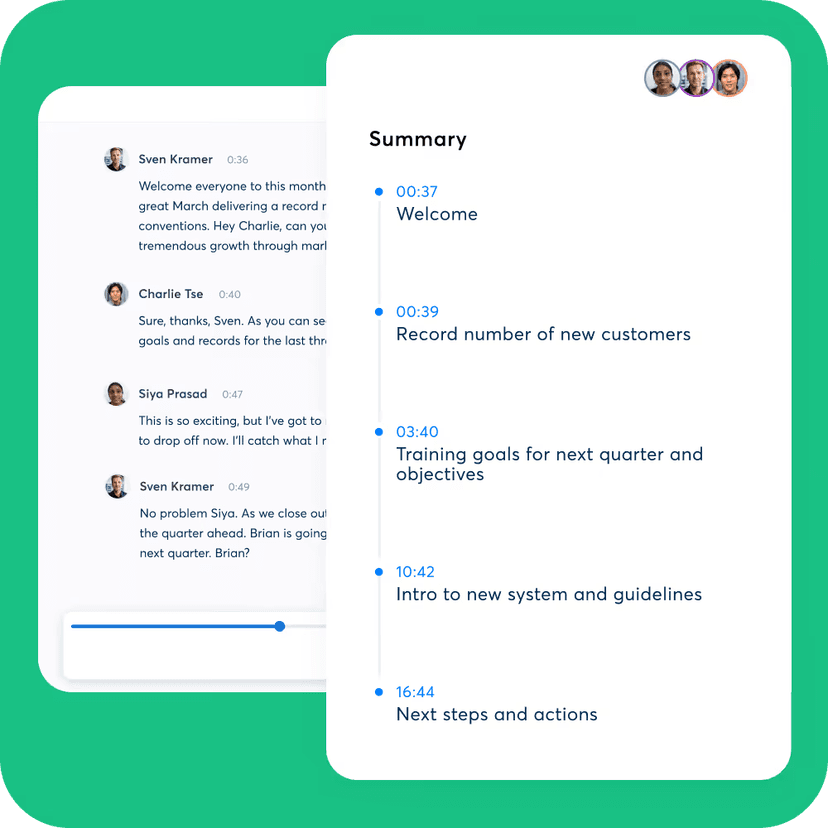
Otter's official interface demonstrates a reviewable summary layout: named speakers and transcript timestamps remain visible beside timestamped summary points. Whatever tool you choose, check names, numbers, and omitted context against the transcript before reusing a summary claim.
Use this checklist before reusing a transcript summary:
- The transcript is complete enough for the question.
- Speaker turns or time marks are clear where credit matters.
- Numbers, dates, choices, and quotes match the transcript passage.
- Caveats near the cited passage do not change the meaning.
- The summary is labeled as triage until the passage is checked.
- Sensitive claims are checked against the source.
Atlas differs from a quick transcript summary generator at the source-check step. The summary helps you find the issue. The cited answer lets you inspect the support before the claim becomes a note, brief, article, or team decision.
Best AI transcript summarizer tools
1. Atlas
Atlas is the best fit when a transcript is source material. Use it for interviews, lectures, research videos, workshops, policy talks, customer calls, or long notes. It fits when a later claim needs a source trail.
Atlas summaries help you scan a source and decide what deserves closer reading. Grounded questions then let you ask about a claim, limit, method, choice, or contrast. Source badges take you back to the passage so you can inspect the support before saving or reusing the answer.
Choose Atlas when the next step is a checked takeaway from the transcript. Choose another tool first if you need live recording, speaker labels, or quick transcription before the source exists.
2. Evernote
Evernote's transcript summary page is useful when the source is a transcript, audio file, or video file. The page lists paragraph, bullet, meeting, and email styles. It also lists upload limits of 100 MB and 60 minutes for audio or video files.
That makes Evernote a practical fit for people who already keep notes and files there. A meeting transcript can become meeting notes. A podcast or interview file can become a shorter read before deeper review.
The caveat is that the summary is still generated output. If the transcript includes client details, legal talk, health data, or research proof, check the transcript. Also check the current Evernote terms before relying on the result.
3. QuillBot
QuillBot is strongest when the transcript already exists as text. Its page covers long text, articles, and docs. It can return bullet or paragraph output with length control.
Use it for quick transcript skims. It works for an interview pasted into the browser. It can also handle a webinar transcript copied from a tool or a class discussion saved as text. It is useful when the job is compression rather than transcript handling.
Do not treat QuillBot as an audio or video transcript system unless a current product page supports that exact workflow. It is better for "summarize this transcript text" than for preserving speaker labels, timestamps, or source citations.
4. Transcribe
Transcribe is built closer to the media workflow. Its page describes audio and video transcription, key points, set recap types, and a built-in editor. It also lists common media imports, PDF/DOCX exports, and links to tools such as Zoom, Gmail, Google Drive, and Zapier.
Use it when the transcript is tied to a recording and export matters. A podcast team, researcher, student, or operator may need to move from recording to transcript to a shareable doc.
The main check is current scope. Before a team depends on it, verify the file formats, exports, tool links, storage, pricing, and privacy terms for that account.
5. NoteGPT
NoteGPT fits media, lecture, and study workflows. Its audio summary page lists files or URLs, transcript time marks, key points, and highlights. It also lists many file formats and transcription in more than one language.
Use it when the transcript is part of study material. Class talks, podcasts, and tutorials work better with time marks. The learner can move from the recap back to the right moment.
The caution is that the page also makes broad claims around limits, accuracy, privacy, and file handling. Treat those as product claims to refresh before publication, compliance review, or repeated team use. For everyday study, still check the timestamp before quoting a speaker.
6. Summary AI
Summary AI is a meeting-note lane. Its site frames the product around meeting recording, transcripts, set note formats, app links, and chat over meeting notes.
Use it when the transcript begins as a meeting. The output should be a meeting record, such as decisions, action items, reminders, or answers about what happened. That is different from summarizing a podcast, lecture, or interview transcript after the fact.
Meeting notes have a special risk: consent and privacy. Before using any meeting recorder, confirm that people know the meeting is being recorded. Also check whether the tool fits your company, school, or local rules.
7. Summarizer.org
Summarizer.org is a light option when the transcript is already available as text, a TXT/DOCX file, image text, or a URL. Its page includes paragraph recaps, bullet points, custom recaps, length controls, copying, and DOCX download.
Use it for fast orientation. It can turn a transcript into a shorter read without requiring a full research workspace or meeting assistant.
The tradeoff is source checking. A lightweight tool can tell you what the transcript seems to say. Before reusing a claim, check the source passage, speaker context, or timestamp.
Transcript summary limits to check
Transcript tools fail in predictable ways. A recap can help with triage and still leave out the speaker turn, caveat, timestamp, or visual detail that changes the meaning.
Noisy or incomplete transcripts
Auto-transcripts can miss names, acronyms, math, product terms, and non-native speech. A recap built on that text may keep the wrong word. Check the transcript before trusting a name, number, quote, or technical term.
Speaker attribution
Interviews and meetings depend on speaker context. A recap can merge views, put a choice under the wrong name, or hide disagreement. If speaker credit matters, inspect the speaker turn around the claim.
Timestamp drift
Timestamps help only if they point to the right moment. Long files and edited videos can drift. Use timestamps as navigation aids, then read or listen around the target moment. Transcript-summary tools such as Lynote show why time marks can help navigation. You still need to inspect the moment.
Missing visual context
Video and screen-share summaries often rely on transcript text. Slides, charts, demos, gestures, and code may carry the proof. If the speaker says "this chart proves it," inspect the visual source or recording segment before treating the transcript recap as support.
If the source is a YouTube video rather than a meeting, use a video-specific YouTube summary AI workflow so timestamps, visual context, and channel metadata stay part of the check.
Long-file compression
Long transcripts often need aggressive compression. That can remove minority views, caveats, edge cases, and late fixes. For long meetings or interviews, ask focused questions. Do not rely on one broad recap.
Privacy and high-stakes use
Meeting transcripts, interviews, legal calls, health talks, finance work, draft research, and customer calls can contain sensitive data. Review the current privacy terms before upload. For legal review, compare the transcript workflow with legal document AI workflows. Check each key claim against the transcript or source file.
Which AI transcript summarizer should you choose?
Choose by the job:
For quick transcript text
Use QuillBot or Summarizer.org when you already have the transcript text and need a fast first pass. This is the right lane for skimming, shortening, or turning a transcript into bullets before deciding what to read.
For uploaded audio or video
Use Evernote or Transcribe when the source is a media file or uploaded transcript. Evernote is useful for broad transcript, audio, or video note styles. Transcribe is stronger when transcription, edits, exports, and tool links matter.
For meetings
Use Summary AI when the transcript comes from meetings. It fits structured notes, action items, and chat over the meeting record. Check consent, privacy, and team rules before you record or upload.
For lectures, podcasts, and study material
Use NoteGPT when timestamps, key points, and study notes matter. It is a better fit for learning than a paste-in text tool. Still check the timestamp before a claim becomes evidence.
For source-checked follow-up
Use Atlas when the transcript should become a source you can question and check. That path fits research, interviews, proof checks, source-backed notes, and written work. It helps when a later reader may ask where the claim came from.
In Atlas, add the transcript source and read the recap for triage. Then ask a narrow grounded question, open the source badges, and check the cited passage before saving the takeaway.
For nearby jobs, keep YouTube tools, video recap tools, and document tools apart from this transcript guide. For note apps, compare Evernote alternatives and Otter AI alternatives. For a full comparison of live capture and cited follow-up tools, see meeting transcript AI.
For source-checking habits, see the guides to AI that cites sources, chat with documents workflows, and best document AI tools.
Conclusion
An AI transcript summarizer can save time, but the right tool depends on the source. Text summarizers handle pasted transcript text. Audio and video tools handle media files. Meeting assistants handle live or recorded meetings. Research workspaces handle source-checked follow-up.
For low-stakes skimming, a short summary may be enough. For claims that will leave your private notes, treat the summary as a map back to the transcript. Atlas is most useful at that second step. Add the transcript-bearing source, ask a grounded question, open citations, and reuse only what the source supports.
Verify transcript takeaways in Atlas
Add a transcript, ask a focused question, and inspect the cited passage.