

The best meeting transcript AI tool depends on how the transcript gets made. Use Otter or Read AI when you want a meeting agent that joins calls, transcribes live, and summarizes across Zoom, Google Meet, or Teams. Use Tactiq when a browser extension is enough for live transcripts and instant summaries. Use Krisp when audio cleanup and transcription need to happen together, on or off a call.
Use Notta or Evernote AI Transcribe when the starting point is an uploaded recording. Use Jamie when you want notes without a visible bot in the call. Use Atlas once a transcript already exists and you need a cited answer instead of another recap.
Atlas is not a recorder, bot notetaker, or real-time meeting assistant. It starts after a transcript is source material. Add it, ask a specific question, and inspect the citation before you repeat the answer in a follow-up email or a research note.

Check meeting transcripts with citations
Ask about a decision or claim, then open the cited transcript passage.
How to choose a transcript tool
Start with how you will make the transcript. That choice rules out most tools at once.
- Live call or saved file: Otter, Read AI, Tactiq, and Jamie work during a meeting. Notta and Evernote AI Transcribe can start from a file you upload.
- Visible bot: Some tools join the call as a named guest. Jamie and Krisp can work without one. That may feel less awkward on calls with clients or guests.
- Call apps: Check for Zoom, Google Meet, Microsoft Teams, phone calls, and talks held in the same room. Support varies by plan.
- Who said what: For an interview or panel, test whether the tool labels each speaker well.
- Recaps and tasks: Treat AI-made notes as a draft. Check the transcript before you assign work or state what the group agreed.
- Search across calls: Otter and Read AI can search past meetings. This helps when you need a choice made weeks ago.
- Export: Make sure you can save the text in a format your team can use.
- Consent and privacy: Tell guests when a call is being recorded or turned into text. Check your firm's rules, local law, and the tool's current data terms before using it on a private call.
- Check the claim: Make sure you can open the exact text behind an AI recap.
That last check is easy to miss. A recap can point to the right part of a transcript. Read that part before you act on it.
Meeting transcript AI comparison matrix
This table separates tools that make transcripts from tools that help check them. Product claims come from each tool's own page. Check current limits, prices, and accuracy before a team rollout.
| Tool | Best fit | Capture mode | Summary / search strength | Evidence check | Boundary to verify |
|---|---|---|---|---|---|
| Atlas | Cited follow-up after a transcript exists | No live recording. Add a finished transcript as a source | Grounded question-and-answer over the transcript, with related project sources included | Citation badges link back to the transcript passage for inspection | Not a live meeting assistant, bot notetaker, or recorder. Confirm the transcript is already added as source material |
| Otter | Flexible meeting capture and connected knowledge | Live meeting agent, plus uploaded audio/video | Summaries, action items, and searchable meeting knowledge across past meetings | Transcript search lets you locate the original line, but claims still need a manual read | Confirm current plan limits and accuracy claims on Otter's page before relying on them |
| Read AI | Cross-meeting summaries and AI search at work | Live meeting agent across common video platforms | Meeting, email, and message summaries plus enterprise-style AI search | Playback and search route you back to the source meeting | Confirm current enterprise, compliance, and free-plan details before adopting broadly |
| Tactiq | Browser-based live transcripts | Chrome extension during Google Meet, Zoom, or Teams calls | Instant summaries and AI questions over the meeting notes | Transcript stays in the browser session for reference during and after the call | Depends on the extension staying installed and active. Confirm platform coverage and free-tier limits |
| Krisp | Audio cleanup plus transcription together | Online or offline meetings, including phone calls | Speaker-labeled transcripts and summaries alongside noise cancellation | Speaker labels help you locate who said what, but claims still need a transcript read | Audio cleanup and transcription are separate strengths. Confirm current accuracy and privacy claims for each |
| Notta | Uploaded meetings, interviews, and lectures | Live capture plus file upload for recordings | Multilingual transcription, summaries, and searchable text | Search inside the transcript, then confirm the passage before reuse | Confirm current language coverage and free-minute limits before depending on them |
| Jamie | Bot-free meeting notes | Desktop audio capture without a visible call participant | Structured notes, action items, and speaker recognition | Notes reference the transcript, but the transcript itself still needs a check for high-stakes claims | Confirm current privacy and hosting claims directly on Jamie's site before sensitive use |
| Evernote AI Transcribe | File-based transcription inside a notes workflow | Upload only. Audio, video, image, and note files | Transcription plus notes-style organization | Useful for turning a file into searchable text, but not built for meeting-specific evidence checks | Confirm current file-size and duration limits before uploading long recordings |
Table 1: Pick the job first. A strong live recorder may still be a poor place to check a claim later. Atlas does not record calls.
Where Atlas fits: cited transcript follow-up
Atlas is not a meeting bot. Use it after the transcript is ready when you need an answer that links back to the source text.
Turning a finished transcript into a cited answer in Atlas follows these steps:
- Export or copy the finished transcript from the tool that made it.
- Add the text or file to the right Atlas project.
- Wait for the source to finish processing.
- Ask about one choice, promise, or claim. For example: "What did the customer agree to about the renewal date, and who confirmed it?"
- Open the source badge on the answer.
- Read the quoted text and the lines around it.
- If the answer spans two meetings, ask Atlas to compare both transcripts.
A recap can shorten a point too far or name the wrong speaker. A citation gives you text to check. Read it before you repeat the claim in an email or research note.
Atlas fits interviews, customer calls, and project reviews when a follow-up claim needs a source trail. If you still need to record the call or turn it into text, first use one of the tools above.
Best meeting transcript AI tools
1. Atlas
Atlas fits after a meeting transcript already exists. Add the transcript as a source, then ask specific questions about decisions, commitments, or claims instead of re-reading the document. Citation badges point to the exact passage behind each answer.
You can also pull in related project sources, such as a prior meeting or a contract draft, when a question spans more than one document. Choose a capture tool first if the transcript does not exist yet.
2. Otter
Otter positions itself as a meeting agent: it joins calls, transcribes live, generates summaries and action items, and lets you search across past meetings. It also accepts uploaded audio and video files for work outside of a live call.
Otter is a reasonable default when you want one tool for both capture and a searchable meeting archive. The tradeoff is that searchable knowledge is not the same as a citation trail. Find the right meeting in search, then read the actual line before quoting it.
3. Read AI
Read AI extends the meeting-agent idea to email and message summaries alongside meeting transcripts, with playback and enterprise-style AI search. It fits teams that already run most of their communication through connected calendar and messaging tools.
The breadth is useful for finding a meeting quickly. It does not remove the need to check a specific claim against the source once you have located it, particularly for anything you plan to repeat outside the original call.
4. Tactiq
Tactiq runs as a browser extension for Google Meet, Zoom, and Microsoft Teams, producing real-time transcripts, instant summaries, and AI questions over the notes during the call.
It is a light option if you do not want a standalone app or a separate bot account. The limitation is that it depends on the browser session and platform support. Confirm coverage before standardizing it across every meeting type your team runs.
5. Krisp
Krisp pairs audio cleanup with meeting transcription, covering both online and offline meetings, including phone calls, with speaker identification and summaries.
This is a useful combination when call quality is the bigger problem, such as noisy home offices or phone-based interviews. Noise cancellation and transcription accuracy are still separate strengths. Check the transcript on its own before assuming clean audio means an accurate result.
6. Notta
Notta covers meetings, interviews, lectures, and recordings, with multilingual transcription, summaries, collaboration features, and searchable text output.
It fits well when the source material is broader than office meetings, such as research interviews or classroom recordings, and when multiple languages are involved. Verify current language coverage and any free-usage limits before depending on it for a recurring workflow.
7. Jamie
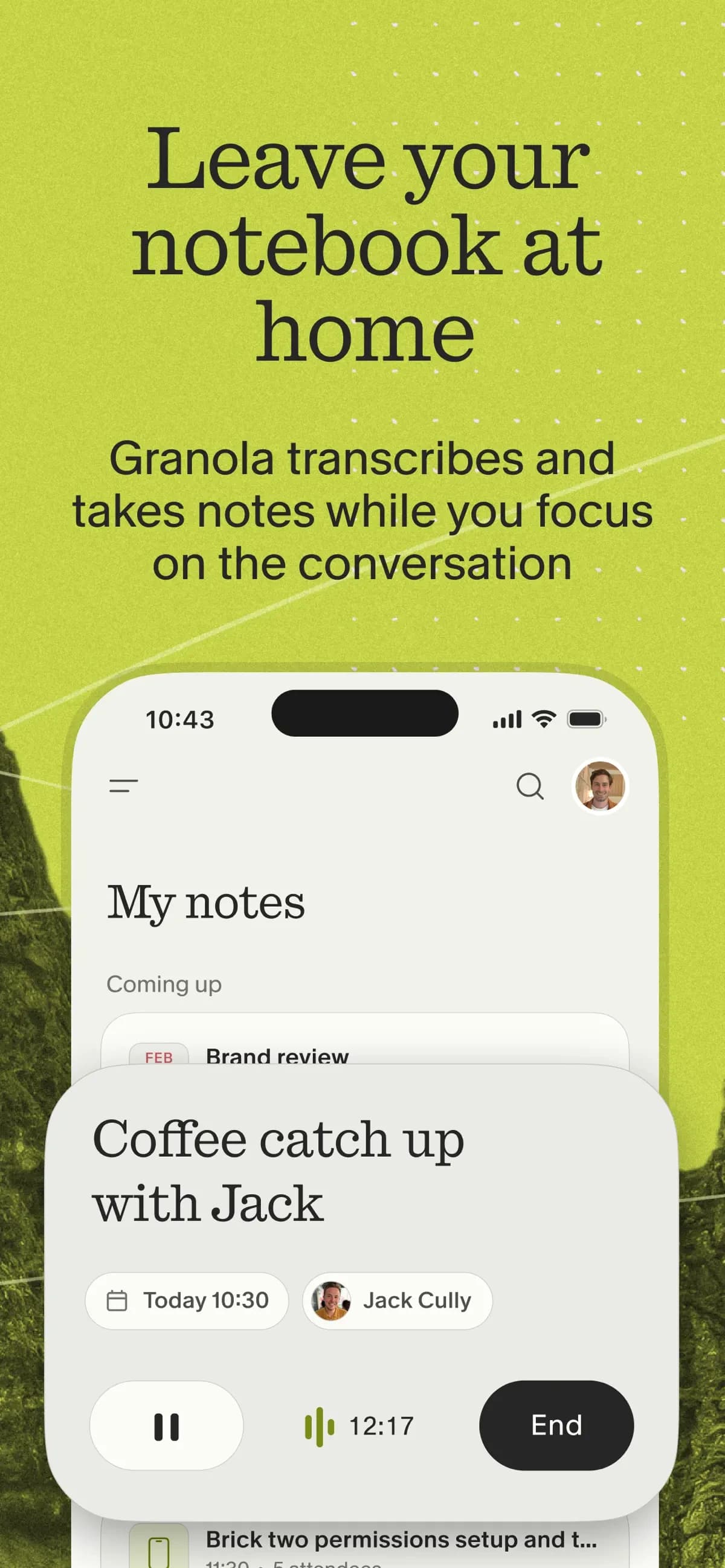
Jamie markets itself as a bot-free AI note taker: it captures desktop audio for online and in-person meetings without a visible bot joining the call, then produces transcripts, structured notes, action items, and speaker recognition.
This fits situations where a visible notetaker would be awkward, such as client meetings or interviews where participants might behave differently with a bot present. Confirm Jamie's current privacy and hosting details directly on its site if the meetings involve sensitive material.
8. Evernote AI Transcribe
Evernote AI Transcribe is a file-based transcription tool for audio, video, images, and notes, aimed at people who already keep notes in Evernote.
It is a good fit when the job is turning an existing file into searchable text inside a notes workflow you already use, rather than joining or recording a live meeting. Check current file-size and duration limits before uploading long recordings.
Transcript AI risks to check before sharing
A transcript is a starting point. Check these risks before you share its claims.
Speaker confusion
Overlapping speech, similar voices, and accents can place a line under the wrong name. Check the speaker closely in interviews and talks about a deal.
Missing context
A recap may drop a warning that changes the meaning. Before a promise or number goes into a report, read the lines around it.
Hallucinated or overstated action items
AI notes can turn a weak idea into a firm task. Read the exact words before you treat an AI-made task as agreed.
Weak privacy review
Tell guests when a call is recorded or turned into text. Check your firm's rules, local law, and the recorder's current data terms before using it with customers, job candidates, or partners.
Confidential and legal-sensitive calls
A small transcript error can matter in a contract or legal call. Check each duty against the signed terms with a contract review tool. The meeting recap does not replace the agreement.
Summaries that need source inspection
Each tool can make a recap. Use it to find the right passage, then read that passage before a customer claim or research result moves into a memo.
Pick your meeting transcript AI tool
- Live meeting bot: Use Otter or Read AI. Both make transcripts and recaps, list tasks, and search past calls.
- Browser-only capture: Tactiq covers Google Meet, Zoom, and Teams without a separate app or bot account.
- Cleaner sound plus text: Krisp handles both for online, offline, and phone meetings.
- Saved file: Use Notta for more languages or Evernote AI Transcribe inside your notes.
- Bot-free capture: Jamie records desktop audio without a visible call participant. Check current platform coverage before committing.
- Check a finished transcript: Use Atlas. Add it as a source, ask about one claim, open the source badge, and read the text before you repeat the answer.
Many teams use one tool during the meeting and Atlas later, when the transcript supports an email or research note.
For the next step, learn how to use AI to take meeting notes or how to take meeting notes by hand. Our guide to good meeting notes applies to either method.
For an AI transcript summarizer that summarizes rather than cites, see that workflow. For questions across saved documents, see AI that cites sources.
Conclusion
Meeting transcript AI is not one job. Capturing, summarizing, and verifying a claim afterward are separate tasks. The tool best at one is rarely best at another. Otter, Read AI, Tactiq, Krisp, Notta, Jamie, and Evernote AI Transcribe each solve part of capture and summarization.
Atlas covers the part those tools leave open. Once the transcript exists, add it as a source, ask a specific question, and open the citation before the answer becomes a claim in a report. That check is the difference between a summary you skimmed and a source you can defend.
Check meeting transcripts with citations
Ask about a decision or claim, then open the cited transcript passage.