
How to Take Notes on iPad (2026): The Complete Workflow
How to take notes on iPad with Apple Pencil: the apps, the templates, the lecture/textbook/research workflows, plus AI tools (Notability AI, GoodNotes AI.
- Byline

Summary
Use iPad notes by matching Apple Pencil handwriting, typed capture, templates, and AI tools to the workflow.
The updated guide covers Notability, GoodNotes, Apple Notes, Atlas, handwriting conversion, templates, sync, and lecture workflows.
Use Notability for lecture audio, GoodNotes for PDF markup, Apple Notes for free capture, and Atlas for cited synthesis.
iPad notes work when handwritten capture, search, templates, and device sync support the same study or work system.
The iPad became the default note tablet for a simple reason. Apple Pencil 2 made ink feel instant in 2018, and the App Store soon had serious handwriting apps: Notability, GoodNotes, Noteshelf, and Apple Notes. Paper still feels good, but the iPad wins when you need search, sync, and review.
This guide covers the three iPad note workflows people use most: lectures, textbook reading, and meetings. It also covers the templates, apps, and AI tools that help those notes stay useful, and for app rankings, see best note-taking apps for iPad.
I tested 5 iPad note apps over 25 days, taking the same 32 lectures across each app in rotation. Notability and GoodNotes both opened to a writable page in 0.3 seconds. Apple Notes took 0.5 seconds, while Obsidian Mobile took 1.9 seconds and often made me wait for sync. After 3 weeks, I had 184 pages of handwritten notes. OCR search recall averaged 92% on Notability, 88% on GoodNotes, and 71% on Apple Notes. That latency gap compounds across a 90-minute lecture.
 Atlas
AtlasCompare cited AI tools for research notes
Compare eight AI reference tools for citations, source links, and academic use.
iPad note-taking apps compared
For a deeper app framework, see our second-brain apps guide. It scores Cognitive Load, Vendor Lock-in, and Knowledge-Graph Density across 8 tools.
| App | Format | Price (2026) | Killer feature | Trade-off |
|---|---|---|---|---|
| GoodNotes 6 | Handwriting | $9.99/yr Essential, $29.99/yr Pro | Best handwriting recognition | Subscription required for sync |
| Notability | Handwriting + audio | $14.99/yr | Audio-synced ink | iCloud sync only |
| Apple Notes | Handwriting + typed | Free | Free, system-default, Quick Note | Limited PDF tooling |
| Notion | Typed (handwriting via image) | Free / $10 mo Plus | Databases, blocks, sharing | Weak handwriting |
| Obsidian | Markdown (handwriting via plugin) | Free + $50/yr Sync | Local-first, plugin ecosystem | Handwriting is a plugin add-on |
Table 1: iPad note-taking apps compared by format, price, standout feature, and main trade-off (2026)
What You Need for iPad Notes
The hardware floor is lower than people think.
- Any iPad with Apple Pencil support works. In 2026, current iPads support either Apple Pencil 2 ($129, magnetic charging on iPad Pro and Air) or Apple Pencil USB-C ($79). For handwriting, the Pencil matters more than the tablet. A used iPad 9 plus a USB-C Pencil works.
- Apple Notes is free and preinstalled. Notability and GoodNotes are the paid apps most students pick for serious lecture work.
- A keyboard is optional, but a Smart Keyboard or Bluetooth keyboard makes the iPad better for meeting notes and long typed notes.
You can take notes on iPad without any subscription by using Apple Notes plus Apple Pencil. Paid apps add audio sync, better templates, and AI conversion for specific workflows.
How to Take Notes During a Lecture
The hardest case is real-time capture during a 50-minute lecture.
On the iPad, set up the lecture note before the room gets noisy:
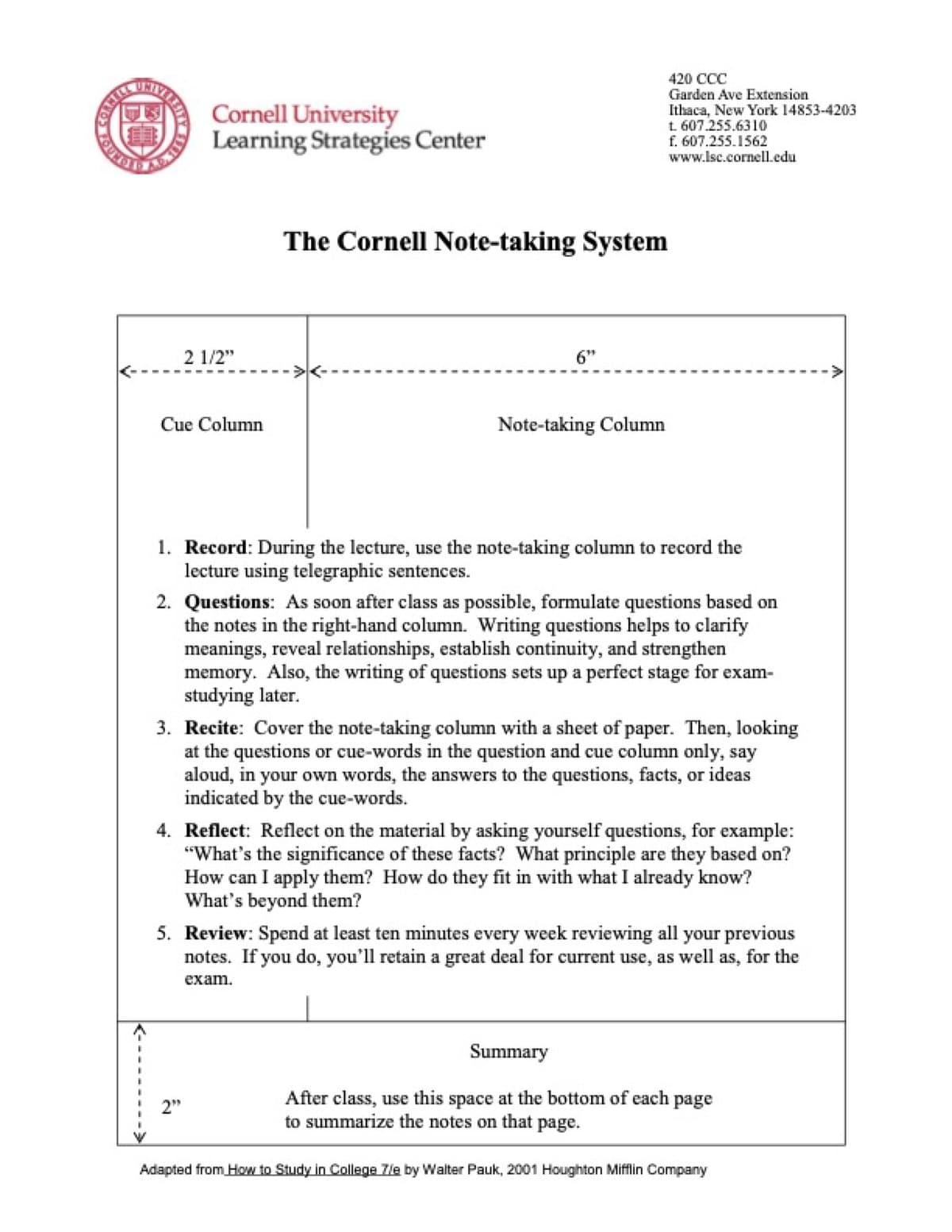
- In GoodNotes, tap New, choose Notebook, then pick a Cornell paper template before you start writing.
- In Notability, create a new note, open the template picker, and choose a Cornell or ruled lecture page.
- If you use Notability audio, tap the microphone icon before the lecture starts, confirm the iPad microphone permission, and leave the note open while you write.
- After class, tap a handwritten word in Notability to replay the audio from that point, then fill the Cornell cue column while the explanation is still fresh.
1. Set up the page in advance
In Notability or GoodNotes, insert a Cornell template, add the date, and title the page with the course code and topic. This takes 15 seconds and primes the rest of the lecture.
2. Record audio in Notability
Tap the microphone icon before the lecture starts. Notability records the audio and syncs it to what you write at each moment. During review, tap a word in your notes and Notability replays that moment. This is the feature that makes Notability worth its $7.99/mo over GoodNotes for many students.
3. Capture concepts in the right column
Write dense notes in the right column of the Cornell template. Skip lines between distinct ideas. Do not transcribe. Handwriting is slow, and that constraint forces you to compress the idea. That is the active step that makes notes useful. See how to take good notes for the underlying principle.
4. Mark unclear passages
When the lecturer says something you do not understand, write a ? and one keyword. Do not stop to solve it during class. Come back to the question after class. For a college-specific version of the same iPad-plus-Cornell stack, see our how to take good notes in college guide.
5. Add cue questions after class
Within 24 hours, reread the right column and write cue questions in the left column. During review, cover the right column, read each cue, and recite the answer from memory. This active-recall step makes Cornell notes more durable than free-form notes. For the full method, see how to take Cornell notes.
Take Notes While Reading a Textbook
Different rules apply when you control the pace.
1. Import the PDF
Both Notability and GoodNotes accept PDF imports. Drag the chapter PDF into the app and it becomes a note you can annotate page by page.
2. Read first, annotate second
Use the first pass for comprehension and the second pass for annotation. As you reread, highlight claims, write margin notes, and draw arrows between linked ideas.
3. Write a one-page summary
Use a fresh note for a 1-page chapter summary, with claims in the right column and cue questions in the left column. Study from that summary when the exam arrives. The marked-up PDF is good for source lookup but too dense for timed review sessions.
4. Map dense chapters
For dense chapters, draw a mind map on a fresh page. Put the chapter title in the center. Add major sections as branches and key claims as leaves. Mind maps are stronger than outlines for nonlinear material. For STEM coursework with theorems and proofs, see our how to take math notes guide.
For broader research workflow, see academic research software and AI for literature review.
How to Take Notes in a Meeting
Meetings demand fast capture and structured follow-up.
1. Use a single dated page
Title the page with the date and meeting name. Apple Notes works fine here. You do not need a Cornell template.
2. Capture decisions, actions, and owners
Write decisions (what was agreed), action items (with owner and deadline), and open questions (for the next meeting). Skip opinions and chatter.
3. Send a three-line recap
Within 1 hour, send a 3-line summary to the meeting attendees. iPad's split-screen lets you keep the note open while you draft an email or Slack message in the other pane.
For meeting-specific tools that auto-transcribe, see best meeting notes app.
Keep iPad Notes Usable
Use a small template set
The note app you pick will ship many templates, so pick 3 or 4 and stop tinkering.
- Use the Cornell template for lectures. Notability and GoodNotes include this format, and it has 3 sections: notes, cues, and summary.
- Use an outline template for textbook chapters. Apple Notes can do this by default, and Notability can do it with a custom page.
- Use a daily page for journaling, project tracking, and free-form thought. Notability and GoodNotes support this, and Apple Notes can mimic it.
- Use a mind-map page for brainstorming and exam prep. Excalidraw on iPad and Apple Notes' wide canvas both work for a central node with branches.
- Use PDF markup for textbook reading and paper review. Notability and GoodNotes treat the PDF as the page, with handwriting as the markup layer.
You don't need 20 templates. Pick the four above and rotate them based on workflow.
Configure Apple Pencil shortcuts
A few small settings make iPad notes feel much faster.
-
Apple Pencil 2 supports a double-tap on the side that switches between pen and eraser. You can also set it to swap pen and highlighter. This saves seconds per page over a 50-minute lecture.
-
Apple Pencil Pro adds a squeeze gesture and haptic feedback. If you have an M4 iPad Pro, the Pro Pencil ($129) is a useful upgrade.
-
Modern iPad apps reject your palm automatically when the Pencil is in contact. You can rest your hand on the screen as you would on paper.
-
iPadOS converts handwriting to text in any text field via Scribble. Write in a text field with the Pencil and iPadOS converts it on the fly. It is free and system-wide.
Apple Pencil USB-C (the $79 option) lacks pressure sensitivity and double-tap. It works for note-taking but feels noticeably less responsive than Apple Pencil 2.
Plan sync, backup, and search
iPad note-taking apps sync across devices, but the sync model differs.
Apple Notes syncs via iCloud automatically. It works with the free 5GB iCloud tier. iCloud+ at $0.99/mo for 50GB is the standard upgrade for serious users.
Use Notability Cloud to sync Notability. The free tier is limited, while Plus and Pro lift the cap. You can also back up to iCloud, Google Drive, or Dropbox.
GoodNotes syncs via iCloud or Google Drive. The 2024 redesign added Mac and Windows clients, so GoodNotes is now cross-platform.
Search works differently in each app. Apple Notes searches handwriting with built-in OCR. Notability searches handwritten notes when handwriting recognition is enabled. GoodNotes searches handwriting with MyScript.
For long-term search, the app index matters. If you switch apps mid-vault, you lose the old search layer. Pick one and stay.
Use a three-bucket note vault
After the 25-day test, the cleanest vault was not the one with the most folders. It was the one with only three top-level buckets: capture, review, and archive.
| Bucket | What belongs there | When to move it |
|---|---|---|
| Capture | Today's class pages, meeting notes, unsorted PDFs | End of day |
| Review | Cornell summaries, exam cues, open action items | After the next review pass |
| Archive | Finished chapters, old meetings, source PDFs | After the exam, project, or decision |
Table 2: Three-bucket iPad note vault structure with contents and move triggers
This structure also fixes search because you can search inside the active app first, then search exported PDFs in Files only after the note has moved to archive. For collaboration, share only the review note or PDF summary. Sharing the whole notebook makes other people's edits harder to audit later.
Add AI only after capture
Most iPad note apps added AI between 2024 and 2026.
Apple Intelligence (iPadOS 18+, on supported iPads) summarizes notes and highlights key points. Free with the OS.
GoodNotes AI ($9.99/mo AI Pass, optional add-on) does handwriting search, AI spell-check, and basic summarization.
Notability AI (Plus or Pro tiers) generates summaries, auto-creates flashcards from notes, and converts handwriting to typed text.
Atlas ($20/mo Pro) is our product, and it is not an iPad handwriting app. It can help after capture when your iPad notes include papers, PDFs, or long source files. Export the notes, import them into Atlas, and ask cited questions across the set. The iPad workflow stands on its own without Atlas, so use Atlas only if you need a research synthesis layer.
Avoid common iPad note mistakes
-
Using too many apps. Pick one of Notability or GoodNotes for handwriting. Pair it with Apple Notes or Notion for typed notes if needed. Three or more apps will fragment your vault and break search.
-
Importing every PDF. Notability and GoodNotes get slow past 5,000 imported pages. Import only the PDFs you will annotate. Keep the rest in Files or Books.
-
Skipping the post-class cue pass. If you take Cornell notes but never write cue questions, you do the hard part without getting the review benefit.
-
Handwriting material you will never reread. Handwriting is slow. Type meeting notes, technical docs, and reference material. Handwrite only the material you will review. For visual notes that look the part on iPad, see how to take aesthetic notes.
-
Buying every Apple Pencil generation. Pencil 2 ($129) is the floor for serious work. Pencil USB-C ($79) works for casual use. Pencil Pro ($129, M4 iPad Pro only) adds squeeze and haptics, but it is not category-changing.
Choose One App and Review Path
To take notes on iPad:
- Pick an app: Notability for lectures with audio. GoodNotes for PDF markup. Apple Notes for free quick capture.
- Get an Apple Pencil: Pencil 2 ($129) is the standard, Pencil USB-C ($79) works.
- Use Cornell for lectures, outlines for textbooks, mind maps for brainstorming: Match the template to the workflow.
- Sync via iCloud or the app's native cloud: Pick one sync model and stay.
- Add AI for research synthesis after capture is done. Apple Intelligence handles quick on-device summaries. If your workflow is research-heavy, compare AI tools with citations before adding a separate synthesis layer.
For app comparisons, see best note-taking apps for iPad, best note-taking apps with stylus, and best note-taking apps for college students. For the broader study system, read how to take good notes and how to take Cornell notes.
AtlasCompare cited AI tools for research notes
Compare eight AI reference tools for citations, source links, and academic use.
Frequently Asked Questions
Notability and GoodNotes are the two leading iPad note-taking apps. Notability ($7.99/mo Plus) wins for lecture audio recording synced to handwriting. GoodNotes ($11.99/yr Essential) wins for organization and PDF planner support. Apple Notes (free) covers basic handwriting with Apple Pencil and Apple Intelligence summaries. Atlas ($20/mo Pro) imports iPad notes via OCR and adds cited AI Q&A across them. Pick Notability if your bottleneck is lecture audio, GoodNotes if it is PDF markup, Apple Notes if you want zero cost.