

"Word document AI" covers distinct jobs. Use Microsoft Copilot when you need to edit, refine, reorganize, or format content in place inside Word. Use AI Doc Maker or Template.net when you need a new DOCX-style deliverable generated from a prompt or template.
Use Gamma when the document needs a visual rebuild, or Format Magic when an existing file needs layout cleanup. Use Atlas only after the source material is imported and the job becomes cited review: ask what a contract, report, or paper says, then check the exact passage behind the answer. Atlas does not edit DOCX files, control Word layout, or generate Word documents.
Most searches for "word document ai" arrive expecting one tool to cover all four jobs. None of the products below do that, and treating them as interchangeable is the fastest way to pick the wrong one.
If you're comparing document AI options more broadly before narrowing to Word specifically, the best AI workspace for reviewing documents is a useful starting point.

Ask cited questions about documents in Atlas
Add a document, ask a focused question, and verify the cited passage.
What to look for
Before you compare products, decide what you want to do with the document. Most tools cover only part of the work.
Draft or edit inside Word
Choose this job when you want a draft, rewrite, new tone, reorganization, summary, or formatting change without leaving Word. Microsoft's current Copilot workflow can propose document-wide edits and use Word's built-in styles, but access depends on subscription, license, organization settings, platform, and rollout. If finished files are hard to find, see best document organizers.
Generate from prompt or outline
Choose this job when you have notes or an outline but no document. The tool should turn them into a clear file that you can export.
AI Doc Maker and Template.net both target this lane, with different strengths in speed versus template depth. For a broader look at generation and formatting tools, see the best AI workspace for reviewing documents.
Redesign or format an existing document
Choose this job when the words are ready but the layout is uneven. Gamma turns notes or files into visual documents. Format Magic fixes structure and applies a template to raw text or an existing file. If you first need to reorder sections or pages, see ways to organize a Word document.
Ask a cited question about document content
Choose this job when you need to check a claim inside a file, such as a contract term, a report finding, or a number in a paper.
This process gives you a checked answer. To compare 2 Word files, see how to compare Word documents.
Word document AI tools compared
The table shows what each tool is built for, what it does not cover, where its capabilities are documented, and what you should verify before relying on it.
Find your job in the "best for" column, then read the limitations and verification columns before choosing. If you need to compare two Word files side by side, use the Word document comparison workflow instead.
| Tool | Best for | Not for | Source basis | Proof to check |
|---|---|---|---|---|
| Atlas | Asking cited questions about document source material and verifying the answer | Editing DOCX files, generating Word documents, or replacing Word's layout tools | Atlas public documentation | Open the citation badge and read the surrounding source passage before reusing an answer |
| Microsoft Copilot in Word | Native drafting, editing, reorganizing, and formatting with Word styles | Deterministic control of every complex DOCX layout | Official Microsoft Support documentation | Confirm access, preview proposed changes, and approve only the edits you want |
| AI Doc Maker | Fast prompt-to-document generation across reports, Word files, and templates | Source-grounded citation review of your own material | AI Doc Maker product page | Check which export formats and limits apply to your use case |
| Gamma | Turning notes, prompts, or uploaded files into a polished visual document | High-fidelity Word tracked-changes editing | Gamma documents product page | Test import/export fidelity with your actual source file before committing |
| Format Magic | Reformatting raw text, AI output, Word files, or PDFs into a cleaner layout | Preserving every original header, footer, or complex layout element | Format Magic product page | Verify formatting output keeps the structure you need before replacing a manual pass |
| Template.net | Template-heavy generation, editing, and DOCX/PDF/TXT export across many document categories | Free unlimited export in every plan tier | Template.net AI document and Word generator pages | Confirm which export formats sit behind a paid tier |
Table 1: 6 Word document AI tools ranked by job fit, from native Word drafting to source-grounded cited review.
Best Word document AI tools
Atlas
Atlas covers a job none of the tools above are built for. It answers a cited question about what a document says, then lets you check the answer against the source text before you rely on it.
Add the document as a supported source or a chat attachment, ask a focused question, and Atlas returns an answer with a citation badge attached to the claim. Opening that badge takes you to the passage in the source that the answer depends on, so you can read the surrounding context and decide whether the claim holds up.
Use this check before relying on the answer in a report, a memo, or a paper. If you want to see the same cited-answer pattern applied to PDFs, see PDF analyzer tools and PDF summarizer tools.
This matters most when the document carries consequences: a contract term, a data point in a research paper, or a finding you are about to cite in your own writing. A summary or a generated draft can tell you what a document probably says.
Atlas helps with the next step: confirming what the document says by reading the passage yourself. For more on how Atlas summarizes source material before you verify it, see the AI document summarizer workflow.
Microsoft Copilot in Word
Copilot is the native choice for work done inside Word. Microsoft's current Word guidance documents drafting, rewriting, refining, reorganizing, summarizing, and document-wide revision in the Word canvas and chat pane. Edit with Copilot can also format content in place with Word's built-in styles and features.
Copilot presents proposed changes for review before anything becomes final. In shared documents, Microsoft says Copilot previews suggested changes before adding them, so review and approve what belongs in the file. The same review discipline applies to generated drafts and formatting changes.
Availability depends on an eligible Microsoft 365 subscription or Copilot license, organization settings, platform, and rollout status. Microsoft's formatting workflow is still rolling out, so a reader with Word may not yet see the same capability.
Do not read "format in place" as a guarantee of deterministic control over every complex DOCX layout. Test shapes, text boxes, headers, footers, and complex tables in a copy of the actual file before relying on the result.
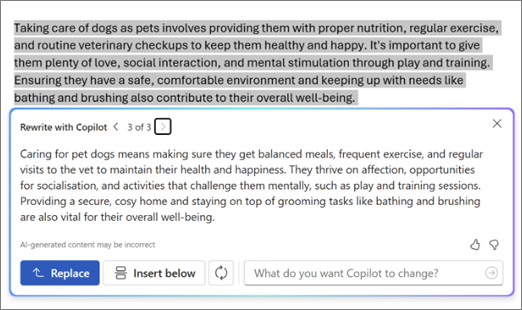
Microsoft's example shows the native Word rewriting job: selected document text, a generated revision, and controls to replace the selection or insert the revision below it.
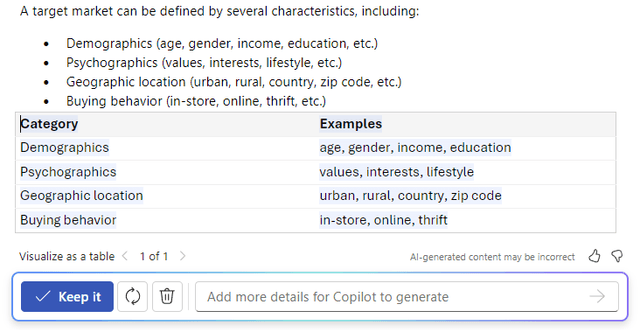
This second Microsoft example shows a different editing boundary: Copilot can turn selected text into a proposed table, but you still decide whether to keep or discard the result.
AI Doc Maker
AI Doc Maker turns a prompt into a structured file. It supports reports, PDFs, Word files, sheets, and templates. You can use chat to draft and edit the result.
Use it to turn an idea or rough outline into a file quickly. Use a source review tool instead when you need to check what an existing document says.
Gamma
Gamma focuses on visual design. It turns prompts, outlines, Word files, PDFs, or Google Docs into themed documents that you can edit, share, or export.
Use Gamma for a proposal, pitch, or report that needs more visual polish than a plain Word draft.
It may not preserve tracked changes or match a strict company template. Test both import and export with your own file.
Format Magic
Format Magic cleans up an existing layout. It can take raw text, AI output, a Word file, or a PDF. It adds templates, contents pages, page numbers, and cover pages.
The result may not match the old layout exactly. Its own docs note limits for items such as headers and footers.
Compare the output with the original when you must preserve a complex layout.
Template.net
Template.net turns a prompt or file into a draft based on a template. It covers reports, proposals, policies, papers, and briefs. You can edit with others and export to DOCX, PDF, or TXT.
Choose it when you want a document built from an established template rather than a from-scratch layout.
The document generator page ties Word export to its PRO tier. Check which file types your plan can export.
Where Atlas fits for cited document review
Here is how the cited-review process runs end to end. Say you have a signed vendor agreement and a colleague asks whether a specific clause covers a scenario you are not sure about.
- Add the document as a source or a chat attachment. A durable project source makes the document searchable and citable going forward. An attachment is enough if you only need this one conversation.
- Ask a focused question. A narrow question, such as "What does section 4 say about termination notice?", works better than a broad request to summarize the whole contract.
- Read the answer and check the citation badge. The badge links to the exact passage the answer is grounded in.
- Open the passage and read the surrounding text. Citations connect an answer to source material. They do not automatically prove the answer is complete or correct. Confirm the clause says what the answer claims before you act on it.
- Save the verified finding. Keep the checked passage and your conclusion as the record, and discard the raw AI output once you have confirmed it.
The same discipline applies to research papers, meeting transcripts, or reports. Treat the AI answer as a pointer to the underlying evidence rather than as the final proof of a claim.
See the broader best AI workspace for reviewing documents overview if you want the general category context before narrowing to Word-specific tools.
Which tool should you choose?
Route yourself by the job first, then pick the tool that fits it:
- Drafting or editing inside Word. Choose Microsoft Copilot in Word, with a live Microsoft 365 Copilot plan.
- Generating a new document fast from a prompt. Choose AI Doc Maker for speed or Template.net for template depth and multi-format export.
- Making a document look designed. Choose Gamma, especially for prompt-to-visual-document work.
- Cleaning up formatting on an existing file. Choose Format Magic, and check that your layout survives the reformat.
- Verifying a claim inside a document you already have. Choose Atlas, ask a grounded question, and check the citation before you rely on the answer.
Many workflows combine more than one of these tools in sequence. You might generate or format a document with one of the tools above, then bring the finished file into Atlas when a teammate needs to ask a question about it and check the answer against the source.
Choose based on the job in front of you rather than the tool name you recognize.
If your Word documents pile up faster than you can track them, best document organizers can help before you compare AI tools. When the deliverable is a side-by-side comparison rather than a single-document question, comparing Word documents is the closer workflow match.
For a wider survey of document AI products beyond this Word-specific shortlist, see the best AI workspace for reviewing documents. If checked answers over a PDF rather than a Word file are the core job, PDF analyzer tools and PDF summarizer tools cover that pattern directly, and the AI document summarizer covers first-pass summaries before you verify a claim.
Ask cited questions about documents in Atlas
Add a document, ask a focused question, and verify the cited passage.