

ChatGPT Deep Research and Gemini Deep Research are both built for research tasks that take longer than a normal chatbot answer. They plan, search, synthesize, and return a cited report.
The better choice depends on your source set. Check which files you need, where the report will live, and how much claim checking happens after the report appears.
The official docs frame the tools differently. As of July 2026, OpenAI says ChatGPT Deep Research lets you choose sources, review a plan, watch progress, and get a report with source links. Google says Gemini Deep Research can use Google Search by default, while Gemini Apps Help adds Gmail, Drive, files, Canvas, and Docs to the report flow.
Use ChatGPT Deep Research when you want source scoping inside ChatGPT. It is also strong for file uploads, named sites, connected apps, and report files you can save.
Use Gemini Deep Research when the job benefits from Google Search, Workspace context, Canvas, Docs export, audio review, or visuals. Treat either report as a draft that still needs claim checks.

Compare the sources behind your report in Atlas
Check report claims against saved sources, with citations you can inspect.
Quick verdict
Choose ChatGPT Deep Research if you need to control the research scope before the run starts. OpenAI's help page says Deep Research can use files, the public web, specific sites, and enabled ChatGPT apps. You can review the plan before the task begins. You can also follow progress, stop the run, and download reports as Markdown, Word, or PDF.
Choose Gemini Deep Research if the report should sit close to Google Search and Google Workspace. Google's Deep Research help says Gemini includes Google Search by default. It can add Gmail or Drive when Workspace is connected. It can also use files or images, create a plan you can edit, and export reports to Docs.
Do not choose either tool only because one comparison post says it "wins." Section AI and Cascade Insights both describe task-specific tests. That difference is normal because each task stresses a different part of the system.
Use this first-pass routing:
- Pick ChatGPT Deep Research when the source set needs explicit scoping, file uploads, named sites, and downloadable report reuse.
- Pick Gemini Deep Research when the research should include Google Search, Workspace context, Docs export, Canvas, and Google follow-up.
- Use either tool only as a starting point when the output will support academic, policy, client, financial, legal, or medical work.
- After the report is ready, check the sources that matter before quoting or acting on the final claim.
Compare the research workflow
The useful question is where each tool gives you control.
For a deep research task, I would evaluate seven workflow stages:
- Planning: Can you inspect and revise the plan before the tool starts?
- Source control: Can you decide whether the tool uses the open web, specific sites, uploaded files, connected apps, or workspace sources?
- File and app context: Can the tool use the documents, drives, apps, or files that define your actual research problem?
- Report review: Does the final report make sections, sources, and run history easy to scan?
- Citation inspection: Can you move from a claim back to the cited source and check whether the source supports it?
- Export and reuse: Can the report leave the tool in a format your team, class, or client can use?
- Source check after the report: Can you bring cited material into a workspace and ask new questions against the exact sources?
OpenAI's docs are strongest on source scope and report reuse. You can choose websites, files, and connected apps. The help page also names plan review, progress controls, a source list, run history, and report downloads.
Google's docs are strongest when the source set lives near Google products. Its help page says Search is included by default. Selected sources can include Gmail or Drive, file upload is available, and reports can be exported to Docs.
The Gemini overview also points to web research, Workspace context, Canvas, and report changes after the first draft.
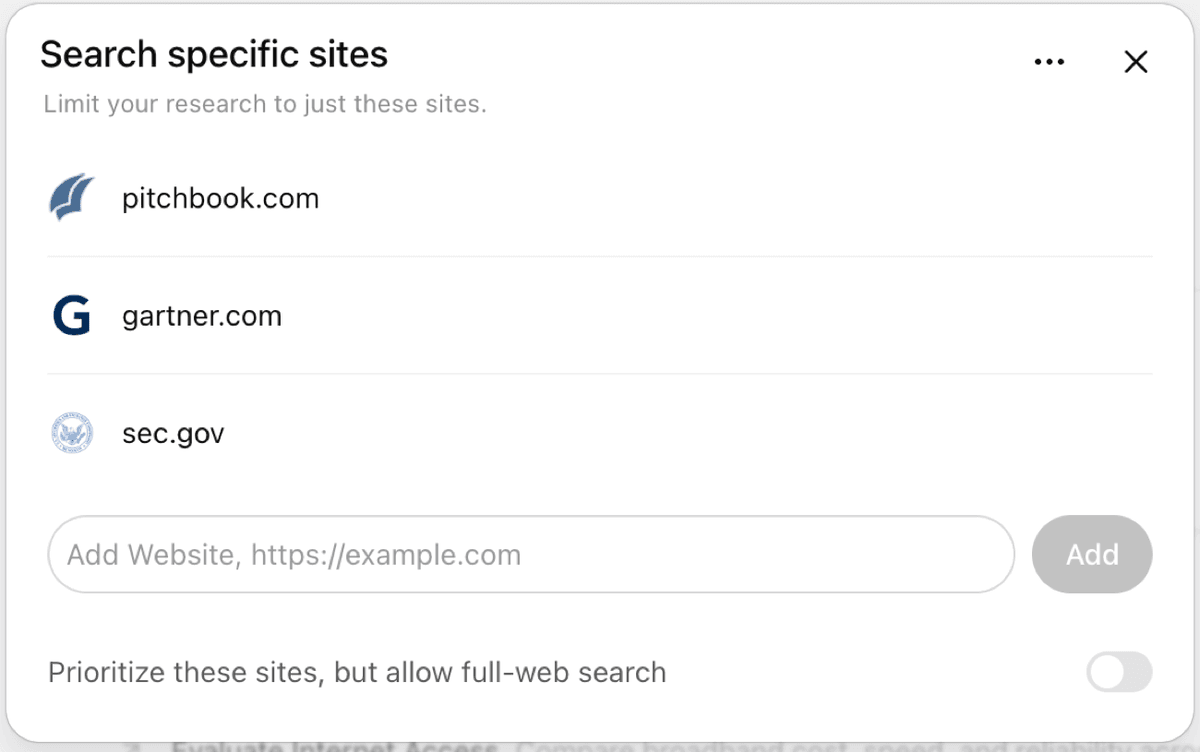
This official OpenAI Help screenshot shows the ChatGPT Deep Research source-control panel for limiting a research run to specific websites. That control is one of the practical differences readers should test before choosing a deep research tool.
How to read practitioner comparisons
Use hands-on reviews for friction signals. Look for speed, source lists, weak claims, and prompts that broke the run. Do not turn one review into a permanent ranking. Deep Research features, quotas, models, source links, and report UX change quickly.
Deep Research comparison table
The table below splits product claims from judgment. Use it to choose the next research step.
| Workflow axis | ChatGPT Deep Research | Gemini Deep Research | What to check before relying on it |
|---|---|---|---|
| Planning | OpenAI says ChatGPT creates a research plan you can review and change before research begins. | Google says Gemini creates a research plan and lets you edit it before starting research. | Run a small version of the real task. Check whether you can correct weak assumptions. |
| Source control | OpenAI says you can use the public web, files, connected apps, and specified sites or domains. | Google says Search is included by default, and you can select Gmail or Drive when connected. | Confirm whether your account, workspace, and region show the source controls you need. |
| Files and app context | ChatGPT Deep Research can use files and enabled ChatGPT apps. App access depends on plan and workspace settings. | Gemini Deep Research can use files or images and draw from Gmail or Drive when connected. | Check file types, size limits, account limits, and admin controls before a serious project. |
| Report review | ChatGPT completed research opens in a report view with navigation, sources used, and run history. | Gemini reports can be opened after completion, exported, and extended through Canvas options. | Check whether the source list is enough for your review. Also read the report prose. |
| Citation inspection | OpenAI says outputs include citations or source links so you can verify information. | Google positions Deep Research around reports based on explored sources, and its help flow includes source selection and report export. | Check cited claims manually. A citation beside a claim is not the same as proof that the source supports the claim. |
| Export and reuse | OpenAI says completed reports can be downloaded in Markdown, Word, and PDF. | Google says reports can be shared, exported to Docs, or copied from Canvas. | Choose based on where the next person will review the report: Markdown, Word, PDF, Docs, or a copied brief. |
| Best workflow fit | Strong when the research job needs scoped sources, uploaded files, specific sites, connected apps, and portable report output. | Strong when the research job benefits from Google Search, Workspace context, Docs export, Canvas, and Google-native continuation. | Treat product comparisons as per-task. The right answer can flip when the source set changes. |
Table 1: Test both tools against the same narrow question before you commit a larger project. Give each tool the same prompt, source limits, and expected output. Then compare the plan, cited sources, unsupported leaps, export quality, and manual checking left over.
Atlas enters after that comparison, when the report and its key sources need a lasting claim check. Import sources into a project. Ask questions that compare them. Request source separation when needed. Open source links before saving findings. Atlas also supports file attachments for short-term chat context. Import material as a source when it should become durable project evidence.
Verify the report
Deep Research reports are useful because they compress a large search into a readable document. That compression is also the risk. A confident paragraph may blend sourced facts, model guesses, stale pages, and weak synthesis.
Use this verification pass before you quote a report:
- Save the source list. Keep the report's cited sources, source links, and exported document together.
- Mark the claims that matter. Do not check every sentence first. Start with claims that drive the decision, number, or recommendation.
- Open the source behind each important claim. Read the surrounding passage and the linked page title.
- Separate evidence from synthesis. Ask whether the source states the claim, implies it, contradicts it, or only provides background.
- Check for missing counterevidence. Deep Research can miss sources that would change the conclusion, especially when source selection is broad.
- Move durable sources into a workspace. If the project will continue, keep the sources somewhere you can question, compare, cite, and revisit.
Use Atlas for the later source-checking stage. It is not a web-wide autonomous deep-research agent, and it should not replace ChatGPT or Gemini for open-web discovery. Use Atlas when your source set is ready. At that point, the job is checking claims against the materials you keep.
A practical follow-up workflow looks like this:
- Export or save the Deep Research report and the sources you intend to rely on.
- Import durable PDFs, websites, notes, or text sources into the same Atlas project.
- Ask a scoped question such as: "Compare the report's recommendation with these sources. Which claims are directly supported, weakly supported, or contradicted?"
- Ask for a table with columns for claim, source, proof, limit, and link.
- Open the citations for the claims that will appear in your memo, literature review, strategy deck, or client deliverable.
Decision guide
Use ChatGPT Deep Research when the run needs explicit source controls and portable output. It is the better starting point when you want to upload files and steer the run toward named sites. It also fits when you need enabled apps, plan review, and report downloads.
Use Gemini Deep Research when the research run should live inside Google's ecosystem. It is the better starting point when Search, Gmail, Drive, Docs export, Canvas, or Google review matters most.
Use both when the decision is expensive. Run the same prompt twice, with the same constraints, and compare the source lists before comparing the prose. If both tools cite the same core evidence and disagree on interpretation, that disagreement is worth investigating. If they cite different evidence, the source set is the first thing to audit.
Use Atlas after either tool when you need a slower review over the materials you keep. Import the report sources. Ask comparison questions. Inspect source links before you finalize the claim. That source check matters more than the logo on the first draft when the output will support real decisions.
For related tool splits, see NotebookLM vs Perplexity, Elicit vs Perplexity, Atlas vs ChatGPT, Atlas vs Gemini, and AI tools for academic research.
The safest answer is not "ChatGPT wins" or "Gemini wins." ChatGPT Deep Research and Gemini Deep Research both help with reports that use many sources. Pick the tool whose source controls, files, report format, and check path match the research job in front of you.
Compare the sources behind your report in Atlas
Check report claims against saved sources, with citations you can inspect.