

The best tool to summarize YouTube videos depends on what you need after the summary. For casual skimming, use a paste-a-link tool or browser add-on. For research, study, or client work, keep the transcript and source checks close enough to verify key claims.
That distinction matters because most YouTube summarizer tools work from captions or transcript text. They can save time, but they cannot recover facts that never appear in the transcript. Start by asking what the transcript can support.
This guide compares quick skims, timestamps, transcript review, saved notes, follow-up questions, and cited source work. It avoids exact pricing, plan, model, and video-length claims because those details change often.
The source and tool pages here were reviewed in July 2026.

Ask a cited question about a YouTube video
Add a transcript-backed video, ask a question, and inspect the cited passage.
Quick verdict
Use NoteGPT, Decopy, or Noiz when you want a fast summary from a YouTube URL and the video is low-stakes. That is the right lane for deciding whether to watch, save, or skip a video.
Use Eightify, Glasp, or YouTube Summary with ChatGPT & Claude when the summary belongs inside the YouTube page or browser workflow. These tools fit people who want key points, transcripts, and timestamps without moving into a research workspace.
Use Mindgrasp, NotebookLM, or Recall when YouTube videos need to become study notes or saved knowledge. These tools make more sense for lectures, interviews, webinars, tutorials, and public captioned videos that sit beside other sources.
Use Atlas when a YouTube video becomes evidence. Atlas can import transcript-backed YouTube sources, let you ask grounded questions, and show citations back to source passages. That is useful when the summary produces a claim you may use in a memo, literature review, market scan, or research note.
How to choose a YouTube video summarizer
Check the source first, because a neat summary can still be weak when the video has poor captions. It can also miss proof from slides, code, charts, or product screens.
Use this reliability checklist before you rely on a YouTube summary:
- Transcript: Does the video have captions or transcript text? YouTube's transcript docs say transcripts appear for videos with captions and can help viewers jump to moments in the video.
- Caption quality: Are names, terms, quotes, and numbers clear enough to trust?
- Timestamps: Can you move from a summary point back to the right moment in the video?
- Follow-up: Can you ask about a claim, caveat, example, or section?
- Saved notes: Will the summary disappear after the tab closes, or can you keep it with notes and other sources?
- Source check: Does the tool keep a transcript passage, timestamp, citation, or source card you can inspect?
- Visual proof: Does the video rely on slides, screen recordings, equations, charts, or body language that captions may omit?
- Workflow fit: Are you skimming one video, studying a class lecture, building a project, or saving notes?
For low-stakes viewing, a short generated summary is often enough. If you will cite, share, or act on the answer, choose a tool that gets you back to the source.
Source limits
Use these source limits as a quick risk check:
| Source condition | Summary risk | Safer next step |
|---|---|---|
| No captions or transcript | The tool may have little text to work from. | Watch the video or choose another source. |
| Poor captions | Names, numbers, and terms may be wrong. | Check the transcript against the audio. |
| Visual proof | Slides, charts, code, or demos may be missing. | Open the relevant timestamp and inspect the screen. |
| Recent or private video | Some tools may not ingest it. | Check the current tool page before relying on it. |
Table 1: This risk table shows when a YouTube summary needs transcript, audio, video, or tool-support review.
YouTube video summarizer comparison table
The table below uses official product pages, marketplace pages, and Google or YouTube support pages for third-party claims. It compares workflow fit and source-checking paths. It does not score accuracy.
| Tool | Best for | What to check |
|---|---|---|
| Atlas | Cited work over transcript-backed videos | Import the transcript source, ask grounded questions, and open citations. Check the video when captions are poor or the proof is visual. |
| NoteGPT | Fast paste-a-link summaries | Use it for triage, then verify important claims against the transcript or video. |
| Mindgrasp | Student notes for lectures and lessons | Good for class videos, but check diagrams, equations, code, and other visual parts. |
| Eightify | Timestamped navigation | Use timestamps to return to the video. The generated summary still needs source review before it supports a claim. |
| Glasp | Browser summaries with transcript access | Useful near the YouTube page. Check current extension behavior and free limits before repeat use. |
| YouTube Summary with ChatGPT & Claude | Browser summaries across YouTube, articles, and PDFs | The store listing confirms the add-on flow. Review current policy pages before using it for private or high-stakes work. |
| Decopy | Free no-login summary attempts | Good for a quick first pass. Confirm current limits before depending on it. |
| Noiz | One-click summaries with little setup | Helpful for low-friction skimming. Verify any claim that affects a decision. |
| Recall | Saving video notes in a personal knowledge base | Saved cards help memory, but claims still need timestamp or source checks. |
| NotebookLM | Public captioned YouTube videos beside notebook sources | Google says import uses transcript text and lists limits for recent, private, deleted, captionless, speechless, and very large sources. |
Table 2: The table points to four jobs: quick skim, timestamps, saved notes, and source checks. Choose for the job you need after the first summary appears.
Verify a YouTube summary in Atlas
Atlas is the right next step when a YouTube video is more than something to watch. Use it when a lecture, talk, webinar, lesson, or demo should become a source you can question and cite.
The Atlas workflow is transcript-first:
- Add the YouTube URL to the relevant Atlas project.
- Wait for transcript processing to finish.
- Open the source and skim the transcript for missing sections, garbled terms, or obvious caption errors.
- Ask a narrow grounded question about the video.
- Check whether important claims include citation badges.
- Open each citation and read the source passage around it.
- If the citation is weak, ask a narrower follow-up or check the video directly.
Good questions name the claim or section you need to verify:
- What evidence does this interview give for the market-size claim?
- What limitation does the speaker mention about this method?
- Which examples support the tutorial's recommendation?
- Compare this talk with the paper already in my project.
- Cite each bullet from the transcript passage.
Atlas citations point you back to source passages. A citation means Atlas found related evidence. Open the passage and check whether it supports the answer. Read nearby context too, especially when the transcript may have missed a visual detail. This is closer to an AI citation workflow than a paste-link skim, and it overlaps with ChatGPT alternatives, citation checker, and AI citation checker use cases.
When Atlas fits YouTube source checks
Use Atlas when the video has become source material you need to question. The best fit is a transcript-backed lecture, talk, webinar, lesson, or demo. The spoken words should support a claim you may reuse.
For many casual YouTube videos, a faster tool is the better first pass. Check the original video when the transcript is missing or the proof appears only on slides.
Best tools to summarize YouTube videos
1. Atlas
Atlas is best when a YouTube video should become research material. Use it for lectures, talks, lessons, webinars, and demos where the spoken transcript carries facts you may reuse.
Atlas imports YouTube videos from transcript text. After a transcript-backed source processes, you can search it. You can also ask grounded questions and open citations back to source passages. Videos with missing transcripts, noisy captions, or visual-only proof produce weaker results.
Choose Atlas when the summary leads to source-based work. Atlas fits cited notes, client briefs, review sections, and claims you need to defend. Choose a faster tool when the video is casual or when you only need a first pass.
2. NoteGPT
NoteGPT is a good first stop for the standard "summarize this YouTube link" job. Its official YouTube Video Summarizer page focuses on free transcripts, subtitles, quick AI summaries, and study or research use cases.
That makes NoteGPT useful when you want a fast first read from a video link. It can help you preview a lecture or decide whether to watch a lesson. It can also pull rough takeaways from a long video.
The limitation is the handoff from summary to evidence. If the NoteGPT output gives you a claim you will cite, compare, or share, check the transcript or video before using it. A fast summary is a triage surface.
3. Mindgrasp
Mindgrasp is built around student and learning use cases. Its YouTube page names lectures, lessons, podcasts, interviews, webinars, news, and product reviews as videos users can summarize.
Use it when a video belongs in study notes. A class lecture, expert talk, or lesson often needs more structure than a casual video.
The caution is transcript coverage. Study videos often rely on equations, diagrams, slides, code, or screen recordings. If the transcript does not explain those visuals, the summary can sound complete while missing the evidence.
4. Eightify
Eightify is strongest when the summary acts as a map. Its public page focuses on key ideas, timestamps, mobile apps, sharing, comment overview, and language support.
That fit helps with long videos. If you need a speaker's claim or example, timestamps matter more than neat prose.
The source check is still manual. A timestamp lets you return to the source, but the summary may miss a caveat. For high-stakes work, jump back into the video and check the wording.
5. Glasp
Glasp fits people who want YouTube summaries in the browser with transcript access. Its YouTube page highlights key takeaways, full transcripts, timestamps, and a Chrome add-on.
Use Glasp when you want to stay close to the YouTube page. It works well for public-video takeaways when you do not need a full research project.
The main caution is freshness. Add-on behavior, model labels, no-signup details, and free limits can change. If a team, class, or client process depends on Glasp, check the current official page first.
6. YouTube Summary with ChatGPT & Claude
YouTube Summary with ChatGPT & Claude is a browser add-on for people who want summaries while they browse. The Chrome Web Store listing says it supports YouTube videos, web articles, and PDFs.
Use it when you want one add-on for YouTube and other web material. That can help when your source queue includes videos, pages, and PDFs.
The caveat is evidence quality. A store listing can confirm that the add-on summarizes several content types. It does not settle privacy or accuracy questions. Check the details before using it on sensitive material.
7. Monica
Monica fits users who want YouTube summaries inside a broader AI assistant. Its YouTube summary page frames the feature as fast browser help for students, professionals, and casual viewers.
Use it when YouTube summary belongs inside a cross-device assistant workflow. That may be more convenient if you already use Monica for other tasks.
The caution is change. Plans, model labels, and usage limits can shift. Check the live product details before choosing Monica for cost or quota reasons.
8. Decopy
Decopy is best for a quick no-login summary attempt. Its YouTube Video Summarizer page positions the tool as free, online, and no-login.
That helps when you want a low-friction first pass. Paste a YouTube URL, read the output, then decide whether the video needs closer review.
The tradeoff is depth. Free and no-login tools are handy, but exact limits can change. For key claims, check the source video or transcript before relying on the answer.
9. Noiz
Noiz is aimed at one-click YouTube summaries. Its public page frames the tool around no prompting and no tab switching.
Use Noiz when setup time is the main problem. If you are watching many videos, a quick skim can save review time.
Do not treat ease of use as an accuracy test. Noiz may help with skimming, but decision-grade claims still need a transcript, timestamp, or video check.
10. Recall
Recall is best when the summary should stay useful after you close YouTube. Its YouTube page focuses on timestamps, citations, saved notes, and personal knowledge-base use.
Use Recall when video summaries need to become part of a longer learning system. The value comes from saving, sorting, and revisiting the material.
A saved card can remind you what the video covered. Check timestamps, citations, or the original video before you use the card as evidence.
11. NotebookLM
NotebookLM is a strong fit when a public YouTube video with captions belongs beside other notebook sources. Google's support docs state that NotebookLM can use public YouTube videos with captions and imports only transcript text as the source.
That makes NotebookLM useful for study and research notes. A captioned lecture can sit next to PDFs, docs, and web sources in the same notebook.
Google lists limits for recent, private, deleted, captionless, speechless, and large transcript sources. NotebookLM imports transcript text from the YouTube URL. It does not analyze the visual stream.
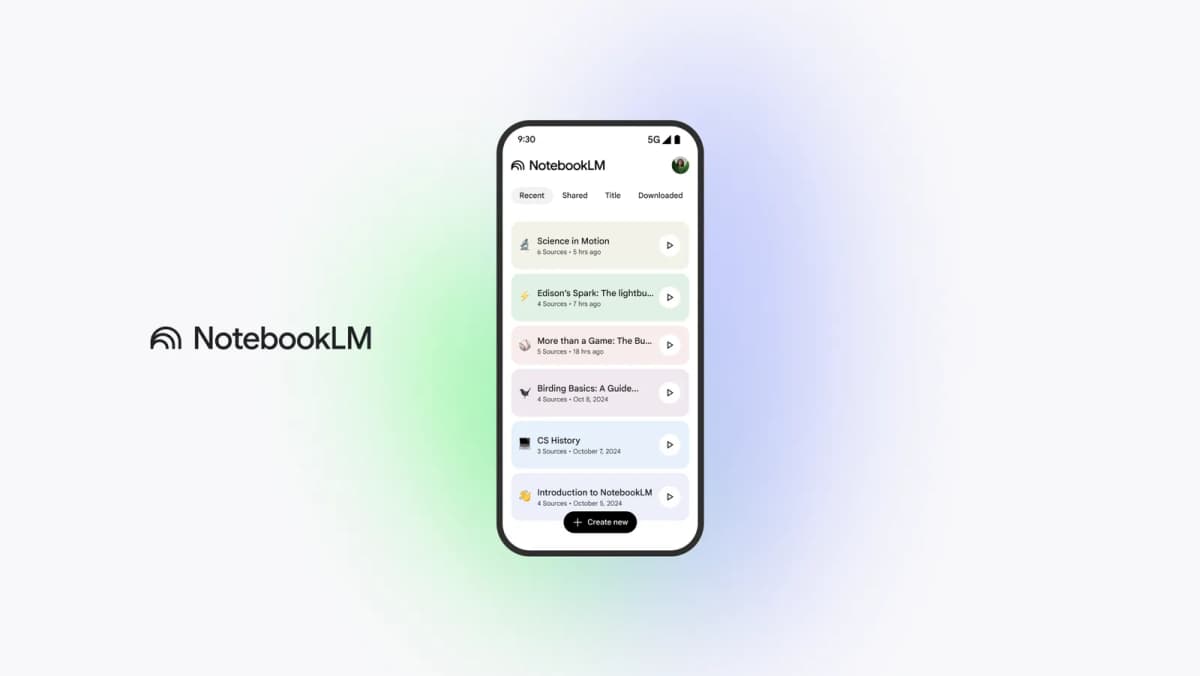
Google's official interface shows the notebook that holds imported sources and follow-up questions. In this workflow, a public captioned YouTube video enters as transcript text, so citations can help with spoken claims while visual-only details still require the original video.
Which YouTube summarizer should you use?
Choose by the job.
- Need the gist fast? Use a paste-link tool.
- Need to jump through a long video? Pick a timestamped tool.
- Need class notes? Use a study workspace.
- Need saved cards? Pick a knowledge-base tool.
- Need to defend a claim? Use a cited source workflow.
For quick orientation
Use NoteGPT, Decopy, or Noiz when the video is low-stakes. They are good when you only need the main idea. For a broader workflow view, compare this with the AI YouTube summary guide.
For timestamp navigation
Use Eightify, Glasp, or a browser add-on when you need timestamps and transcript access inside YouTube.
For study and saved notes
Use Mindgrasp, NotebookLM, or Recall when YouTube videos belong in study notes or saved knowledge.
For cited research
Use Atlas when the transcript-backed video needs cited follow-up questions and source checks. That is the better path when a video supports a source-backed answer, research flow, or document synthesis.
Conclusion
YouTube summarizers are best understood as workflow tools. Some help you skim. Some help you jump to timestamps. Some preserve notes. Some let you ask follow-up questions across a source collection.
For casual videos, speed is enough. For research, choose the tool that keeps the source easy to inspect. If the video supports a claim you will reuse, keep the transcript, timestamp, citation, or original clip nearby.
Ask a cited question about a YouTube video
Add a transcript-backed video, ask a question, and inspect the cited passage.