

The right transcript AI tool depends on what you want to turn into text. Use Transcript for study help with course content. Use TurboScribe to process many audio or video files, label speakers, and export the text.
Use Evernote AI Transcribe when the text should stay with your notes. Video Transcriber AI converts a YouTube, Zoom, or MP4 video in the browser. Riverside suits creators who record and edit from the text. Read AI adds topics and action items to a meeting transcript. For interviews, compare interview transcript tools by speaker labels, exports, and how you will use the finished text.
Use Atlas after the transcript exists when you need an answer linked to the exact text. Atlas does not record speech, join meetings, create captions, or edit subtitles. It lets you ask questions about the transcript and open the passage behind each answer.

Ask cited questions over transcript sources
Add transcript sources and build a cited answer trail you can verify.
How to choose transcript AI
Start with what you have and what you need at the end. Those two facts rule out most tools on the list.
- What you have: TurboScribe, Video Transcriber AI, and Riverside accept audio or video files. Read AI handles meetings. Transcript focuses on class work. Evernote puts speech-to-text inside a notes app.
- How many people speak: Interviews, panels, and meetings need good speaker labels. A solo lecture does not.
- Which languages you need: Check the product page for the current language list before paying for a plan.
- How long the files are: Free and paid plans set different upload and length limits. Check them with one typical file.
- How you will save the text: TXT works for notes and analysis. SRT includes time data for captions. Make sure the tool offers the format you need.
- What happens to the file: Before uploading private speech, read how the tool stores, uses, and deletes it. Also get consent when other people are in the audio.
- What you will do next: Most tools are enough if you only need to read the transcript. Use Atlas if you need to ask a focused question and open the text that supports the answer.
Creating the text and checking a claim inside it are separate jobs. A transcript tells you what was said. A cited answer also shows where it was said so you can read it before reuse.
Transcript AI comparison table
This table separates tools that create text from Atlas, which helps you question that text. Check each product page for the current price, limits, and accuracy claims.
| Tool | Best for | Input path | Transcript output | Evidence check | Claims to refresh |
|---|---|---|---|---|---|
| Atlas | Ask questions about finished text | Add a transcript file or other source | Answers based on the transcript | Each citation opens the matching passage | Does not turn speech into text |
| Transcript | Study help | Browser extension or mobile app | Chat and study answers | Answers about course content | It is a study tool, not a speech-to-text tool |
| TurboScribe | Process many files | Upload audio or video | Text with speaker labels | Export the text to check elsewhere | Check the current free limit and price |
| Evernote AI Transcribe | Keep text with notes | Upload audio, video, images, or links | Text inside Evernote | Search the text in your notes | Check file types and length limits |
| Video Transcriber AI | Turn a video into text quickly | Upload YouTube, Zoom, or MP4 video | Text with speaker labels | Copy or download the result | Check its current language list |
| Riverside | Record, edit, and create captions | Record or upload audio and video | Text with speaker labels and TXT or SRT export | Use the text while editing | Check the free and paid limits |
| Read AI | Capture meetings | Join or upload a meeting | Text, recap, and action items | Playback returns to the meeting | Check which meeting apps it supports |
Table 1: Choose the recording or upload tool first. Choose Atlas only after the text exists and you need to check a claim inside it.
Where Atlas fits: cited transcript follow-up
Atlas starts after speech has become text. Add the transcript when you need an answer that you can check against its exact words.
Turning a transcript into a cited answer in Atlas follows these steps:
- Create or export the transcript with one of the speech-to-text or meeting tools above.
- Add the text file or document to the right Atlas project.
- Wait for Atlas to finish reading the file.
- Ask a focused question, such as "What did the speaker say about the timeline?"
- If you compare several claims, ask for a table with the claim, supporting text, warning, and source.
- Open the citation beside the answer.
- Read the cited text and the sentences around it.
- Add other transcripts or files if the question spans more than one source.
A short recap can drop context or put a line under the wrong speaker. A citation does not prove the answer is right. It gives you the passage to read before the claim enters a note, article, or report.
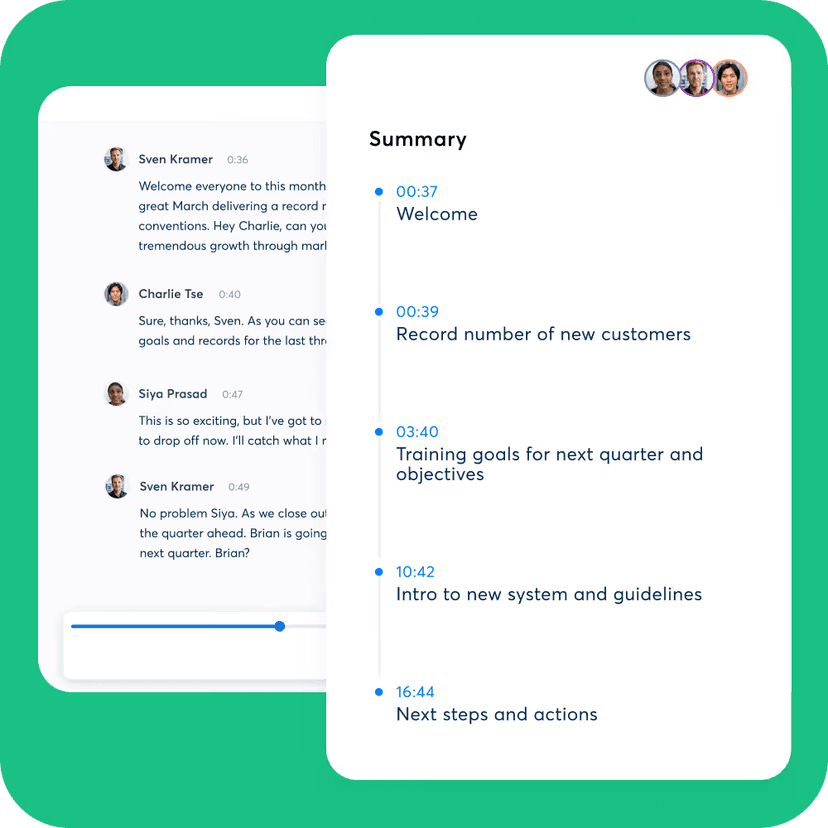
The Otter interface shows the output details worth checking in any transcript AI: speaker names, timestamps, transcript text, and summary points remain visible together. Compare those fields with the recording before quoting or reusing a claim.
Best transcript AI tools
1. Atlas
Atlas fits after the transcript exists. Add it, ask a focused question, and open the citation instead of reading the whole file again. When several transcripts are in a project, you can ask Atlas to show which source supports each answer.
Choose a transcription tool first if the transcript does not exist yet. Atlas does not record, transcribe, caption, or label speakers.
2. Transcript
Transcript is a study suite with a browser extension, mobile app, and notebook. It helps with homework, explanations, and questions about class content. Its name puts it in search results for "transcript ai," but its main job is study help rather than speech-to-text.
It suits students who want help with class content. Check its current subjects and features before treating it as a tool that turns speech into text.
3. TurboScribe
TurboScribe turns batches of audio and video files into text. Its page lists several modes, speaker labels, long uploads, translation, and exports.
It suits people with many files or long audio. Check the current free limit and accuracy claims on TurboScribe's page before a team adopts it.
4. Evernote AI Transcribe
Evernote AI Transcribe turns audio, video, images, and links into text inside Evernote.
It suits people who already keep notes in Evernote and want the text beside those notes. Check the file types and length limit before uploading a long file.
If the notes workspace itself needs source-grounded questions later, see chatting with saved documents as a separate, citation-focused workflow.
5. Video Transcriber AI
Video Transcriber AI turns YouTube, Zoom, MP4, and similar videos into text in a browser. You can copy, download, or share the result, and its page lists speaker labels and language options.
It suits a quick video conversion without sign-up. Check its current language list and accuracy claims on the product page.
6. Riverside
Riverside records audio and video, labels speakers, lets creators edit through the transcript, and exports TXT or SRT files.
It suits creators who record and edit in the same app. Check what the free and paid plans include before using it for each production.
7. Read AI
Read AI creates meeting transcripts, recaps, topics, action items, key questions, and playback.
It suits teams that want notes and tasks beside the meeting text. Check which meeting apps it supports. After the meeting, an AI transcript summarizer can shorten the text, while Atlas can answer cited questions about it.
What to verify before trusting AI transcripts
Speech-to-text tools make common mistakes. Check the parts below before using a line from the transcript.
Names, numbers, and jargon
Names, numbers, and terms from a field are easy to mishear. Play that part of the audio before reusing one.
Speaker labels and overlapping speech
When people talk over each other or sound alike, a tool may put a line under the wrong name. Replay the audio if the speaker changes the meaning.
Timestamps and accents
Time codes can drift, and accents can lead to wrong words. Replay the matching audio when timing or wording matters.
Punctuation and generated summaries
Added punctuation can change a sentence's meaning. A short recap can also drop a warning. Read the full passage instead of relying on the recap alone.
Privacy and third-party processing
Before uploading other people's voices, get the consent your setting requires. Read how the tool stores, uses, and deletes the file instead of relying on its default settings.
Source-passage checks for reused claims
Treat a recap as a pointer to the right passage. Read the passage before moving an important claim into a research note, report, or article.
Which transcript AI tool should you choose?
- Student study help: Use Transcript for homework, explanations, and course material questions rather than a dedicated transcription workflow.
- Bulk file transcription: Use TurboScribe for long uploads, speaker recognition, translation, and export formats.
- Notes workspace transcription: Use Evernote AI Transcribe when the transcript should live alongside other notes.
- Free video transcription: Use Video Transcriber AI for quick YouTube, Zoom, or MP4 conversion without sign-up.
- Creator recording and captions: Use Riverside when the transcript needs to support editing and export from a recording workflow.
- Meeting transcripts: Use Read AI for meeting-specific summaries, topics, and action items.
- Cited transcript follow-up: Use Atlas. Add the transcript as a source, ask a specific question, open the citation, and read the passage before reusing the claim.
You may need two tools. One creates the transcript. Atlas can then answer a question and show the text behind that answer.
For a shorter recap, see the AI transcript summarizer guide. For questions across saved files, compare AI tools that cite sources and read the guide to AI research you can check.
Conclusion
Transcript AI covers several jobs: turning speech into text, editing or exporting it, capturing a meeting, creating captions, and studying from class content. Transcript, TurboScribe, Evernote AI Transcribe, Video Transcriber AI, Riverside, and Read AI each handle a different part.
Atlas starts when the transcript is ready. Add it, ask a focused question, and open the citation before putting the answer in a report. That step lets you check the claim against what the speaker said.
Ask cited questions over transcript sources
Add transcript sources and build a cited answer trail you can verify.