


Paperpile is the better default if your research work already runs through Google Docs, Google Drive, and a browser. It gives you a managed web library for capture, PDF storage, notes, sharing, and citations.
Zotero is the better default if you want an open, free desktop library with more control over files. It is often better for Word, LibreOffice, plugins, exports, and moves between schools or teams.
Paperpile and Zotero help you save, sort, read, note, and cite sources. For synthesis, use a smaller source set. Move the papers that matter into Atlas when you need to compare claims, check passages, or build a cited note.

Compare papers with cited answers in Atlas
Add key papers, compare claims, and inspect every cited passage.
Quick Verdict
Choose Paperpile if you want less friction inside a Google-centered writing stack. Its pages cover Chrome capture and Drive PDF storage, Google Docs citations, PDF notes, and sharing. Its current pricing page lists a 30-day free trial, paid yearly plans, and team plans.
Choose Zotero if you want a library you can keep using across schools, writing apps, and storage setups. Zotero works with Word, LibreOffice, and Google Docs. It also has a PDF reader, notes, local data by default, free data sync, file sync, and paid file storage.
Here is the shortest workflow answer:
-
Use Atlas after either one when the library is set and you need cited comparison across paper content.
-
Use Paperpile when Google Docs collaboration and Google Drive PDF handling matter more than openness or plugin depth.
-
Use Zotero when you need Word, LibreOffice, local files, plugins, exports, or a library that can move with you.
Decision Criteria For Paperpile And Zotero
Start with the writing app you use for the real draft. Citation tools become painful when they do not match that file, which is why library guides often frame the choice around writing integration, institution support, storage, and collaboration rather than a universal winner.
- Writing app: Choose Paperpile when the draft is in Google Docs and the team wants a managed Google workflow. Choose Zotero when Word, LibreOffice, and Google Docs support through word processor plugins matters more.
- Word risk: Paperpile has a Microsoft Word plugin, but Word-heavy writers should test the operating system, citation style, and coauthor handoff before committing.
- Storage model: Paperpile is managed and cloud-first, with PDF storage and sync tied closely to its Google Drive-oriented feature set. Zotero separates data sync from attachment file sync.
- Storage cost: Check Paperpile pricing and Zotero Storage before a lab buys seats or moves a large PDF library.
- PDF work: Paperpile fits readers who want PDF handling inside a managed web workflow. Zotero's PDF reader fits readers who want annotations tied to a desktop library.
- Institution support: If your library or lab already recommends a citation manager, follow that support path first. The MSK citation manager guide is a useful example of comparing tools by training, support, and workflow fit.
- Portability: Zotero is the safer default when open-source control, exports, plugins, and long-term file ownership matter. Paperpile is the safer default when managed convenience in the Google stack matters more.
- After-library synthesis: Neither citation manager replaces close source comparison. Use the library for capture, metadata, citations, and bibliographies. Use a separate reading layer when the question is which studies agree, where methods differ, or which passage supports a claim.
For a day-to-day workflow view, the independent Reference Manager Showdown is useful because it scores practical reading and switching friction alongside feature coverage.
One-Hour Trial Before You Switch
Run the same controlled citation workflow test in both tools before you move a full project: one familiar paper, one unfamiliar paper, and one draft file. Keep the test focused enough to expose metadata, annotation, and collaboration friction without turning it into a full migration.
- Capture both papers from the browser.
- Add each PDF to the library.
- Correct one bad title or author field.
- Add one annotation and one note.
- Insert two citations in your real writing app.
- Change the citation style.
- Share the draft or library with one coauthor.
- Export the sources to a common format.
After the test, ask 3 questions: did the citation land in the right place, could you find the PDF and annotation again, and would a coauthor know what to do next? If the answer is no, the tool will feel worse when the project has 80 papers.
Score the test while it is still fresh, using a quick yes, no, or maybe. Skip the home page and score the draft, PDF, annotation, citation, export, and sharing steps you just ran.
- Could you capture a paper, find the PDF, and correct bad metadata without hunting through menus?
- Did the annotation stay linked to the right paper, and did the citation tool load inside the draft?
- Did the citation-style change work, and could you share the file without creating a collaboration problem?
- Could you tell where files are stored, export your data, and see the next migration step?
If both tools pass, pick the one your team will use with less help. If both tools fail, fix the draft app, file sync, or team access problem before moving the full library. A small snag in a 2-paper test turns into real cleanup in a thesis, grant, or lab review.
Keep the trial small on purpose by using one draft, one shared file, and one style change instead of testing every edge case on day one. The goal is to learn which tool gets out of the way and where it asks for help before the paper set gets large.
Do one last pass before you choose by closing the app, opening it again, finding the paper, finding the note, and opening the draft. If that takes no cleanup, the tool is ready for the next phase.
A pass in Paperpile is enough for most solo Google Docs work. For Word, LibreOffice, plugins, or long-term file control, a pass in Zotero carries more weight.
For source checks, the pass is different. The tool should help you find, cite, and export the paper. Atlas should help when you need to ask what the paper says and then check the cited passage.
Paperpile Vs Zotero Feature Comparison
Use this table as a decision matrix. The better tool is the one that creates less cleanup in your writing and source-checking workflow.
| Criterion | Paperpile | Zotero | Better default |
|---|---|---|---|
| Google Docs writing | Built around Google Docs citations, collaboration, and a Google-centered web workflow. | Supports Google Docs through Zotero's word processor integration. | Paperpile when Google Docs is the main workspace. |
| Word and LibreOffice writing | Paperpile has a Word plugin surface that is currently described as beta. LibreOffice is not the center of its positioning. | Official word processor plugins cover Microsoft Word, LibreOffice, and Google Docs. | Zotero for Word or LibreOffice-first work. |
| Browser capture and web workflow | Strong Chrome-oriented capture and a polished web library. | Strong browser connectors, with a desktop library as the base. | Paperpile for browser-first Google work. Zotero for desktop-controlled libraries. |
| PDF reading and annotations | Supports PDF sync, reading, highlights, comments, and note summaries in its managed workflow. | Built-in PDF reader supports highlights, underlines, notes, and annotation-to-note workflows. | Choose by storage and writing app. |
| Storage and syncing | Paid subscription model with PDF storage and sync handled inside the Paperpile/Google Drive workflow. | Local data by default. Free data sync. File sync through Zotero Storage or WebDAV. | Zotero for local control. Paperpile for managed convenience. |
| Collaboration | Strong fit for Google Docs collaboration, shared folders, shared libraries, and managed team plans. | Group libraries and sync support collaborative libraries, with storage tied to the group owner's storage account. | Depends on whether the team is Google Docs-first or library-first. |
| Openness and portability | Commercial managed product with import/export features. | Free, open-source, extensible, and plugin-friendly. | Zotero for portability and open workflows. |
| After-library synthesis | Paperpile organizes and cites the sources. | Zotero organizes and cites the sources. | Use Atlas after either tool when you need cited cross-paper comparison. |
Table 1: Two caveats matter. Prices and storage limits can change, so check pricing before a lab buys. Plugins also depend on the writing stack. Test a real draft with a real citation style before moving a whole project.
Workflow Fit By Researcher Type
Google Docs-first writers
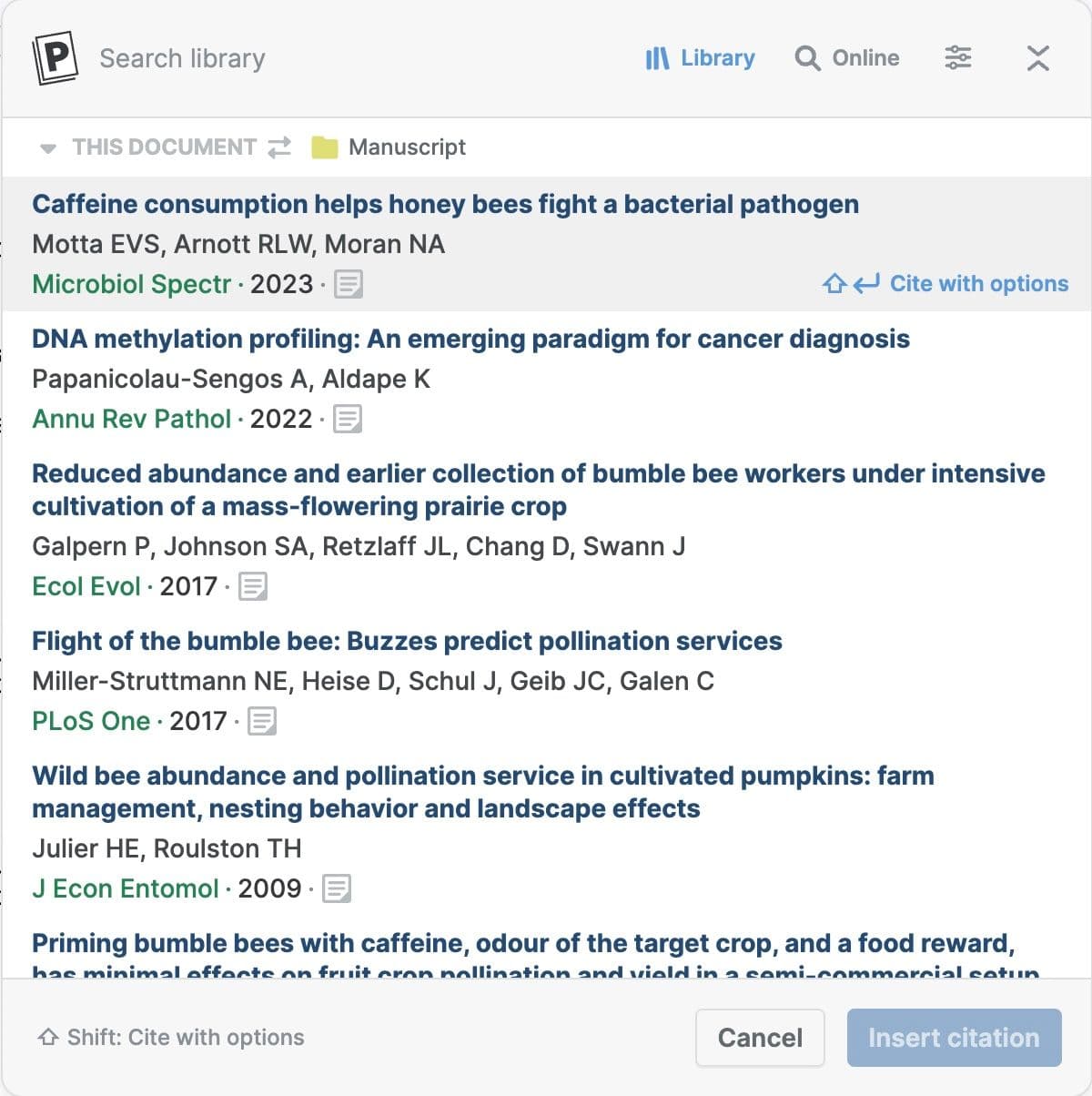
Paperpile is usually the fastest path. It fits browser capture, Google Drive PDFs, Google Docs writing, and shared documents. Zotero can still work, but Paperpile sits closer to the Google workspace.
Word or LibreOffice writers
Zotero is usually the better starting point. Its plugins cover more writing apps, and its desktop library fits thesis, grant, and journal work.
Paperpile's Word support is worth testing if Paperpile fits the rest of your work. I would pick it for Word only after the trial handles your real draft.
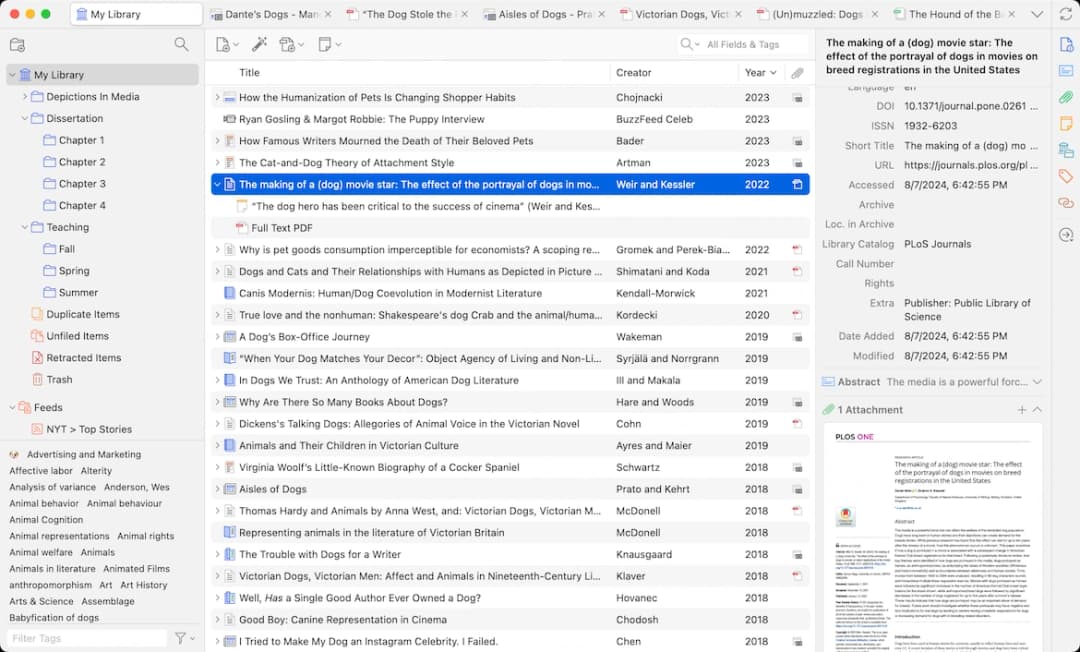
Zotero's desktop app keeps research collections, journal metadata, and attached files in one library view.
That feature set is the reason it fits Word, LibreOffice, plugin-heavy, and local-file workflows better than a managed Google library. The screenshot comes from the official Zotero homepage.
Lab groups and institutional teams
Start with the team's support environment. If the lab pays for Paperpile or runs in Google Workspace, Paperpile can cut setup work. If the institution trains on Zotero, has existing group libraries, or values open tooling, Zotero will usually age better.
Plugin-heavy researchers
Zotero is the better fit here. Use it when your workflow depends on Better BibTeX, custom exports, unusual note flows, or links to other research tools.
Open-source and local-file users
Zotero fits when you want open source, local files, and exports. It also reduces the risk of tying a long-term library to one vendor's web workflow.
Mobile and PDF readers
Test both with your own PDFs. Paperpile can feel smoother if you want Google Drive access across your apps. Zotero's PDF reader and notes are strong when annotations need to stay tied to a desktop library.
Mendeley, EndNote, and ReadCube Papers evaluators
If Mendeley, EndNote, or ReadCube Papers is also on the shortlist, treat that as a separate buying decision. This page compares Paperpile and Zotero because the core tradeoff is managed Google convenience versus open, portable reference control.
Add a third reference manager to the trial when your team is already weighing that product in the same buying decision.
Synthesis-heavy literature-review writers
Pick the citation tool before the reading layer. Then use a separate synthesis layer for the papers that matter. A 200-item library does not need to move into Atlas. The 8 to 20 papers that define an argument, disagreement, or method comparison often do.
If that is your bottleneck, keep the library in Paperpile or Zotero. Add the selected PDFs to Atlas and ask a narrow comparison question with citations back to the source text. For a narrower post-library task, the research paper summary AI guide covers cited summaries rather than reference-manager selection.
Atlas Follow-Up Workflow Comparison
Choose Paperpile or Zotero for the library work before you bring selected papers into Atlas. Use that tool to collect sources, keep metadata clean, manage PDFs, insert citations, and build bibliographies.
Use Atlas when you need to question a focused set of papers and keep the answer tied to source passages.
Atlas follow-up steps
A practical workflow looks like this:
- Build the library in Paperpile or Zotero.
- Choose the papers that answer one narrow question.
- Add those PDFs or academic papers to an Atlas project.
- Ask a narrow comparison question, such as
Which papers report limitations in the evaluation method, and how do those limitations differ? - Open the cited passages before you save or reuse a key claim.
- Save the verified synthesis back into your notes, outline, or draft.
This works because Atlas handles source-grounded questions over project materials. PDFs can become source material for close reading, search, chat, maps, and citations.
Atlas answers can link claims back to exact source passages. Multi-source synthesis can compare evidence across processed sources. A citation is a path for checking the source. Open the passage before you reuse an important claim.
What stays in the citation manager
That boundary matters for this comparison. Keep citation styles, Word and Google Docs plugins, and reference data in Paperpile or Zotero. Use Atlas for source-grounded reading and synthesis once you know which papers need a closer look.
For a broader tool-stack view, read the Atlas guide to citation tools for research. You can also compare the broader Zotero alternatives roundup and the direct Atlas vs Zotero boundary.
Final Recommendation
Use Paperpile if your daily work is Google Docs, Google Drive, browser capture, shared docs, and a paid managed setup. It fits teams that want the reference manager to feel native to Google Workspace.
Use Zotero if you want a more durable reference library. It is free to use and open-source. It stores files locally, lets you export data, works with plugins, and supports Word, LibreOffice, and Google Docs.
It is the default I would choose for researchers who expect to change schools, writing tools, or storage setups.
Do not force either tool to solve the synthesis job. Keep Paperpile or Zotero as the citation manager. When a paper set needs claim comparison and passage checks, move those selected papers into Atlas. Check the cited answer before it enters the draft.
Compare papers with cited answers in Atlas
Add key papers, compare claims, and inspect every cited passage.