


Students searching for "Copilot for students" usually see 3 products at once. GitHub Copilot helps with code. Microsoft Copilot helps with Microsoft 365 work. School Copilot Chat depends on your school account.
The right choice depends on the task in front of you.
If the assignment is code, start with GitHub Copilot Student.
If the assignment lives in Word, Excel, PowerPoint, OneNote, or Outlook, check the current Microsoft 365 student offer. If your school provides Microsoft 365 A1, A3, or A5, check whether Copilot Chat in Education is available through your school account.
For class readings, papers, citations, and source checks, compare Copilot with study and research tools.

Compare your class sources in Atlas
Add class sources, compare their claims, and inspect the cited passages.
Quick verdict
Use GitHub Copilot if you need IDE help with code, bugs, code explanation, or project setup. GitHub says students who pass GitHub Education checks can get free Copilot Student access. GitHub checks eligibility each month.
Use Microsoft Copilot or Microsoft 365 Copilot for Word, slides, sheets, notes, or school chat. First check the account type. These are not one plan. The AI page, student 365 offer, and school chat page describe separate paths.
Use NotebookLM, ChatGPT Study Mode, Claude for Education, or Gemini for study and practice. Use Atlas when a paper or class project needs sources you can compare, cite, and inspect.
My default chooser is:
-
GitHub Copilot: coding inside an IDE.
-
Microsoft Copilot: Microsoft 365 docs and account tasks. For the broader market, compare Copilot alternatives.
-
School Copilot Chat: chat your school provides.
-
Atlas: source checks over readings, papers, and other sources you add.
-
NotebookLM: studying from uploaded class materials. See the deeper NotebookLM for students guide when class files are the main source set.
-
ChatGPT Study Mode or Claude Learning Mode: guided tutoring and concept work.
-
Gemini: Google-connected study and productivity support.
What students mean by Copilot
The word "Copilot" is overloaded, so the first decision is which Copilot you mean.
GitHub Copilot Student
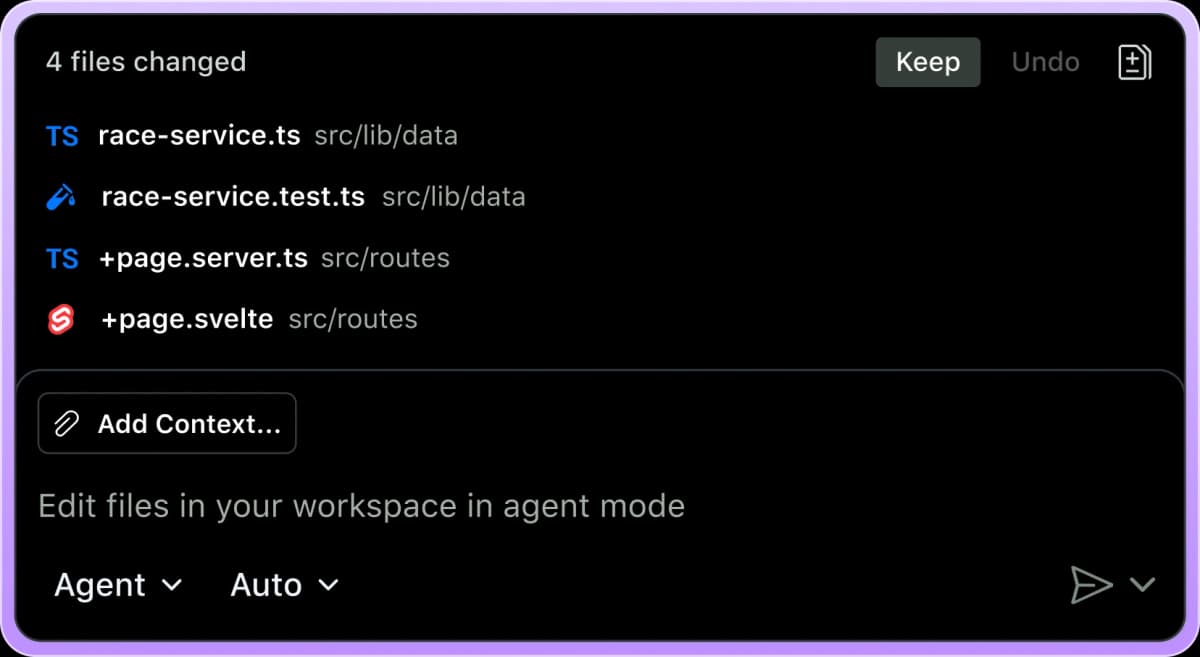
GitHub Copilot Student is the coding path. It belongs in VS Code, JetBrains IDEs, GitHub, and nearby developer tools. GitHub frames it around coding help. You still need to read generated code, understand the concept, and follow course AI rules.
Microsoft Copilot for students
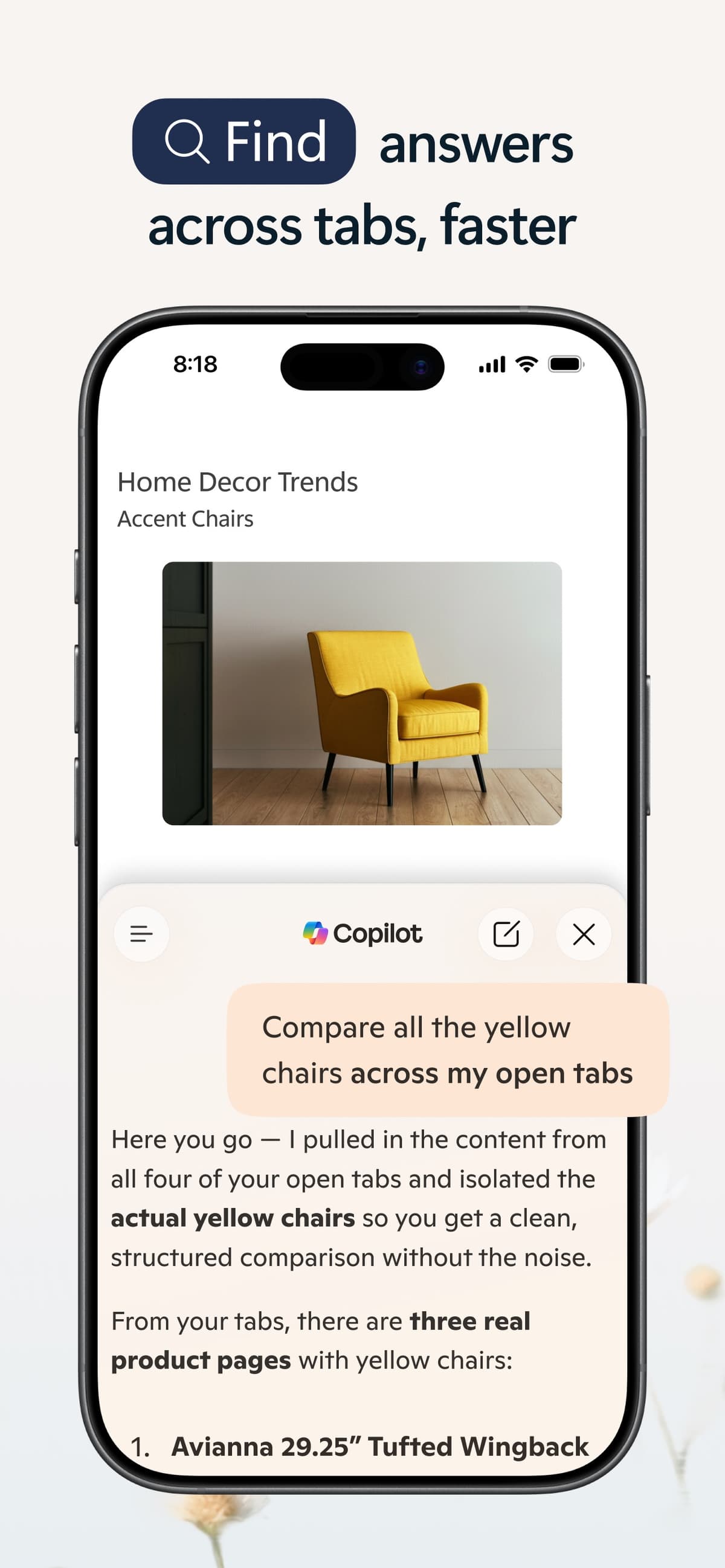
Microsoft Copilot for students is the consumer and Microsoft 365 path. Microsoft's student pricing page frames it around study help, web or mobile chat, and student 365 discounts. Those discounts can include Office apps and Copilot features. This path differs from GitHub Copilot even though both use the Copilot name.
Microsoft 365 Copilot Chat in Education
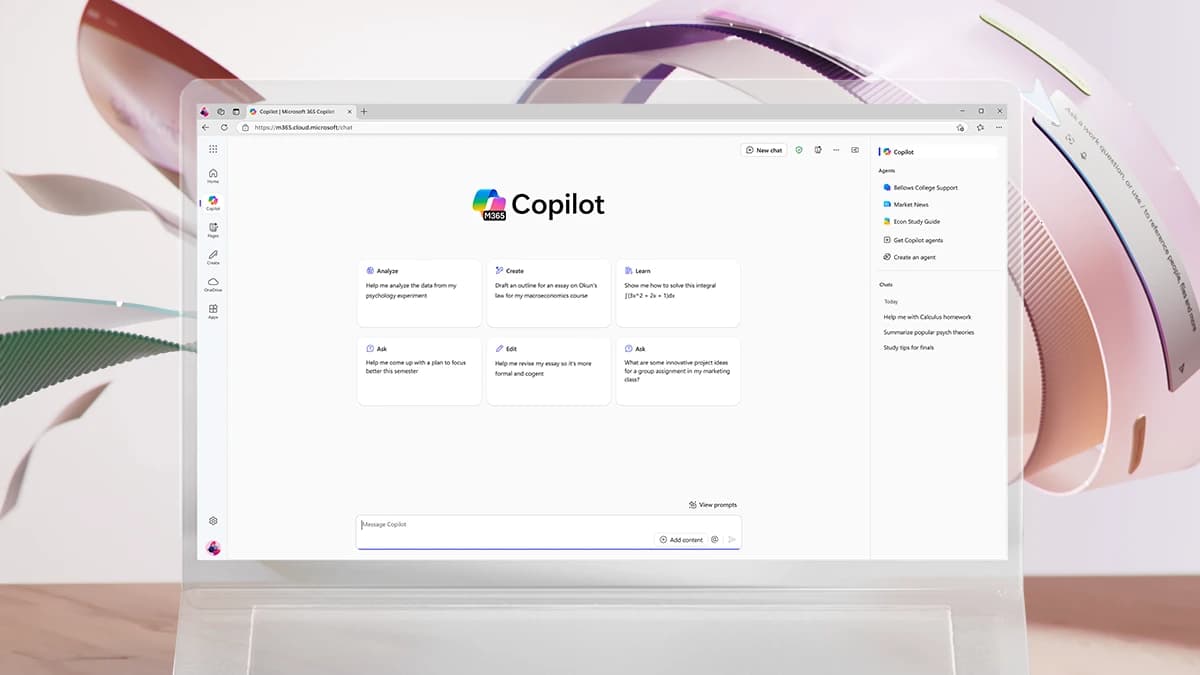
This is the school-account path. Microsoft says Copilot Chat is available at no extra cost for eligible A1, A3, or A5 users. You must sign in with a school or work account. The fuller Microsoft 365 Copilot experience is a paid add-on and depends on school setup.
Those distinctions matter because a student can be eligible for one path and not another. A GitHub-verified student benefit does not mean your school gives you Microsoft 365 Copilot. A Microsoft 365 student discount does not mean you have GitHub Copilot. A school-account chat rollout does not make Copilot the best tool for source-heavy research.
Copilot and student AI tools compared
Use this table to separate the jobs. The strongest tool changes with the assignment, source risk, and account you can access.
| Tool | Best student job | Access path to verify | Source grounding | Citation behavior | Coding fit | Study fit | Main limit |
|---|---|---|---|---|---|---|---|
| Atlas | Comparing readings, papers, PDFs, websites, and claims | Add sources to an Atlas project | Built around project sources, retrieval, synthesis, and citation badges | Citation badges let students open the passage before using the claim. | Low | High for research and cited writing | Use Atlas for source checks after coding or Office work. |
| GitHub Copilot Student | Coding, debugging, and code explanation | Verified GitHub Education access | Uses code, repo, IDE, and prompt context | Helps explain code. Academic claims need another source check. | High | Medium for programming | Access and model rules can change. Generated code still needs review. |
| Microsoft Copilot for students | Study prompts and Microsoft account work | Microsoft Copilot and Microsoft 365 student pages | Depends on the product surface | Useful for drafts and plans. Cited claims still need checking. | Low | Medium | Features differ by account, app, subscription, and region. |
| Microsoft 365 Copilot Chat in Education | School-account chat and file help | Eligible A1, A3, or A5 school/work account | Microsoft says Copilot Chat includes web grounding and file uploads | Helpful for school work. Citation strength depends on sources and setup. | Low | Medium | Institution access and app-integrated Copilot use different licenses. |
| NotebookLM | Studying from uploaded class materials | Google NotebookLM student or education pages | Strong fit for source sets the student provides | Shows citations to provided material. Students should open the passage. | Low | High | Best when the source set is known. |
| ChatGPT Study Mode | Tutoring, exam prep, and concept practice | Logged-in ChatGPT account | Uses chat context and available uploads | Good for guided learning. Source claims still need review. | Medium for explanation | High | It can make mistakes, and study value depends on student use. |
| Claude for Education | Guided reasoning and academic templates | Campus access or Anthropic education programs | Works with supplied conversation or project context | Can help draft and reason. Citation claims still need inspection. | Medium for explanation | High | Institution access is separate from normal individual access. |
| Gemini for students | Google-connected study help | Current Gemini student or Google AI Pro pages | Stronger with Google-connected work and uploaded material | Useful for study support. Important claims still need review. | Low to medium | High | Student offers, regions, and limits can change. |
Table 1: The table separates Copilot-branded student tools from study and research tools by the job each one handles best.
How I would read this table
Use the task verb to read this table. Code, debug, refactor, and explain point to GitHub Copilot. Draft, format, summarize, and work in Office files point to Microsoft Copilot.
Compare, cite, and reconcile readings point to a source-checking tool where you can inspect the passage.
What to look for
Before choosing a tool, check 5 things:
- Does the tool match the assignment: code, Office work, study, or cited writing?
- Does your account actually include the feature you plan to use?
- Can you see which source supports a claim?
- Can you open the passage before you reuse the answer?
- Can you explain the final work under your course AI policy?
When GitHub Copilot fits
GitHub Copilot is the right Copilot when the student's job happens in code. It is useful for:
- completing boilerplate while you stay in the IDE
- asking why a code block behaves a certain way
- generating first-pass tests or examples
- debugging an error message
- turning a small specification into starter code
- learning new syntax by comparing suggestions with course notes.
That strength is also the boundary. GitHub Copilot can help with code, but you still need to understand what it wrote. In a class, a working program only answers 1 part of the grade. You need to explain it, change it, and show that it follows course rules.
The UC San Diego classroom case study in the brief treats Copilot as industry prep with assessment rules. That is the right posture for student developers. Use Copilot to get more feedback and iteration. Then prove what you know through your own notes, tests, and course-approved work.
If your course bans AI help for a task, do not use Copilot on that task. If your course allows AI help, keep a record. Note what you asked, what the tool suggested, what you changed, and which parts you can explain.
Best Copilot alternatives for student workflows
1. Atlas for source checks
Choose Atlas after you have sources to compare and check. That can include PDFs, websites, papers, assignment briefs, notes, or other project sources. The better Atlas question is, "Which source supports this claim, and can I inspect the passage before I use it?" For a broader research-tool view, compare the workflows in AI tools for academic research.
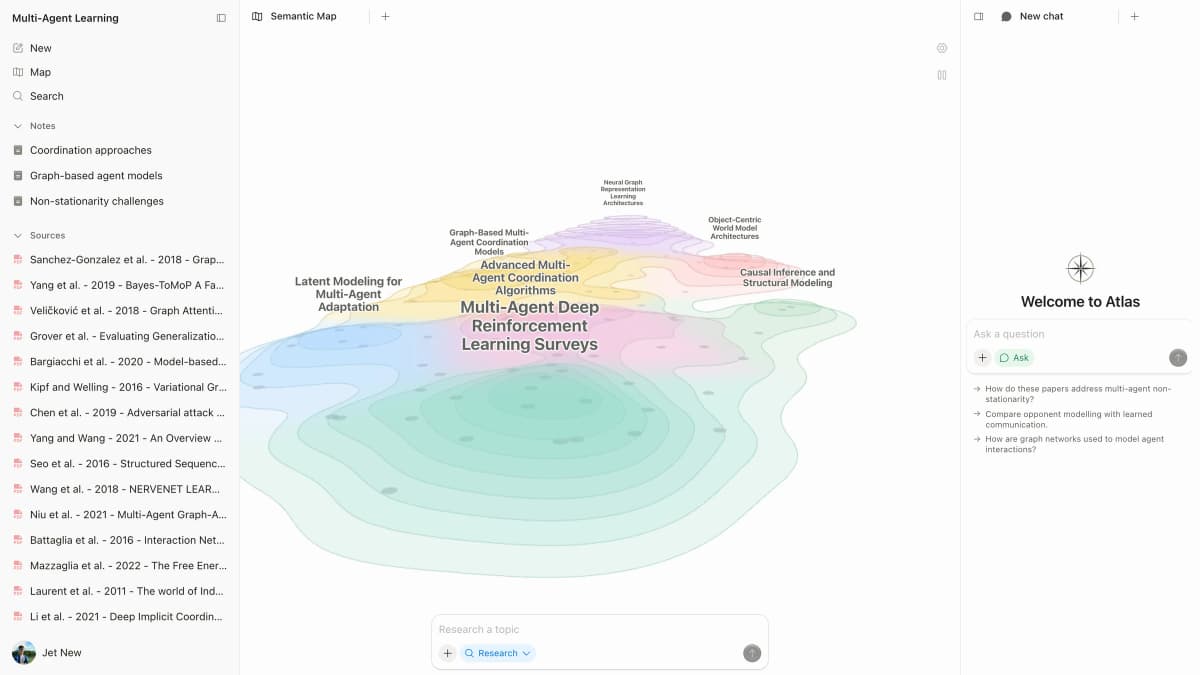
Atlas handles a different job from GitHub Copilot's IDE support and Microsoft's Office app help. Use it for source-heavy assignments. Add the sources. Ask a focused question. Compare answers. Open citation badges. Save only claims that survive the source check.
Here is a concrete Atlas handoff after choosing a coding, Microsoft 365, or study tool:
- Add the class PDF, lecture note, assignment brief, website, or paper set to an Atlas project. If most of the work is PDFs, the AI PDF analyzer guide shows the same source-first pattern.
- Ask a focused source question, such as "Compare these 3 sources on retrieval and cite each claim." For multi-file review, the document comparison workflow is the closest adjacent use case.
- If the answer blends sources together, ask for a table with columns for claim, proof, limit, and source link.
- Open the citation badges for the claims you plan to reuse.
- Check whether the cited passage supports the claim, whether the answer overstates it, and whether nearby text changes the meaning.
- Save the synthesis only after the source check.
Atlas works best here when the source trail matters. The answer, source badge, and passage stay close enough to check before you use the claim.
This source check is slower than copying a chatbot answer. That tradeoff is worth it when you need to show evidence. A citation gives you a path to inspect. For student writing, the source passage still has to support the sentence you put in the draft.
2. Microsoft Copilot for Microsoft 365 work
Choose Microsoft Copilot when the task sits in Word, PowerPoint, Excel, OneNote, Outlook, or web and mobile study prompts. The current student discount page covers Microsoft 365 Personal for students. It includes Office apps, 1 TB of storage, and Copilot features. The page also tells students how to prove status, renew, and check use limits.
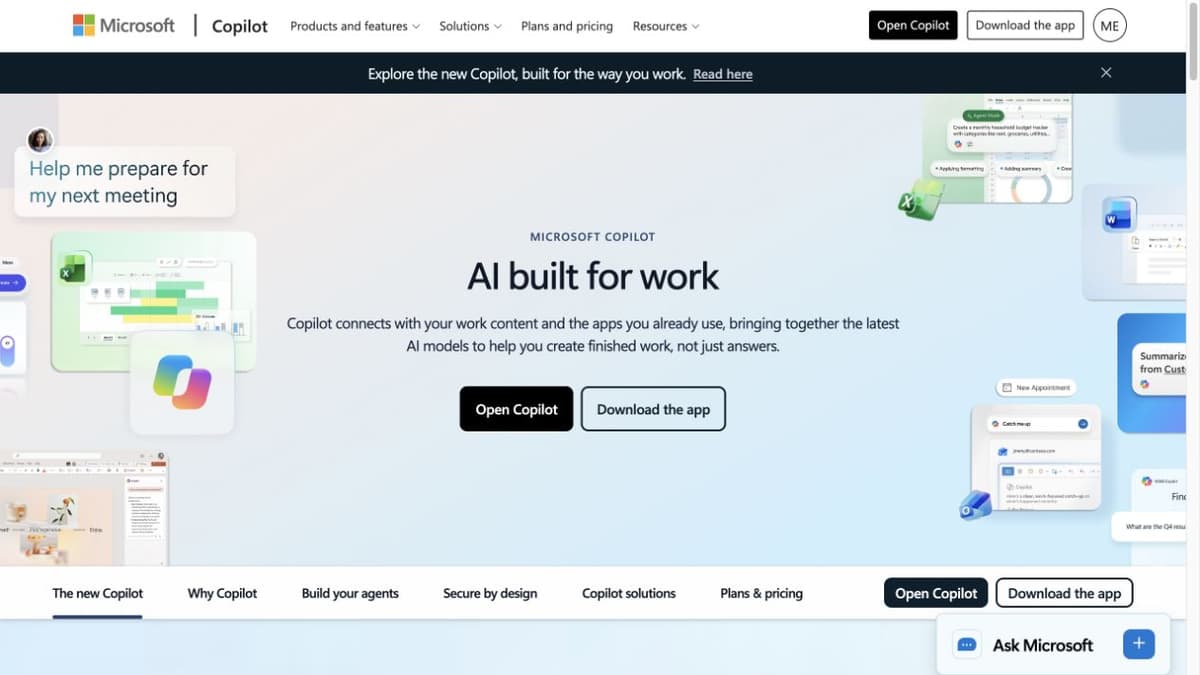
The limit is product sprawl. "Microsoft Copilot" can mean consumer chat, Microsoft 365 Personal app features, school Copilot Chat, or the paid Microsoft 365 Copilot add-on. Before you compare tools, write down which account you will use. It may be a personal account, a school account, or a school-run Microsoft 365 tenant.
3. NotebookLM for studying from class materials
Choose NotebookLM when you have a set of class materials and want study guides, summaries, quizzes, flashcards, and source-linked answers. Google's education page fits the prompt "Help me study these readings" better than an open-web answer.
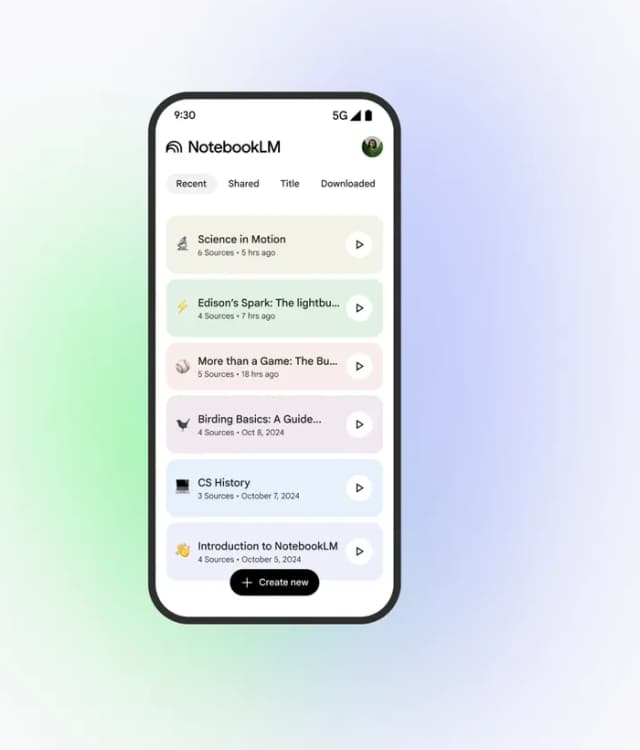
The limit is source checking and scope. Source-linked does not mean true. If a NotebookLM answer cites a passage, open the passage. Check whether it supports the sentence you plan to reuse. If the question needs sources outside the upload set, add those sources or use a discovery tool first.
If the assignment starts with source discovery instead of a fixed upload set, compare this path with Perplexity for students or SciSpace for students.
4. ChatGPT Study Mode for guided tutoring
Choose ChatGPT Study Mode when you want the tool to guide you through a concept. It should not just hand you a finished answer. OpenAI describes Study Mode as step-by-step help with prompts, hints, and checks. That is a better match for homework practice, exam prep, and concept review than a one-shot answer box.
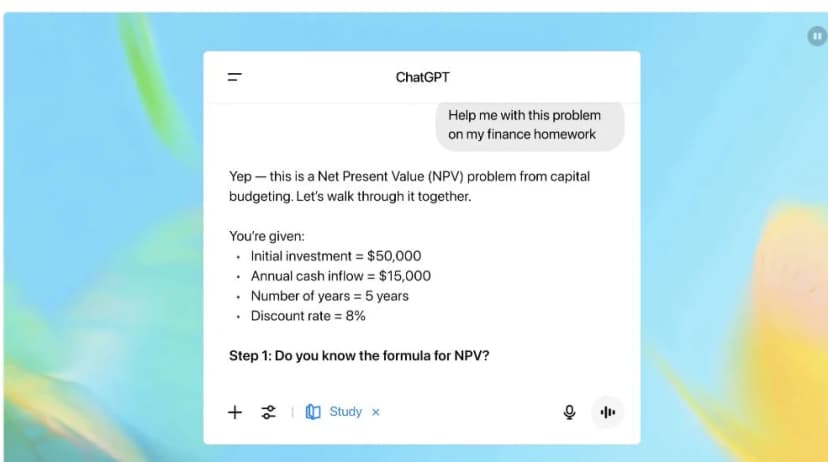
Guidance is still separate from proof. Study Mode can help you learn a topic. For cited writing, bring the source material into a tool where you can inspect passages.
For a wider list of study-focused options, use the best study apps for college students comparison before you commit to one tool.
5. Claude for Education
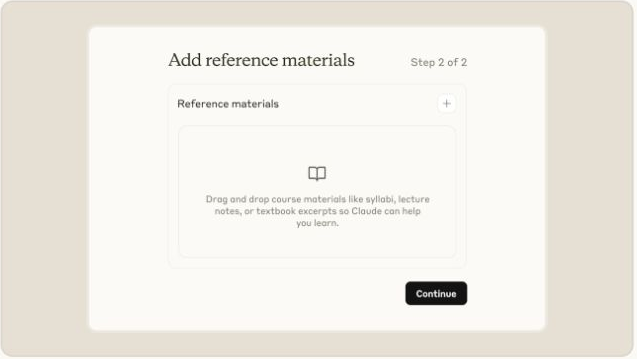
Choose Claude for Education if your school provides access. It fits tasks that need guided reasoning, study prompts, outlines, or writing feedback. Anthropic describes Learning Mode as a way to guide reasoning instead of giving quick answers.
The limit is access. Claude for Education is mainly a campus product. If you use a normal individual Claude account, compare the features in your account with the task in front of you.
6. Gemini for Google-connected study support
Choose Gemini for students when your schoolwork already lives in Google tools. Also check the current Google AI for students offer when AI Pro features matter for class. Gemini and NotebookLM can help with long readings, study plans, and Google work.
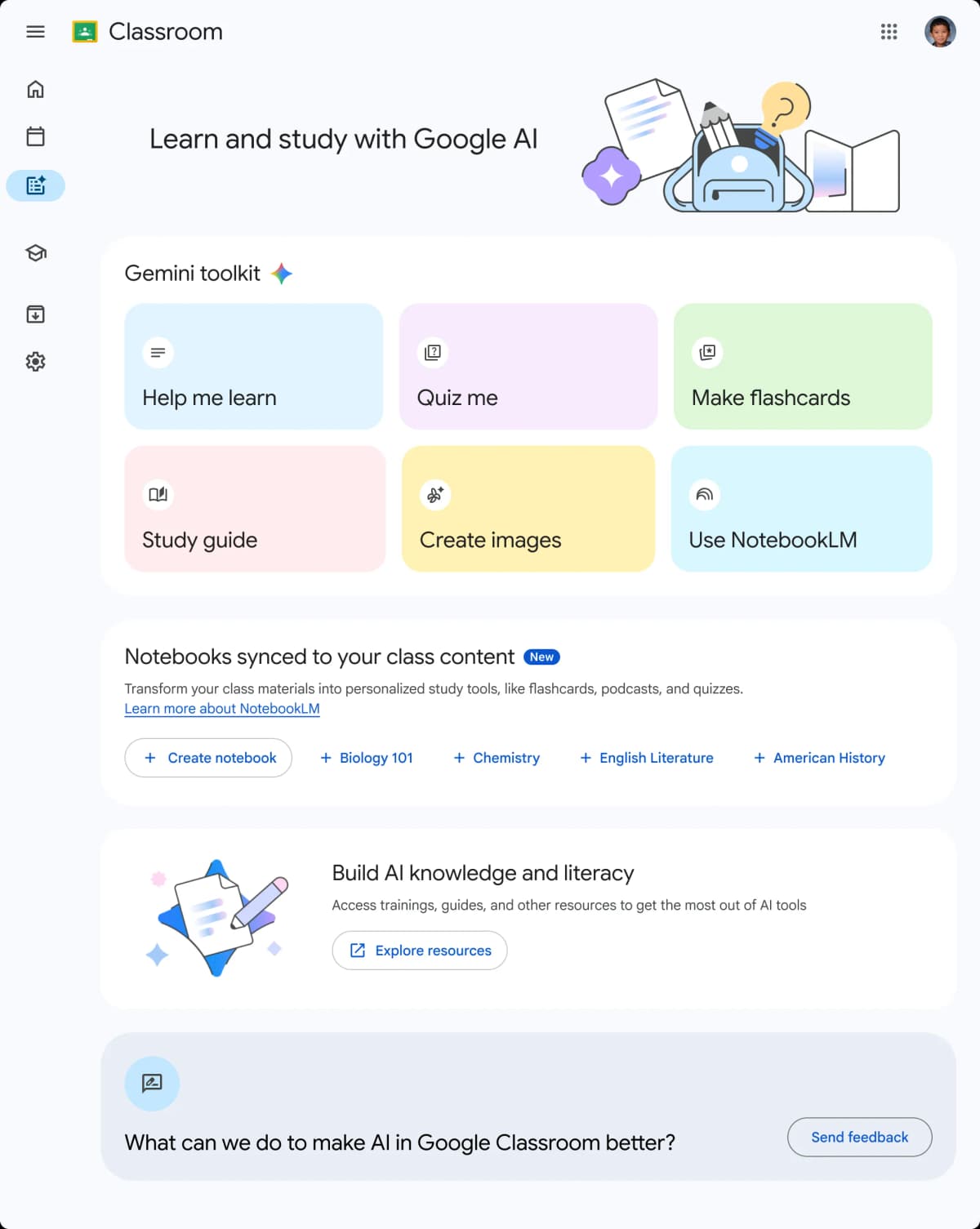
The limit is offer churn. Student offers can change by date, region, school, and account type. Check the current Gemini student page with your own account before you plan around a promo limit.
Where Atlas fits after Copilot
Atlas fits after the student has chosen the right tool for the first part of the assignment. Use Copilot for code or Microsoft 365 work. Use a study mode for concept practice. Move source claims into Atlas when you need to compare readings and inspect source links.
The decision point is the evidence risk. If an answer will become a cited sentence, a literature-review note, or a project claim, the student needs a source trail. Atlas helps with that source trail by grounding answers in project sources. It also keeps key claims tied to citation badges.
Use this handoff:
- Keep Copilot where it is strongest: IDE, Microsoft 365, or school chat.
- Move the readings, PDFs, websites, or papers that support the assignment into an Atlas project.
- Ask Atlas the source question, synthesize sources, open citation badges, and save only claims the passages support. The same habit matters in research paper AI workflows, literature review AI workflows, and source synthesis.
Which tool should students choose?
Choose by assignment type:
- Coding assignment: GitHub Copilot first, plus your IDE, tests, course notes, and instructor rules.
- Office doc, sheet, or deck: Microsoft Copilot or Microsoft 365 Copilot if your account includes that surface.
- School chat: Microsoft 365 Copilot Chat if your school provides access.
- Exam prep or concept learning: ChatGPT Study Mode, Claude Learning Mode, Gemini, or NotebookLM. Pick based on the material and account you have.
- Studying from uploaded readings: NotebookLM is often the cleanest first stop.
- Cited paper or literature review: Atlas after you add the sources and check the source passages. If the work starts with files, compare document AI tools first.
- Group project: Pick the tool that fits the deliverable. Keep a record of prompts, outputs, source checks, and human edits.
For adjacent research workflows, compare literature review software, AI research assistants, AI reading assistants, and AI document summarizers.
The best student AI setup is rarely one tool for everything. Use GitHub Copilot for code. Use Microsoft Copilot for Microsoft 365 work. Use study modes for learning support. Use Atlas when your conclusion has to trace back to class sources or papers. Course policy comes first, especially for AI academic writing. After that, build the habit of source inspection. Open the citation, read the passage, and keep only claims the source can support.
Compare AI research tools
Compare your class sources in Atlas
Add class sources, compare their claims, and inspect the cited passages.